Collections, Pairing, and Decks
Collections, pairings, and decks connect cards for different reasons. Understanding that distinction makes the larger workflows much easier.
For individual definitions, see What Is a Collection?, What Is Pairing?, and What Is a Deck?.
For the deck-source filter workflow, see Use Collections While Building a Deck.
Collections organize the library
A collection is a named grouping of saved cards. Adding or removing membership does not duplicate or delete the card. Use collections for folders, projects, themes, or any grouping that helps you browse.
Pairing connects printable faces
Pairing tells the app which front and back cards belong together for browsing, export, and deck workflows. One back can be shared by several fronts.
To pair cards:
- Create and save a back-facing card such as Labelled Back.
- Open its Pairing inspector tab.
- Choose Manage paired fronts.
- Select one or more front-facing cards.
- Choose Confirm.
For front-side pairing, multiple backs, unpairing, and safety warnings, see Pair and Unpair Card Faces.
Decks model a playable system
A deck is structured rather than just grouped:
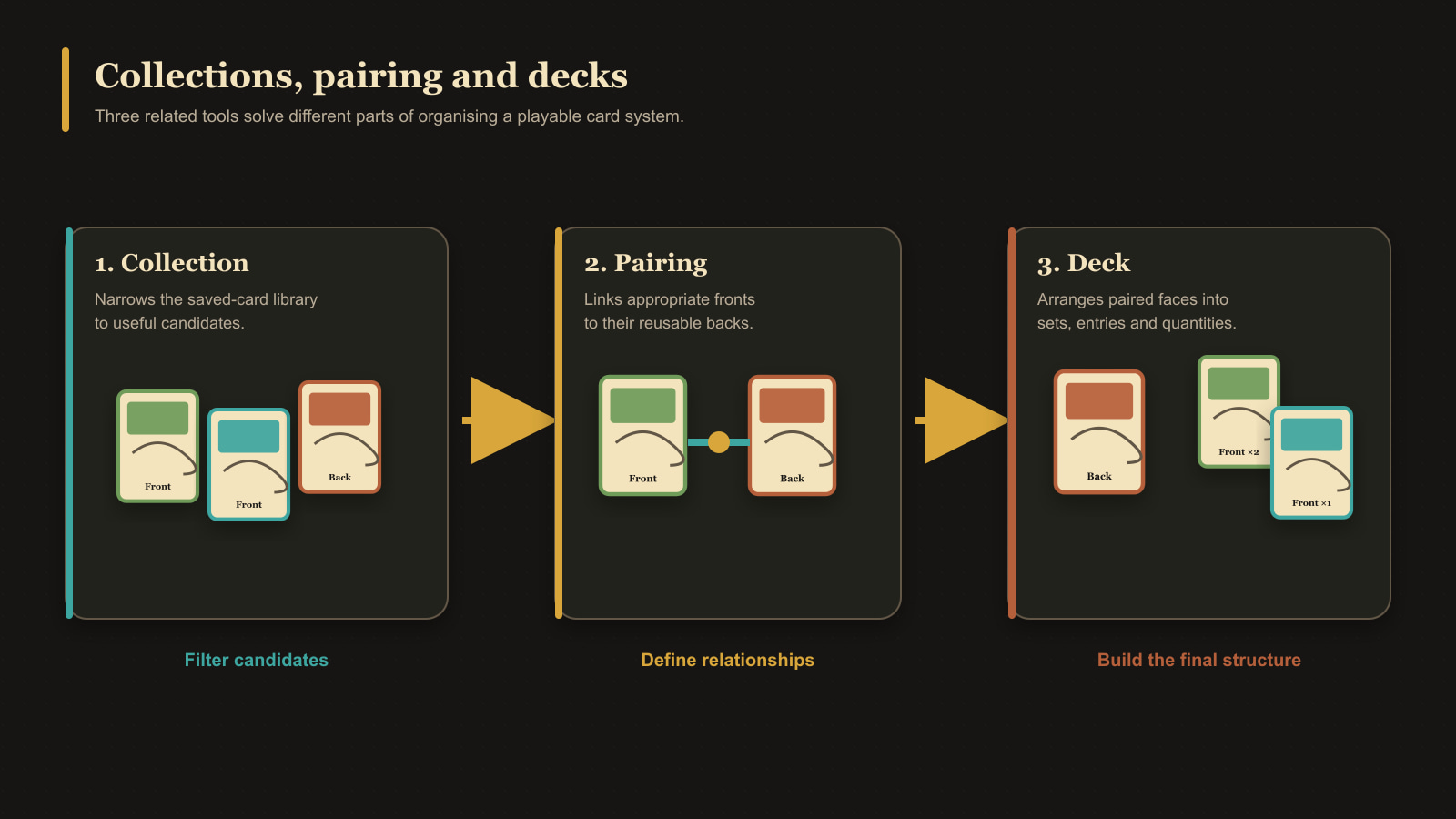
- Groups divide the deck into larger sections.
- Sets are anchored by back faces.
- Entries are front faces inside a set.
- Quantity controls how many copies an entry contributes.
- Pairing helps the deck connect set backs with valid front cards.
The source panel separates Back faces and Front faces so each is dragged into the correct structural role. Removing an entry from a deck does not delete its saved card.
Removing a pairing is different from removing an entry. If a deck entry depends on the exact pairing being removed, the app warns that confirming will also remove that dependent entry. Use Open deck in the warning to inspect the affected location first.
For a complete first-deck procedure, see Create and Build a Deck.
Export eligibility
An empty deck cannot be exported. The main Export control becomes available once the first set exists. Deck PDF export then offers scopes such as Complete sets, All sets, and Selected sets. It can produce fronts-only or front-and-back output and supports paper size, orientation, duplex presets, bleed, marks, and reusable Export Profiles.
See Export Cards as PNG Images for the deck's unique-image export, or Export a Deck as PDF for quantity-aware print sheets.
Build the deck
Drag a back face onto the visible empty card slot inside Groups to create a set. Select that set, then drag fronts onto the empty slot in Entries. If the back already has paired fronts, the app adds them to the new set automatically.