Understand App Navigation
The app keeps its main destinations and common app-wide actions in the navigation on the left. The header identifies the app and provides community links, while the footer shows version and app-type information.
Return to the current card
When a saved card is active, its thumbnail and title appear at the top of the navigation. Choose it from Cards, Decks, Assets, or another workspace to return directly to that card in the Card Editor.
This is a shortcut to the card already open in the editor. It does not create or duplicate a card.
Start a new card
Choose New to open Choose a template. Select the layout for the card you want to create, or close the window to leave the current card unchanged.
If the current card has unsaved changes, the app protects them before it replaces the editor with another card or draft. See Save or Discard Card Changes.
Open the main workspaces
The primary navigation contains:
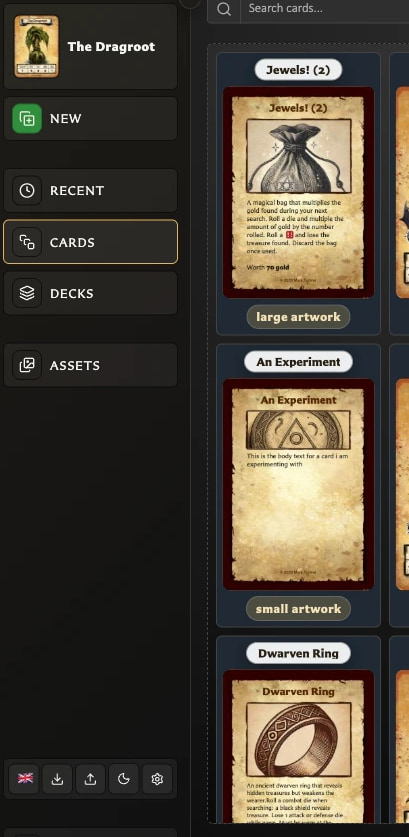
- Recent for cards you viewed recently.
- Cards for the complete saved-card workspace.
- Decks for deck projects.
- Assets for reusable artwork and icons.
These destinations change the main workspace. Your saved card remains available through the current-card shortcut.
Use the quick-action strip
The small controls near the bottom provide app-wide actions:
- Language changes the visible interface language.
- Export library creates a portable library backup.
- Import library replaces the current library from a backup.
- Theme switches between Light, Dark, and System.
- Settings opens the complete preferences window.
Import and export are library operations, not card-image export. See Back Up and Restore Your Library.
Expand or collapse the navigation
Use the arrow at the top to switch between labelled and compact navigation on a wide desktop window. Compact mode keeps the icons and accessible labels while giving the workspace more room.
At widths of 1280 pixels or less, the app keeps the navigation compact automatically. If Expand navigation appears to do nothing, widen the browser window beyond that point and try again.
Read the header and footer
The header contains the app name, rating prompt, and official community links. The footer shows:
- The running version, such as v 0.8.0. Choosing it opens the matching release page.
- The app type, such as App: Web or App: Tauri.
- Creator and social links.
The running version is useful when checking whether instructions or a reported problem apply to your copy.