Understand Card States and Saving
The status near the top of the Card Editor tells you whether the card already exists in Cards and whether the preview contains changes that still need to be saved.
The three states
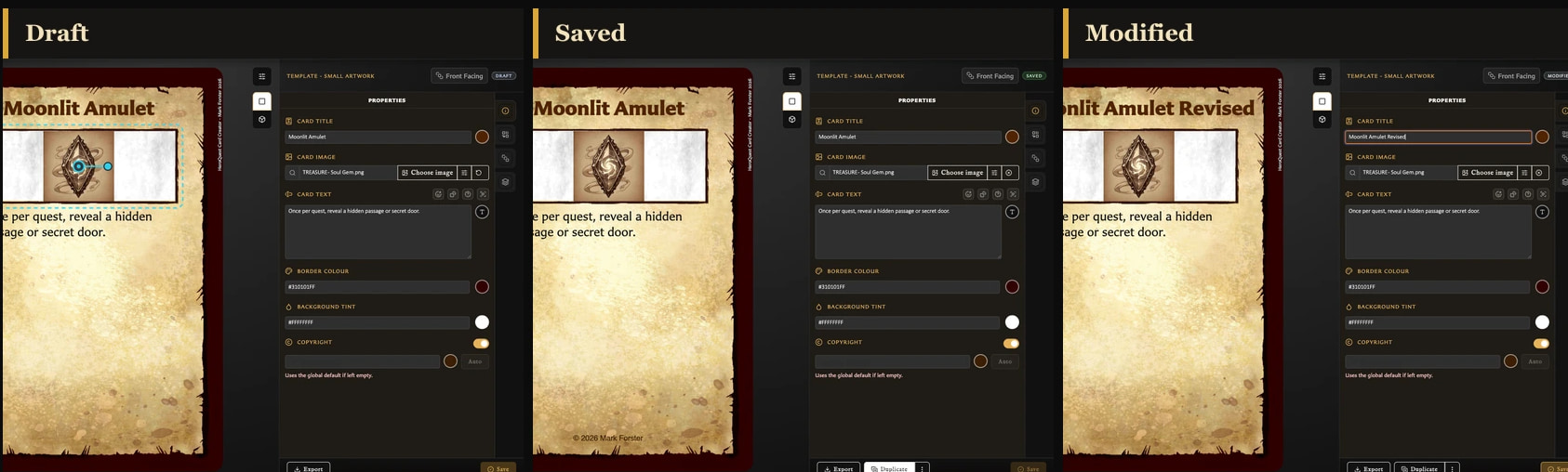
- draft means the card has not yet been saved as its own library card.
- saved means the open card matches the version currently stored in the library.
- Modified means a saved card is open, but the editor contains newer unsaved changes.
The live preview updates before saving, so seeing a change on the card does not by itself mean the library copy has been updated. Check the status and the Save action.
What does Save do?
The same Save action has two jobs:
- On a draft, it creates a new saved card and changes the status to saved.
- On a modified saved card, it updates that same card and returns the status to saved.
Saving an existing card does not create another copy. Use Duplicate when you want a separate card based on the current one.
Why is Save unavailable?
Save requires a non-empty identifying field. Depending on the template, this is the card title, name, or back label.
Save is also unavailable when a saved card has no unsaved changes. This is normal: the current editor already matches the library copy.
What is kept automatically?
Work on a new draft is kept locally so that the draft can resume after an ordinary reload. It is still a draft, not a card in Cards, until you choose Save.
Do not treat this as a substitute for saving. Choosing Discard, replacing the draft with another new card, clearing the app's local data, or deliberately leaving without saving can remove the in-progress work.
Changes to an existing saved card are represented by Modified and should be saved explicitly.
Which actions require a saved card?
Drafts can be edited, previewed, exported, and saved. Actions that need a permanent library card are unavailable until the first save, including:
- Duplicate.
- Managing collection membership.
- Managing pairings.
- Showing the card's deck relationships.