Create and Organize Collections
Create a collection
- Open Cards.
- In the Collections panel, choose New collection.
- Enter a unique Collection name.
- Optionally add a description explaining the collection's purpose.
- Choose Create.
The new collection becomes the active Cards filter. Because it starts empty, return to All cards, Recent, or another populated view before selecting cards to add.
Rename, describe, or delete collections
- Choose Manage collections at the bottom of the Collections panel.
- Choose Edit collection beside a collection to change its full name or description.
- Choose Delete beside a collection when the grouping is no longer needed.
- Choose Cancel to leave management mode.
Deleting a collection does not delete its saved cards. Cards that no longer belong to any named collection appear in Unfiled.
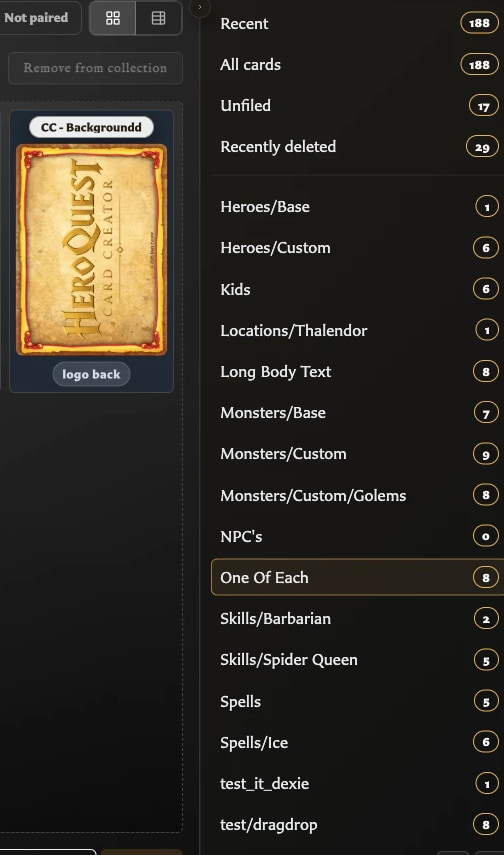
Group collections into a tree
Tree view is useful when a flat list has become difficult to scan.
- Open Settings.
- Choose Collections.
- Enable Group collections by folders.
- Use
/in collection names to create folder paths.
For example, spells/fire and spells/air appear as Fire and Air inside a collapsible Spells folder. The folder is only a visual grouping; Fire and Air remain the actual collections you can select or use as drop targets.
Use Collapse all and Expand all at the bottom of the Collections panel to control a larger tree. The tree setting and expanded folders are remembered in the current browser profile.