Library, Asset, and Collection Questions
These concise answers use the same wording captured during product exploration. Follow the linked guide when you need fuller context or step-by-step instructions.
How do I reopen a saved card?
In Cards, select one card and choose Load, or double-click it.
What does single-clicking a saved card do?
One click selects a card for library actions; it does not open it.
Can I open a saved card by double-clicking it?
Double-click opens the selected saved card directly.
Why is my asset library empty?
Artwork is not preloaded into a new browser profile.
Is there a free starter artwork collection?
Assets onboarding links to a free artwork ZIP that must be extracted before upload.
How do I upload my own images?
Open Assets, choose Upload, and select PNG, JPEG, or WebP image files.
Can I upload several images together?
The upload chooser accepts multiple image files in one batch.
Where can I find recently uploaded images?
The latest successful upload batch appears under Recently uploaded; an earlier batch returns to its kind group.
What information does the app store about an asset?
Asset details show the image kind, file type, dimensions, size, date, and card usage.
What is an asset kind?
Asset kind organizes an image for Artwork/Icon field filtering and can be overridden without changing the file.
How do I replace an image used by cards?
Replace changes the selected library image everywhere it is used. Cards continue using the replacement image.
Can I convert a PNG to JPEG to reduce its size?
A fully opaque PNG exposes Convert to JPEG and the file type changes, but v0.8.0 leaves the displayed filename ending in .png.
How can I tell which cards use an image?
Used on cards is intended to list cards using an image. In version 0.8.0 it can incorrectly report zero, so check likely cards before replacing or deleting an image.
How do I search for a saved card?
Use the saved-card search in Cards. It matches the saved library name and, where different, the printed card title.
How do I filter, sort, or group saved cards?
Cards supports template filtering plus sort and group selectors.
Can I view saved cards in a table?
Use the Grid/Table view selector; the preference persists locally.
How do I select and act on several cards?
Ctrl/Cmd-click builds a selection; Select all/none and bulk actions use it.
How do I create a collection?
Choose New collection, enter its name/description, and Create.
How do I add cards to a collection?
Select cards, choose Add to collection, and choose a target collection.
Does removing a card from a collection delete it?
Removing collection membership does not delete the saved card.
What does Unfiled mean?
Unfiled contains cards that belong to no named collection.
What happens when I delete a card?
Soft delete moves cards to Recently deleted, but the same dialog also exposes permanent deletion.
How do I delete a card without losing it permanently?
Choose Move to recently deleted in the Delete confirmation for a recoverable deletion.
How do I restore a deleted card?
Open Recently deleted, select the card, and Restore.
Where can I permanently delete a card?
Permanent deletion is available from Recently deleted and from the normal Delete confirmation. Read the confirmation carefully before choosing it.
What happens if I delete the card currently open in the editor?
Deleting the active card clears it from the editor; restoring does not automatically reopen it.
What is a collection used for?
Collections group saved cards for finding, filtering, project organization, and collection-scoped export.
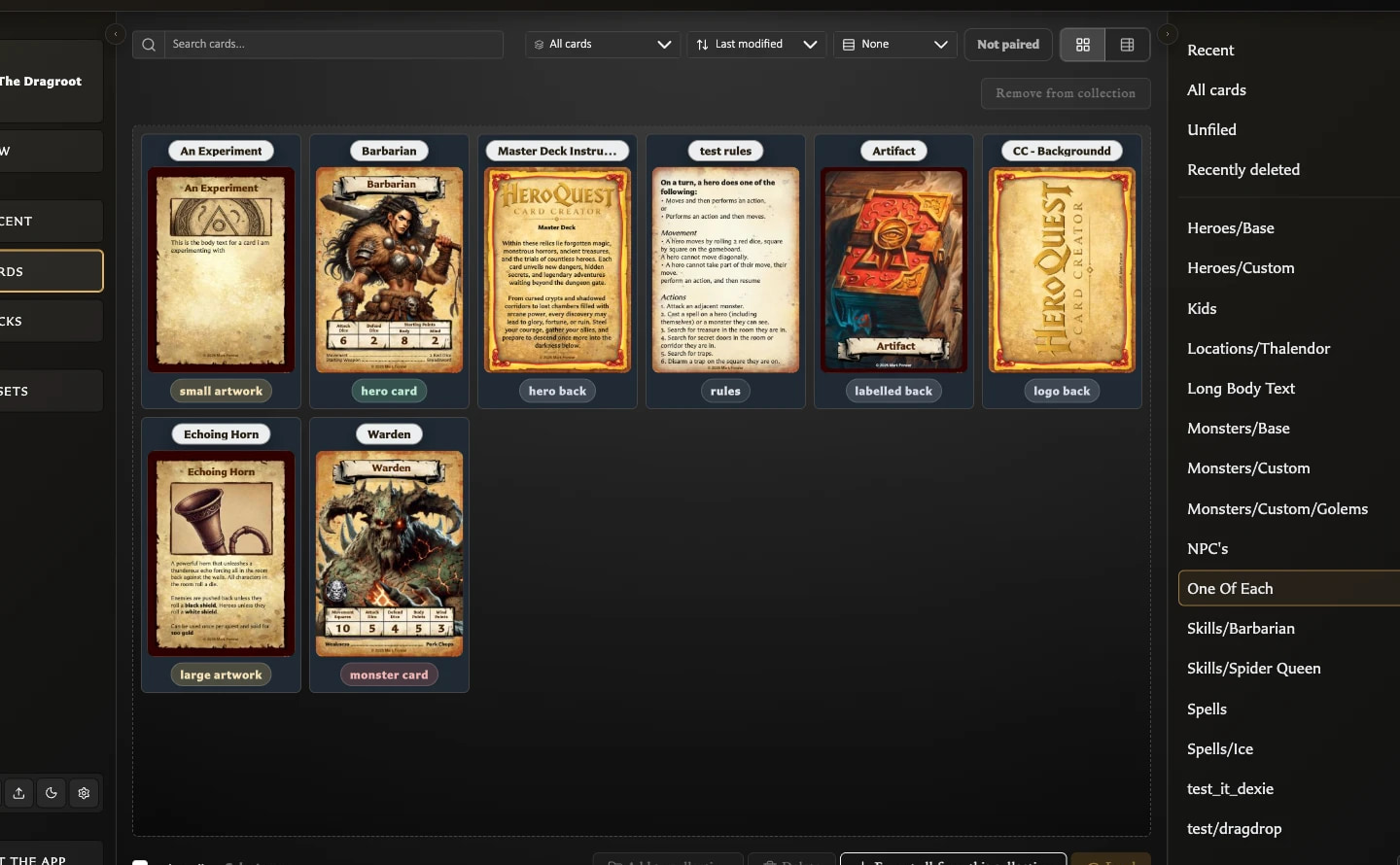
When should I use a collection instead of a deck?
Use a collection for flexible library organization; use a deck when order, quantities, backs, sets, or printable play structure matter.
Where can I find my collections?
Open Cards; collections and their counts appear in the right Collections panel or its narrow-screen drawer.
How do collections filter the Cards workspace?
Choosing a named collection limits Cards to its members, after which search and template filters can narrow the result further.
How do I add one or several selected cards to a collection?
Select one or more cards, choose Add to collection, choose a destination, and choose Add.
How do I drag selected cards into a collection?
Select one or more cards, then drag any selected card tile onto the destination collection; the full selection is added.
How do I remove cards from a collection without deleting them?
Inside a collection, select cards and choose Remove from collection; the cards remain saved and become Unfiled if they have no other memberships.
How do I rename, describe, or delete a collection?
Choose Manage collections to expose Edit collection and Delete actions; editing changes the name/description, while deleting removes the grouping rather than its cards.
How do I enable collection tree view?
Open Settings > Collections and enable Group collections by folders.
How do collection names create folders in tree view?
In tree view, slash-delimited names such as spells/fire create collapsible folder paths while the full named collection remains the leaf.
How do I manage collection membership for the card open in the editor?
On a saved open card, use the Collections inspector tab to add or remove that card from one or more collections.
How do I view my recent cards?
Choose Recent in the left navigation, then choose a card from the last-viewed time groups to open it in the editor.
What is the Cards workspace for?
Cards is the saved-card library for finding, reviewing, selecting, organizing, exporting, reopening, and recovering cards.
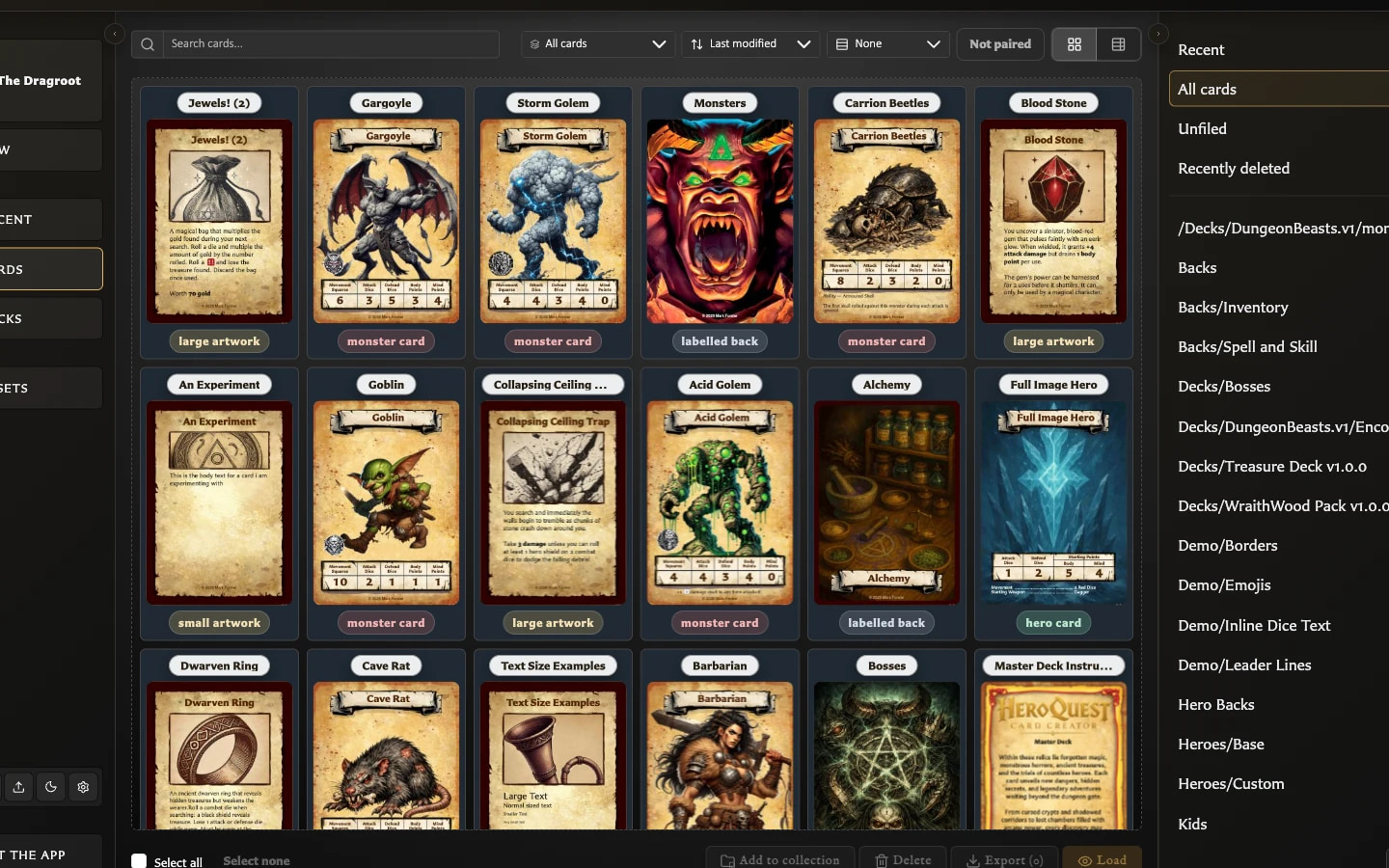
What are the main areas of the Cards workspace?
Cards contains find-and-arrange controls, Grid or Table results, contextual selection actions, and a Collections panel that chooses the broad library scope.
What does the pairing-status filter show?
Pairing status can show All cards, cards without a current pairing, or cards that are already paired. Changing the filter does not remove or change any pairing.
Why are Cards workspace actions enabled or disabled?
Cards actions are enabled only when the current selection and scope provide a valid target; for example, Load requires exactly one selected card.
What is the Assets workspace for?
Assets is the reusable local image library for artwork and icons selected while editing cards.
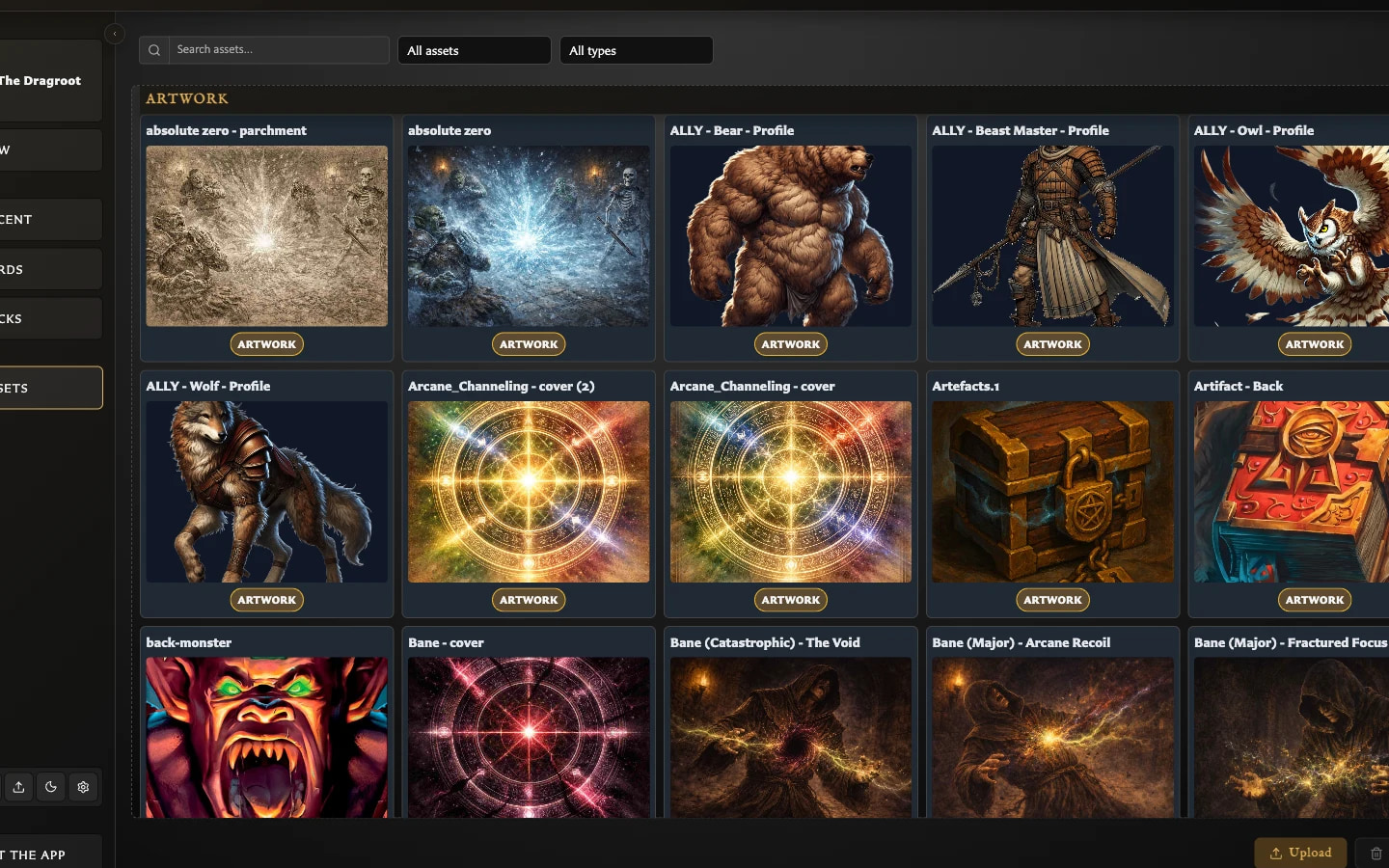
What are the main areas of the Assets workspace?
The workspace contains search and filters, Resources, a grouped image grid, Upload/Delete actions, and a contextual inspector.
How do I search and filter assets?
Search by stored filename, then combine it with asset-kind and current MIME-type filters; clear all three to restore the full grid.
What is asset kind and how do I change it?
Asset kind organizes images as Artwork, Icon, or Unclassified; select the kind badge to override automatic classification.
How do I select and inspect several assets?
Ctrl/Cmd-click toggles individual assets, Shift-click selects a range, and Previous/Next reviews a multi-selection in the inspector.
What does the Assets inspector show?
The inspector shows a preview, filename, asset kind, file type, dimensions, size, date, card usage, and the actions available for the current selection.
How do I preview an asset and find cards using it?
Click the inspector preview for a full-size view; Used on cards should identify linked cards, but the live saved reference was missed in v0.8.0.
What happens when an upload is a duplicate or has an existing filename?
Exact image duplicates are skipped; a different image with an existing filename is accepted under an automatically numbered name.
How do I replace an asset without selecting it again on every card?
Select one asset, choose Replace, review any dimension warning, and confirm. Cards continue using the replacement image.
What does Keep backup of previous image do?
Keep backup of previous image creates a separate dated copy of the old asset before replacement.
When can I convert an asset to JPEG?
Convert to JPEG appears for fully opaque PNGs and offers quality and size comparison; v0.8.0 does not update the displayed filename extension.
What happens when I delete an asset used by cards?
Deletion is intended to report affected cards and clear their references, but the live v0.8.0 journey reported zero and left one reference behind.
Why is Replace disabled?
Replace is enabled only when exactly one asset is selected; it is disabled for no selection or a multi-selection.
How do I find and fix missing artwork?
When missing artwork is detected, the app can show a banner, a Cards filter, and export warnings. If a missing image is not detected automatically, open the card, choose a replacement image, and save it.
What is available from the Assets Resources menu?
Resources links to the free artwork pack, Art Generator, Card Art, and Icon Generator; the external resources were not reviewed.
Why are some images shown before others in Monster icon search?
Quick Monster icon results rank Icon assets before Artwork and unclassified images, but classification does not prevent another type from being selected.
What do the asset upload progress stages mean?
Scanning checks duplicates, Processing adds accepted images, Review explains skips and renames, and Refreshing updates the library.
What does Upload review show, and when should I continue?
Upload Review lists exact duplicates to skip and filename collisions already given safe new names; choose Continue to refresh and complete the batch.
What is the difference between Already in library and Duplicate in batch?
Already in library matches stored image content; Duplicate in batch matches content selected more than once in the current upload.
What happens if I select the same new image more than once in one batch?
v0.8.0 can mark and skip every identical new file in one batch; close the review and upload one copy separately.
Why was an uploaded image renamed?
A different image reused an existing or same-batch filename, so the app added a number to keep both files.
What should I do when an upload is skipped or reports an error?
Confirm PNG, JPEG, or WebP, check which files were retained, then retry only the missing file or save a fresh supported copy.
What happens if I cancel Upload review?
Cancel does not undo accepted files and leaves the review overlay without actions in v0.8.0; reopen Assets and inspect retained files.
Are successful files retained when another file in the batch fails or is skipped?
Successful files are added independently, so another file being skipped or failing does not roll them back.
How do I confirm an asset upload completed?
Use Recently uploaded and the normal groups because the v0.8.0 completion totals close before they remain available as a report.
Why does an uploaded asset say Classifying?
Classifying means the image is stored while its Artwork or Icon suggestion is still being decided; wait, then override the final result if needed.
Why does the Cards workspace say No cards found?
The current collection scope, card search, face or template filter, or pairing-status filter has narrowed the results to zero.
Why do collection counts change while I search or filter?
Search and pairing status can narrow the count shown for each collection; sorting, grouping, and Grid or Table do not.
Why is Select all unavailable?
Select all is unavailable when the current filters contain no visible cards and otherwise selects only the current filtered results.
Why is Load unavailable?
Load requires exactly one selected card; select one card or double-click it to open it.
Why is Add to collection unavailable?
Add to collection requires selected cards, a normal-library scope, and another named collection as the destination.
Does switching between Grid and Table clear my selection?
No. Grid and Table share the same selection, so changing view keeps selected cards and their action state.
Why is a card missing from a named collection but visible in All cards?
The card still exists but is not a member of that collection; find it in All cards or Unfiled and add it back.
Why is Recently deleted missing?
Recently deleted appears only while at least one recoverable deleted card exists and disappears when that area is empty.