Manage Decks and Deck Details
The Decks list is where you find, open, describe, and remove saved decks. These actions change the deck as an organized project; they do not delete the saved cards used by it.
Find and open a deck
Use the search box to match either a deck title or the title of a card used in the deck. Clear the search to return to the complete list.
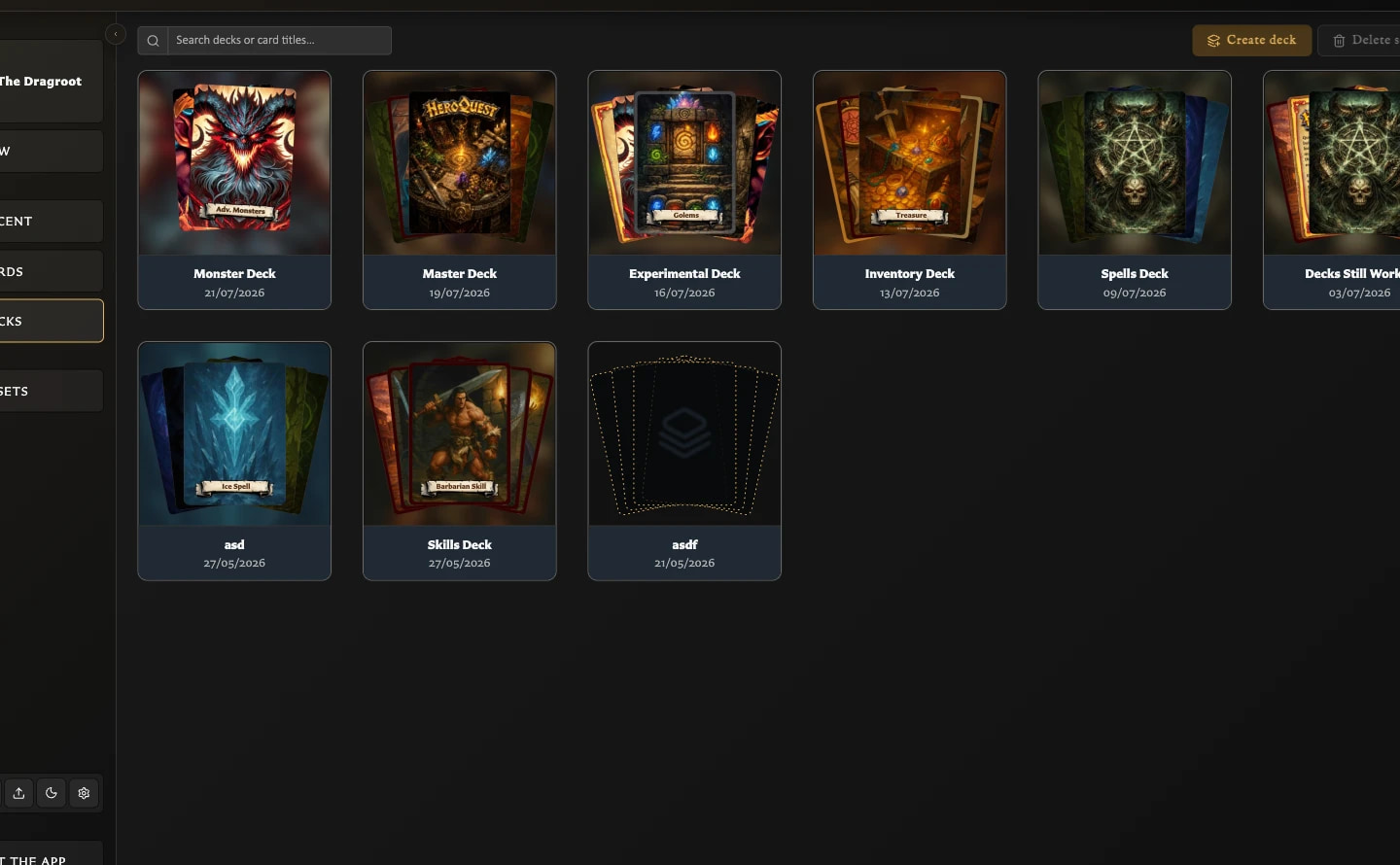
You can open a deck in any of these ways:
- Double-click its tile.
- Select it and press Enter.
- Use Open on the tile.
The tile actions appear when you point to or focus the tile.
Change the title or description
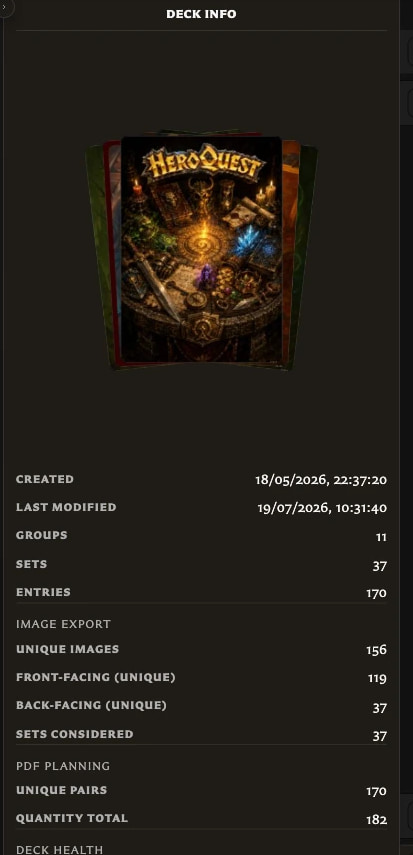
- Point to the deck tile and choose Edit.
- Change the required Title or optional Description.
- Choose Save.
The description helps identify the purpose of the deck, but it does not appear on its cards.
Select and delete decks
Click a tile to select it. Hold Ctrl on Windows or Command on macOS while clicking to add or remove individual decks from the selection.
Choose Delete selected, or press Delete or Backspace while the deck list has focus. Review the number of decks in the confirmation before continuing.
Deleting a deck removes its groups, sets, entries, quantities, and other deck organization. It does not delete its saved cards or remove their pairings.
Can I duplicate a deck?
Deck duplication is not available from the Decks screen in version 0.8.0. Create another deck and add the required sets and entries manually.