Fix Backup and Restore Problems
Start by protecting the library that is currently open. If it contains anything you may need, create a fresh backup before retrying an import or choosing a different file.
The app says the backup file is unsupported
Choose a HeroQuest Card Creator backup ending in .hqcc. Older .hqcc.json backups are also accepted, but ordinary JSON files, card-image ZIP files, PNG images, and PDFs are not library backups.
If a file was renamed manually, changing its filename does not turn it into a valid backup. Return to the original app location and use Export library again.
The app cannot read or validate the file
The file may be incomplete, damaged, from an incompatible app version, or not a HeroQuest Card Creator backup.
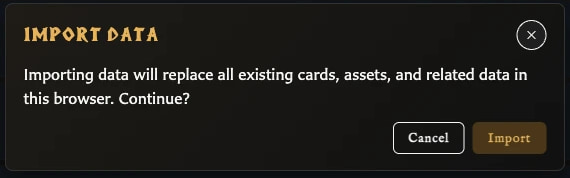
- Cancel the import and confirm that the original library is still available.
- Try an earlier untouched backup if you have one.
- If possible, open the app location that created the file and export a new backup.
- Use the recommended format unless you specifically need compatibility with version 0.5.5.
Do not edit the contents of a backup file manually.
Import stopped or reported an error after it began
Treat the current library as potentially incomplete. Import replaces the existing library and some items may already have been processed when a later problem is found.
- Do not continue editing the partially restored library.
- Import the safety backup you created immediately before the attempt.
- Check that the recovery completes and review the card, asset, collection, and deck counts shown in the import result window.
- Retry the other file only after you have another safe recovery copy.
Import completed but something appears to be missing
The import result window reports totals for cards, assets, collections, and decks. Compare these with the source library or with what you expected from the backup.
- Clear any active search, collection, template, or other filters before deciding cards are absent.
- Check Recently deleted for cards that were already there when the backup was made.
- Open Assets and Decks directly rather than judging the result from the Cards workspace alone.
- Review personal settings such as language, theme, collection display, text fitting, and numeral style; these are not all portable library settings.
- If the counts or contents are wrong, restore your pre-import safety backup and create a new export from the source location.
Export does not download a file
Allow the app time to finish Preparing, Exporting data, and Finalizing. Then check the browser's downloads and whether downloads are blocked for the app.
If no file appears, retry once. If the app reports that data could not be exported, keep the current browser data intact and avoid clearing it until a backup succeeds.
I want to empty the current library
Use Settings > Library > New only after creating an export if there is anything you may need again. Starting a new library removes the current local cards, assets, collections, pairings, and decks instead of importing another backup.
See Start a New Library for the full confirmation flow.