Fix Card Saving and Duplication Problems
Save is disabled
Check the card title, name, or back label required by the selected template. It must contain more than spaces.
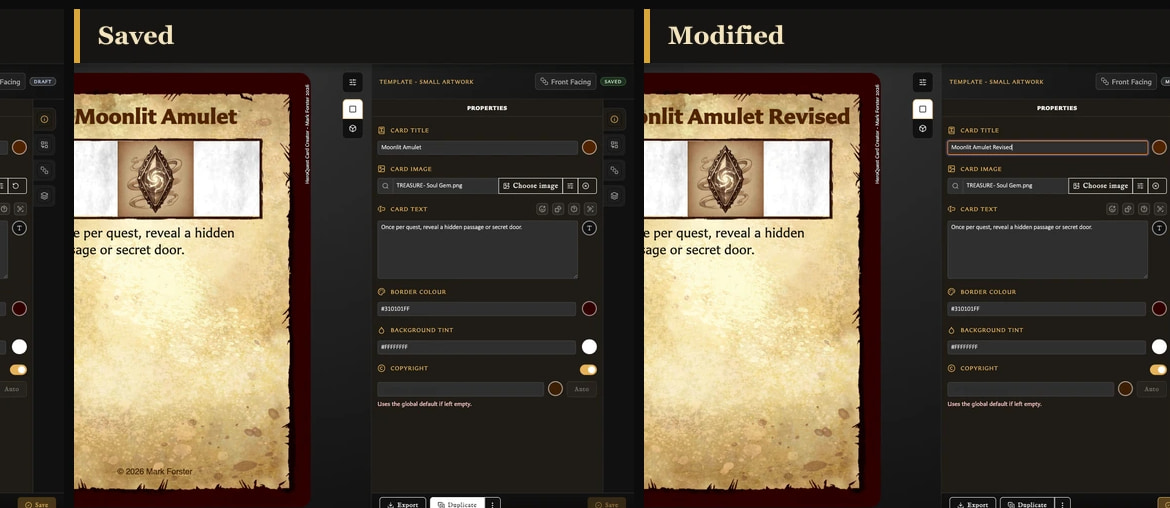
If the card status is saved, Save remains disabled until you make a change. That means the editor already matches the library copy.
I left the card and my changes disappeared
Choosing Discard in Discard changes? deliberately continues without saving the current edits. Return to the card to see its last saved version.
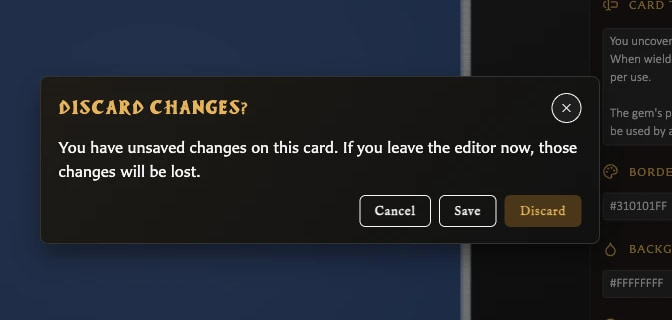
Use Cancel when you want to stay and review the work, or Save when you want to keep it before continuing. Draft recovery cannot restore edits that were deliberately discarded or replaced by another draft.
Save did not continue to the next screen
When Save is chosen from the unsaved-changes window, navigation continues only after a successful save. Check that the required identifying field is complete, then save again. If the card remains Modified, keep the editor open and do not choose Discard unless losing those edits is acceptable.
Duplicate is missing
The current card must be saved before it can be duplicated. Save the draft first, then look for Duplicate in the bottom toolbar.
The duplicate is not in the source deck
This is expected. Duplication creates a new card, but deck membership is not copied. Add the saved duplicate to the required deck separately.
Duplicate with pairing produced an unpaired card
This is a confirmed v0.8.0 issue. Save the duplicate, open its Pairing tab, and pair it manually. The duplicate can still inherit collection membership from its source when first saved.
I deleted the wrong card
If you chose Move to recently deleted, open Recently deleted, select the card, and choose Restore. If you chose Delete permanently, the card and affected collection, pairing, and deck references cannot be restored through the app. See Organize and Recover Cards.