Understand the Decks Workspace
The Decks workspace is where you turn saved front- and back-facing cards into an organized deck. A deck can record sections, which fronts use each back, card order, and how many copies are needed.
The Decks list
Choose Decks in the left navigation to see your saved decks.
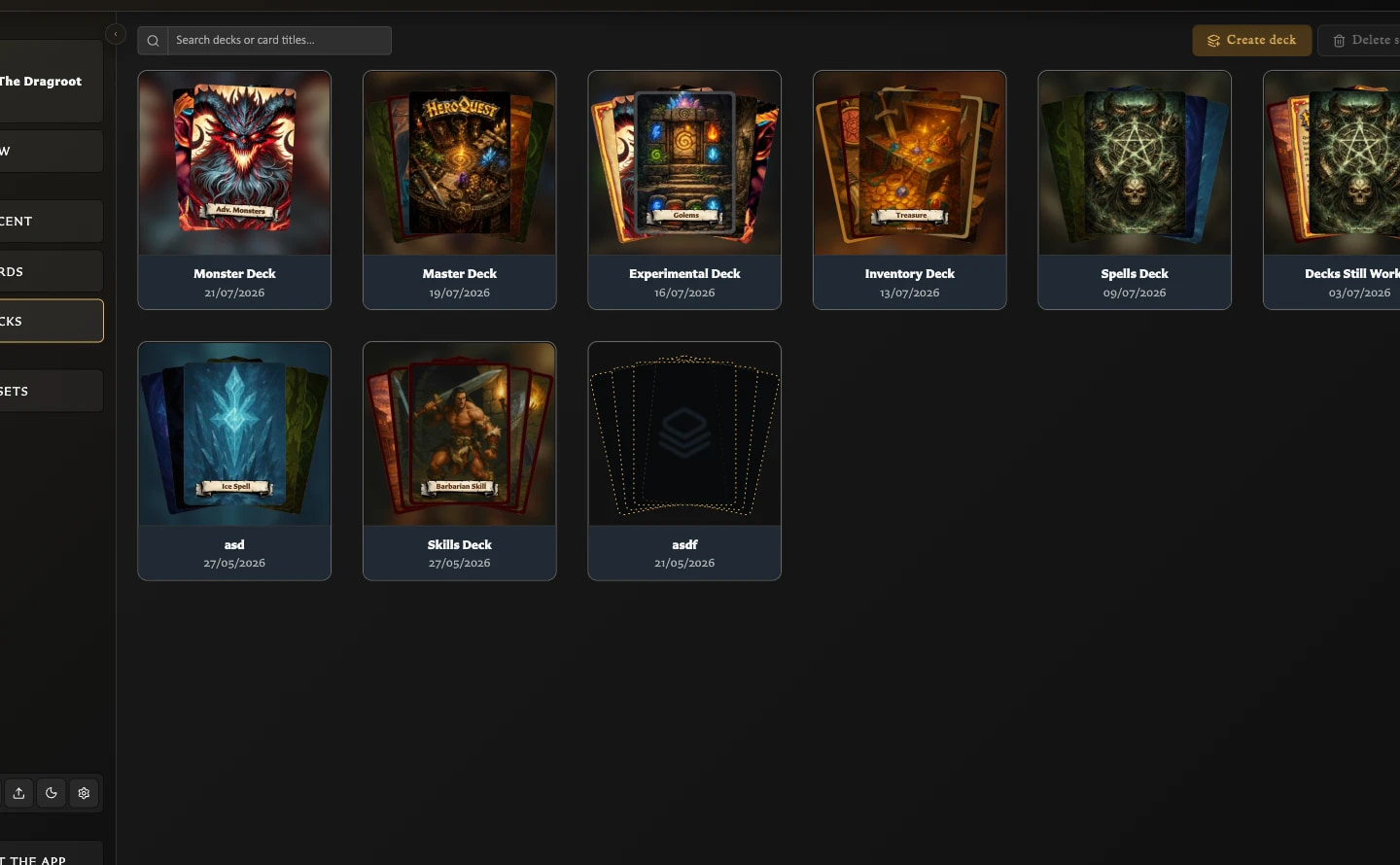
At the top of the screen you can:
- Search deck titles and the titles of cards used by a deck.
- Choose Create deck to start a new deck.
- Select one or more decks and choose Delete selected.
Each deck tile shows its title, last-updated date, and a small card preview. Click a tile once to select it, double-click it to open it, or use the tile's Open, Edit, and Delete actions.
Deleting a deck removes that deck's organization. It does not delete the saved cards or their front-and-back pairings.
Inside an open deck
An open deck has three main working areas.
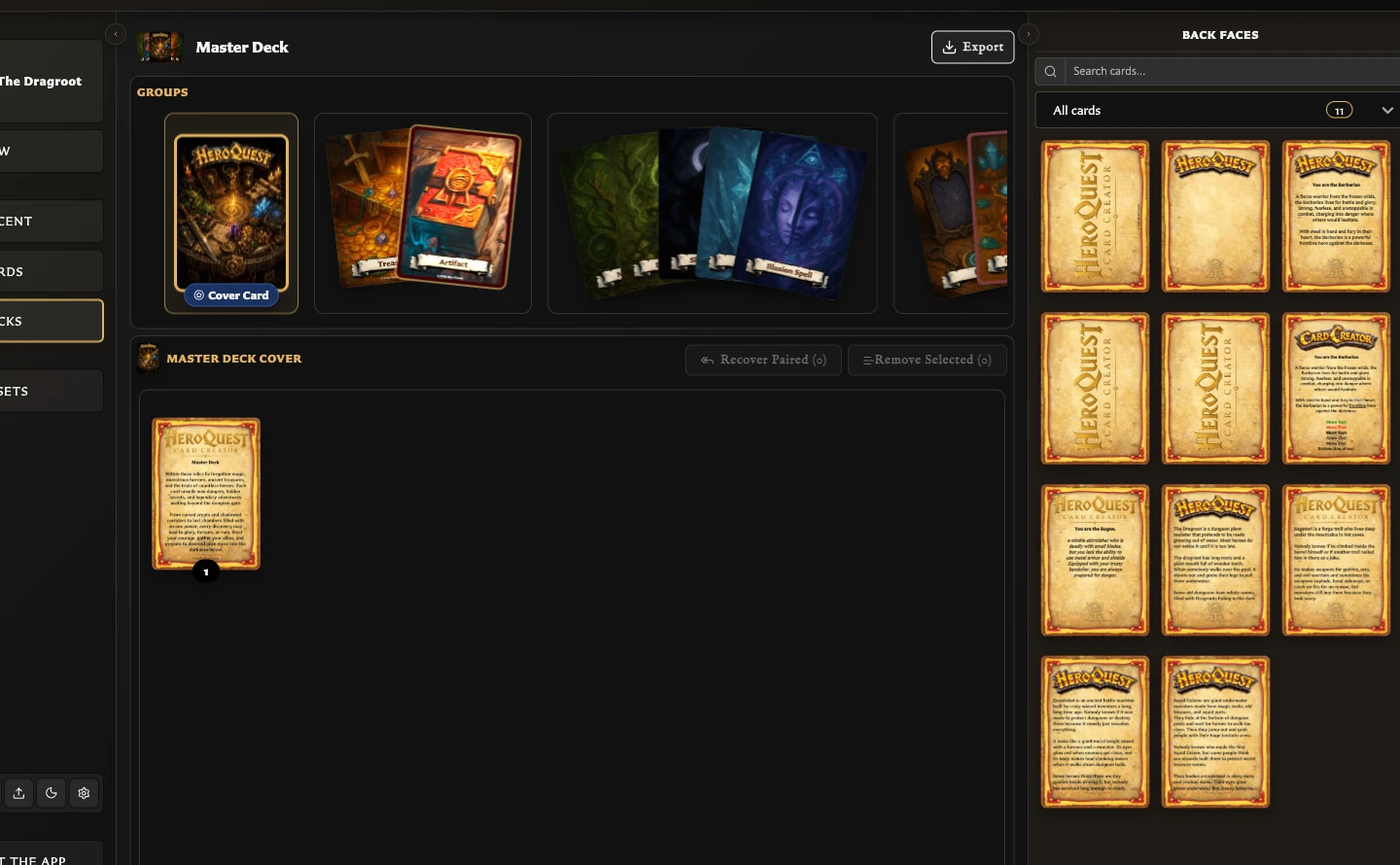
Groups
Groups is the upper board. It contains the deck's larger sections and the sets inside them. Each set is represented by its back-facing card.
A new deck starts with an empty group. Drag a card from Back faces onto the empty card-shaped slot to create the first set. When more sets exist, groups become overlapping card fans. Point to a group to inspect it or select a set to expand that group. Set insertion, movement, cover-card, edit, and delete controls appear around the cards when relevant.
Entries
Select a set to show its Entries board below Groups. Entries are the front-facing cards that use the selected set's back.
From here you can:
- Drag front-facing cards into the set.
- Increase or decrease the quantity beside an entry.
- Reorder entries.
- Edit a card or remove an entry from the set.
- Recover paired fronts that are not currently in the set.
Removing an entry from a deck does not delete its saved card.
Source faces panel
The panel on the right supplies cards and information for the deck. Use its vertical tabs to switch between:
- Back faces - saved back-facing cards that can become sets.
- Front faces - saved front-facing cards that can become entries.
- Preview - a visual preview of the current deck.
- Deck Info - created and modified dates, group/set/entry counts, image-export totals, PDF quantity totals, and paired cards missing from sets.
Back faces and Front faces each provide search and a Collections filter. This lets you narrow the source list without changing collection membership or the deck itself. You can also collapse the source panel when you need more working space.
Export availability
The main Export control is disabled while the deck has no sets. It becomes available after the first back-facing card creates a set.
The contents of a particular image or PDF export still depend on the sets, entries, quantities, and export scope you choose. See Export Cards as PNG Images and Export a Deck as PDF.
Keyboard shortcuts
While an open deck has an enabled Export control, press E to open or close the Export menu. With the menu open, press I for image export or P for PDF export.
If those keys do nothing, see Fix Keyboard Shortcut Problems.