Create and Build a Deck
Use a deck when you need more than a loose collection of cards: you want fronts connected to backs, sections, order, quantities, or print-ready structure.
Before you begin
Save at least one back-facing card and one front-facing card. Pairing them first is useful but not required; see What Is Pairing?.
Create the deck
- Choose Decks in the left navigation.
- Choose Create deck.
- Enter a Title and, optionally, a Description.
- Choose Create deck.
The new deck opens immediately. It already contains one empty group, but no sets or entries.
Create the first set
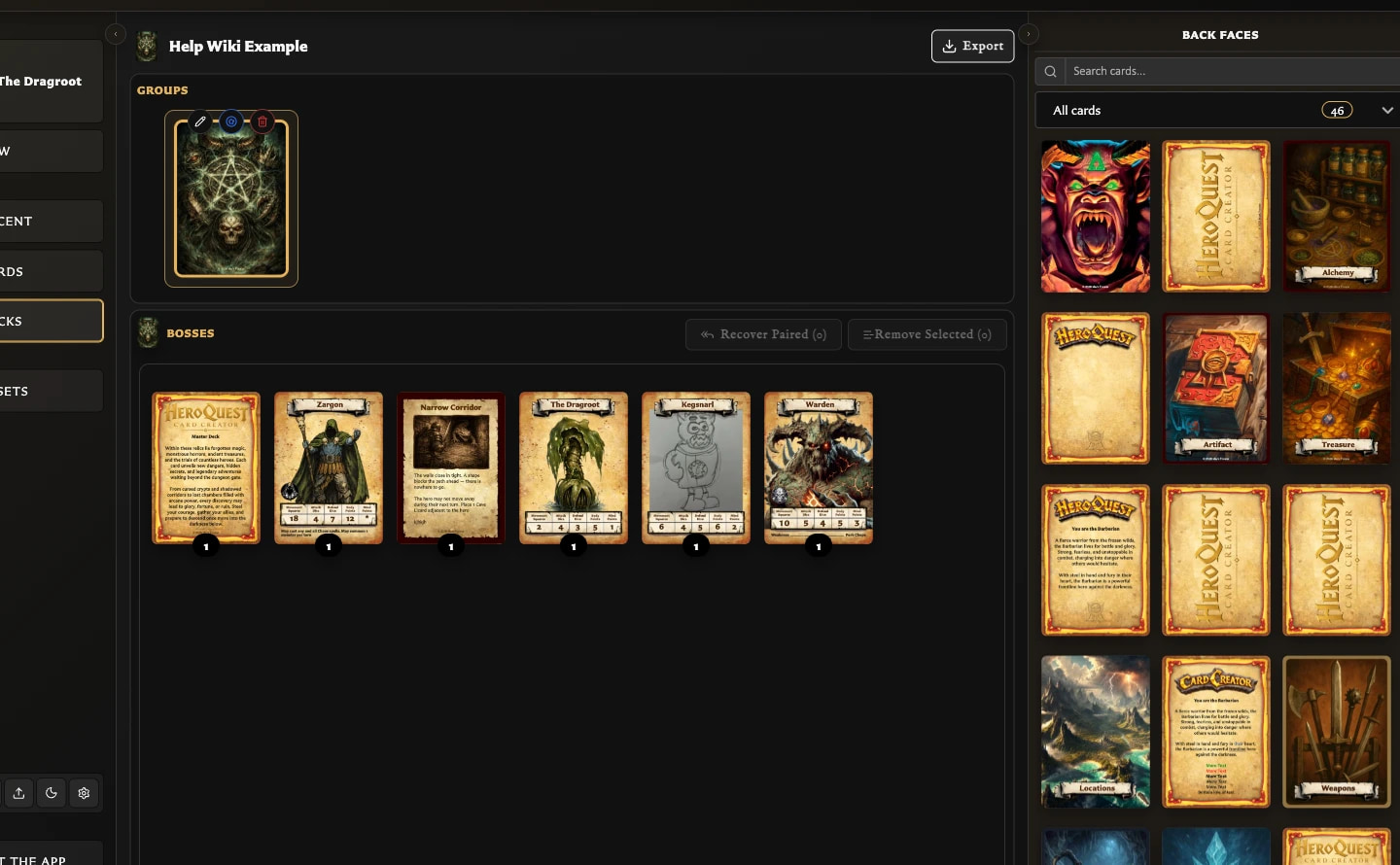
- In the right panel, choose Back faces.
- Use search or Collections if you need to narrow the list.
- Drag the back-facing card onto the empty card-shaped slot under Groups.
Drop onto the empty slot itself, not just the surrounding Groups board. The back appears in Groups as a new set, that set becomes selected, and Export becomes available.
If the back is already paired with front-facing cards, those paired fronts are automatically added to the new set as entries.
Add a front-facing card
- Select the set you want to change.
- In the right panel, choose Front faces.
- Find the front using search or Collections.
- Drag it down to the empty slot or another position in Entries.
The front appears in Entries and is no longer offered in the source list for that set. You can add an unpaired front this way; the app creates the relationship needed by the deck.
Set the number of copies
Use Increase quantity and Decrease quantity beside an entry. The number shown on the entry is the number of copies used for quantity-aware PDF planning and export.
Deleting the entry removes it from this set; it does not delete the saved card.
Check the result
Choose Deck Info in the right panel. After adding one front and increasing its quantity to two, for example, you should see one group, one set, one entry, and a Quantity total of two.
Choose Preview to see the deck visually. When you are ready to export, see Export Cards as PNG Images or Export a Deck as PDF.