Understand Backups and Local Data
HeroQuest Card Creator keeps your working library with the app in the browser profile or installed copy you are currently using. It does not automatically place your cards in an online account. Export library creates the portable safety copy that you control.
Where are the backup controls?
The left navigation contains two related actions:
- Export library creates a downloadable
.hqccbackup. - Import library reads a backup and replaces the library in the current app location.
The same backup and import actions are also available from Settings > Library.
These actions concern your editable library. They are different from exporting card images or a printable PDF.
What does the Export data window show?
After choosing Export library, the Export data window explains that exporting may take a moment and offers two formats:
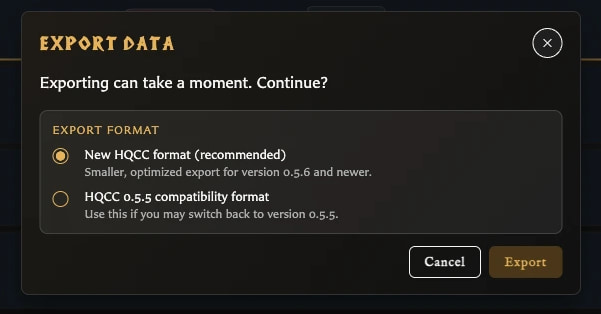
- New HQCC format (recommended) is the normal choice for version 0.5.6 and newer.
- HQCC 0.5.5 compatibility format is for a backup that may need to be imported into version 0.5.5.
Choose Export to begin or Cancel to leave without creating a file. While the backup is being prepared, the app may show Preparing, Exporting data, and Finalizing progress.
What does a library backup contain?
A current backup preserves the editable parts of your library, including:
- Saved and recently deleted cards, plus the current card-editing state.
- Uploaded assets and saved custom back logos.
- Collections and their card membership.
- Card pairings.
- Decks, groups, sets, entries, and quantities.
- Export profiles and their image and PDF settings.
- Custom stat labels, copyright defaults, and saved border colours.
The backup is intended to restore these items together as one library.
Which preferences are not part of the portable library?
Do not assume every personal or browser-specific preference will follow the backup. In particular, choices such as the current language, light or dark theme, collection display preferences, automatic asset classification preference, general text-fitting preferences, numeral styling, and developer-credit preference remain choices for the app location where they were set.
After importing on another browser profile or app copy, review Settings Reference and reapply any personal preferences you want there.
Why can the app look empty in another browser?
Each browser profile and installed app copy has its own local working area. A different browser, a private window, another browser profile, cleared site data, or a separately installed copy can therefore open with an empty library even though your work still exists elsewhere.
Use Export library in the location containing your work, then Import library in the destination. Keep the .hqcc file somewhere outside the app so it remains available if that local working area is cleared.
For more about why local browser data can be cleared and how smaller image files help keep a library manageable, see Protect Your Library and Keep It Small.
How do I start fresh?
Open Settings > Library and use New when you want the current app location to become empty again. Export a backup first if there is anything you may need later.
See Start a New Library for what is removed, what stays, and how the confirmation works.
What does System storage show?
Open Settings, then System, to see an estimate of the current app location's storage use and a breakdown for assets, cards, and other library information. Refresh browser storage estimate recalculates the figures.
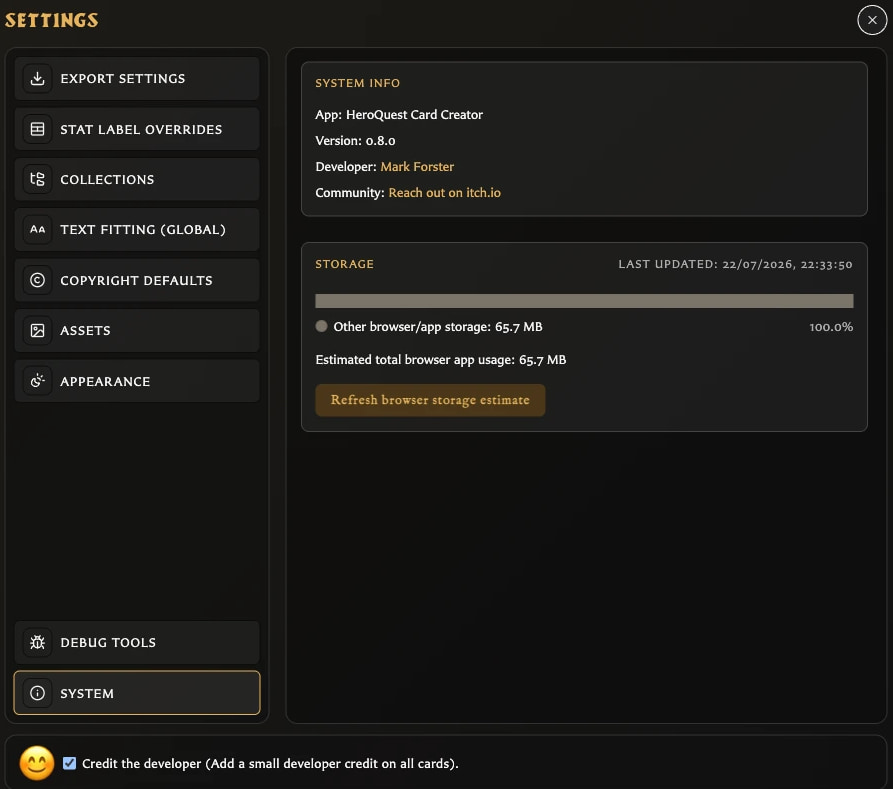
This display is informational. It is not a backup, does not create a recovery file, and is not the size of a future .hqcc file.