Use Collections While Building a Deck
Collections can narrow the source cards shown beside a deck. They do not become deck groups or sets automatically; they act as a filter while you choose cards for the deck structure.
Filter the deck source
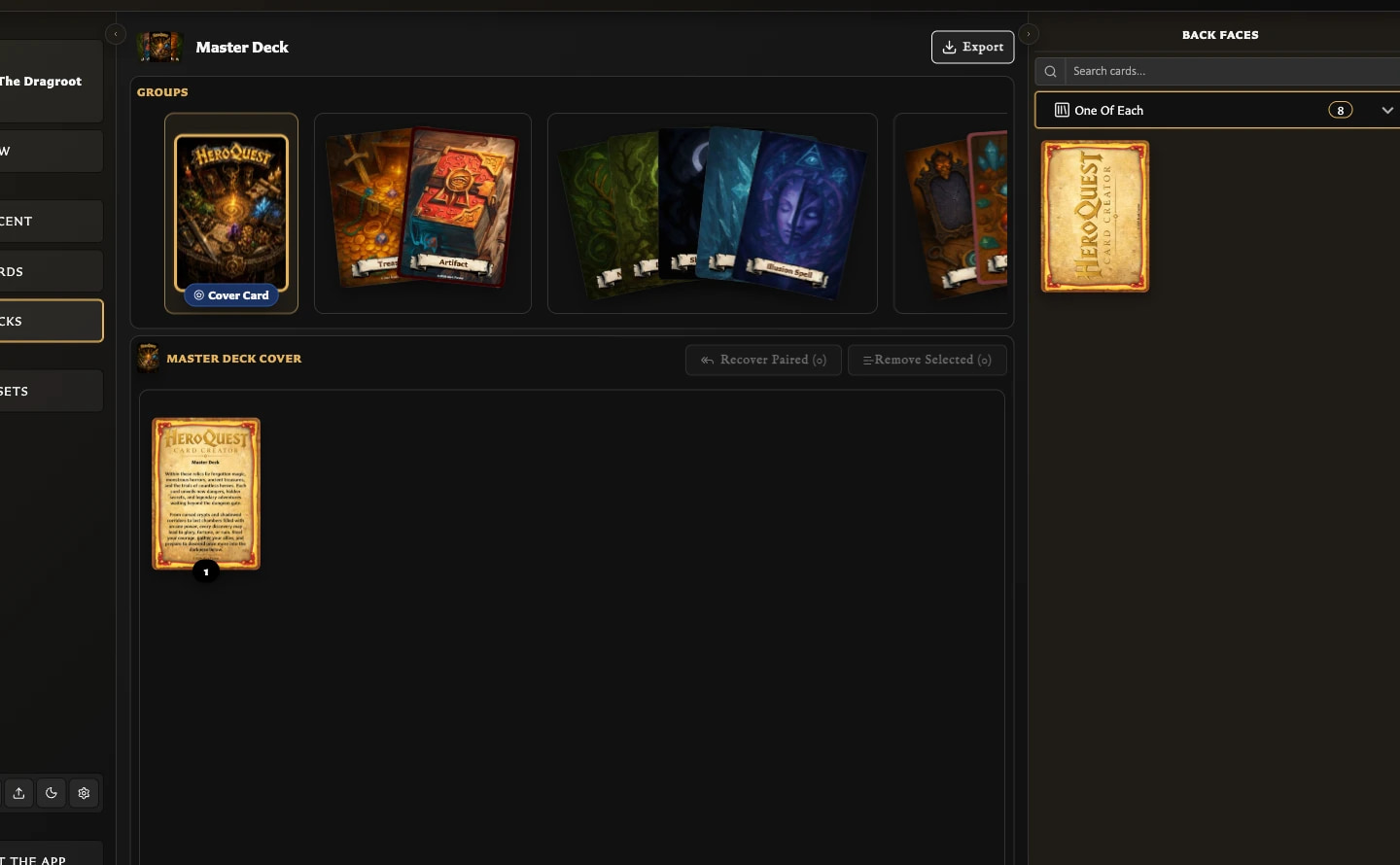
- Open Decks and open or create a deck.
- In the source panel, choose Back faces or Front faces.
- Open the Collections selector beneath the card search.
- Choose a named collection.
The source panel now shows eligible cards from that collection only. You can also search within the filtered result.
Why the collection list changes
The source panel applies the current face mode first:
- Back faces offers collections containing eligible back-facing cards.
- Front faces offers collections containing eligible front-facing cards.
- The counts show how many eligible source cards currently match, not necessarily the collection's total membership in Cards.
- Collections with no eligible cards for the current face mode are omitted.
Slash-based collection folders are preserved in the selector. Folder headings organize the menu, but only named collection leaves can be selected.
Collection versus deck structure
Filtering helps you find source cards; it does not add them to the deck. Decks still use groups, sets, entries, and quantities, with back faces and front faces serving different roles.