Customize Titles, Colours, and Copyright
Colour and title choices belong to the current card. The Properties panel shows only the choices supported by its template.
Change a title, name, or label
Front-facing templates with a title or name let you change its text and colour. Labelled Back adds three extra choices:
- Show or hide the Back label.
- Place it at the top or bottom of the card.
- Display it as a Ribbon or Plain title.
These layout choices are specific to Labelled Back. Other templates place their title according to their fixed design.
On title-bearing cards, the visible card title and the saved library name are normally linked. Editing the title also updates the name used in Cards, search, and downloaded filenames.
Use the title field's link control when you need a separate library name. The expanded field shows:
- Name, used to identify the card in your library, search results, pairings, decks, and filenames.
- Title, used for the text printed on the card.
Collapse the field again when the card should return to linked title/name behaviour. If you save while it is collapsed, the saved name follows the title.
Change title typography
Title fields can offer a typography toggle for switching between the normal bold title style and bold italic.
Labelled Back uses bold italic by default to better match the original card-back label style. Other title-bearing templates keep the normal bold title style unless you turn bold italic on.
Change card colours
Choose the colour swatch beside a supported field:
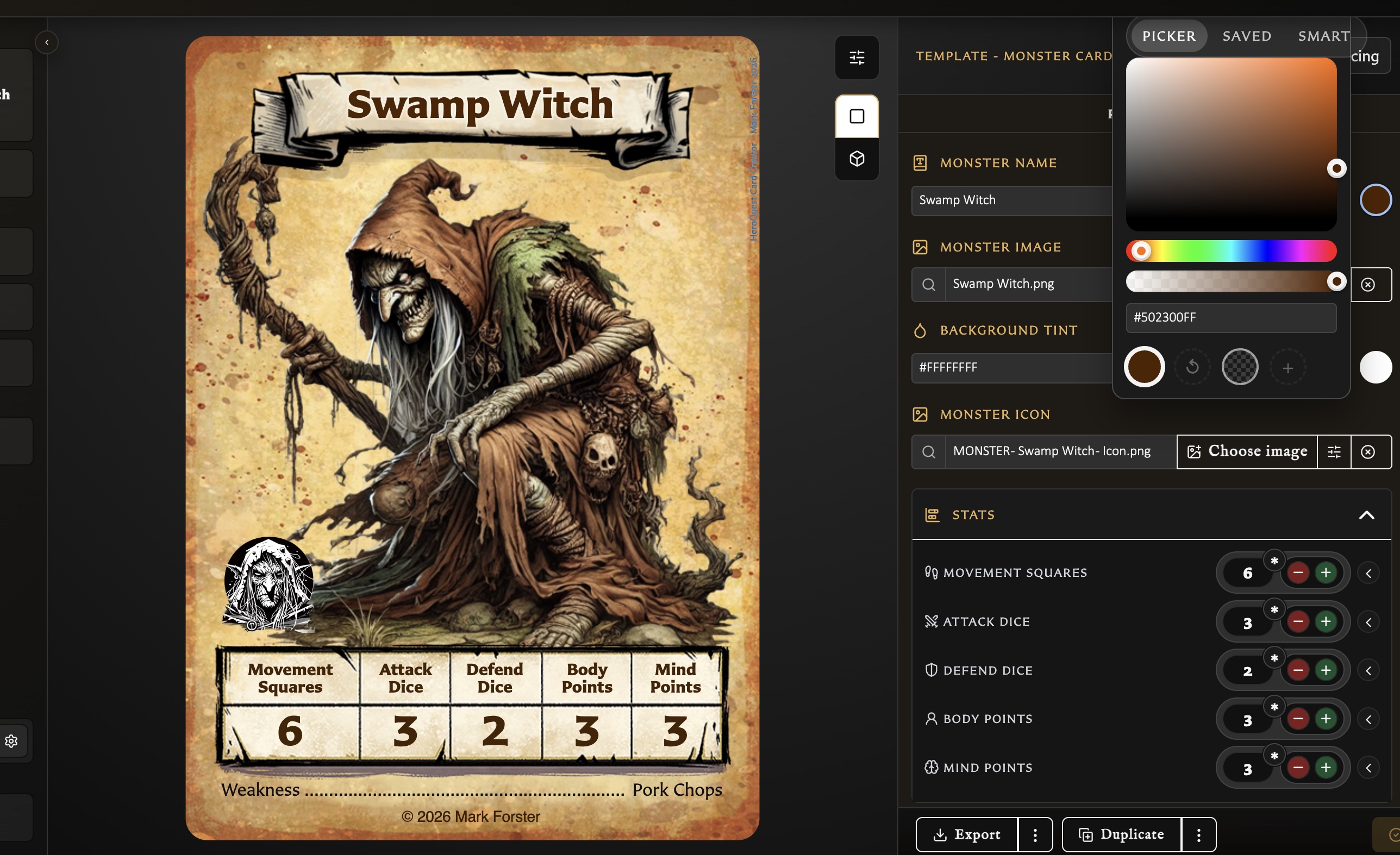
- Title colour changes the title, name, or back label.
- Body text colour changes the main card, rules, or back text.
- Border colour is available on Small Artwork, Large Artwork, and Labelled Back.
- Background tint is available on Hero, Monster, Small Artwork, Large Artwork, Rules, Hero Back, Logo Back, and Labelled Back.
The colour window provides a picker, saved colours, and Smart suggestions based on the current card. A smart colour is a starting suggestion, not a permanent link to the artwork.
Where offered, Transparent removes that colour treatment. Default applies the template's standard colour. Revert returns to the value the card had when its current edit began, which may be different from the template default.
Change background tint blend mode
Background tint combines the selected colour with the card background. Multiply is the default and matches the earlier tint behaviour.
Open the background tint colour window to choose another blend mode when the default does not give the result you want. Different modes can make the same colour feel darker, lighter, stronger, or more subtle, so treat them as creative choices to try against the current artwork.
Changing the blend mode affects only the background tint. It does not change the tint colour, title colour, body text colour, or border colour.
Set copyright for one card
Every template includes a Copyright section.
- Leave the text empty to use the global copyright default from Settings.
- Enter text to override the default on this card.
- Use the visibility control when the copyright should not be shown.
- Keep the toolbar colour mode on Auto to let the card choose a readable colour for its background.
- Choose a fixed colour or transparent colour when the design needs a manual result.
The card-specific text and visibility are saved with the card. Changing the global default later continues to affect cards whose copyright field is still empty.
Undo an unwanted colour change
While editing the colour, choose Revert if it is available. If you have not saved the card, you can also leave the editor and choose Discard to return all fields to the last saved version. After saving, choose the required colour again; Revert does not create a history of older saved versions.
For global copyright defaults, see Settings Reference.