Add and Remove Cards from Collections
A card can belong to more than one collection. Adding or removing membership does not duplicate or delete the saved card.
Add selected cards with the action button
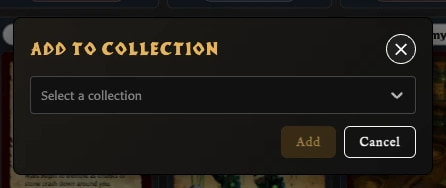
- Open Cards, then open All cards, Recent, Unfiled, or another populated view.
- Select a card. Use Ctrl-click or Cmd-click to select several cards, or use Select all.
- Choose Add to collection in the bottom toolbar.
- Choose the destination collection.
- Choose Add.
The active collection is omitted from the destination list because those visible cards already belong to it.
Drag cards into a collection
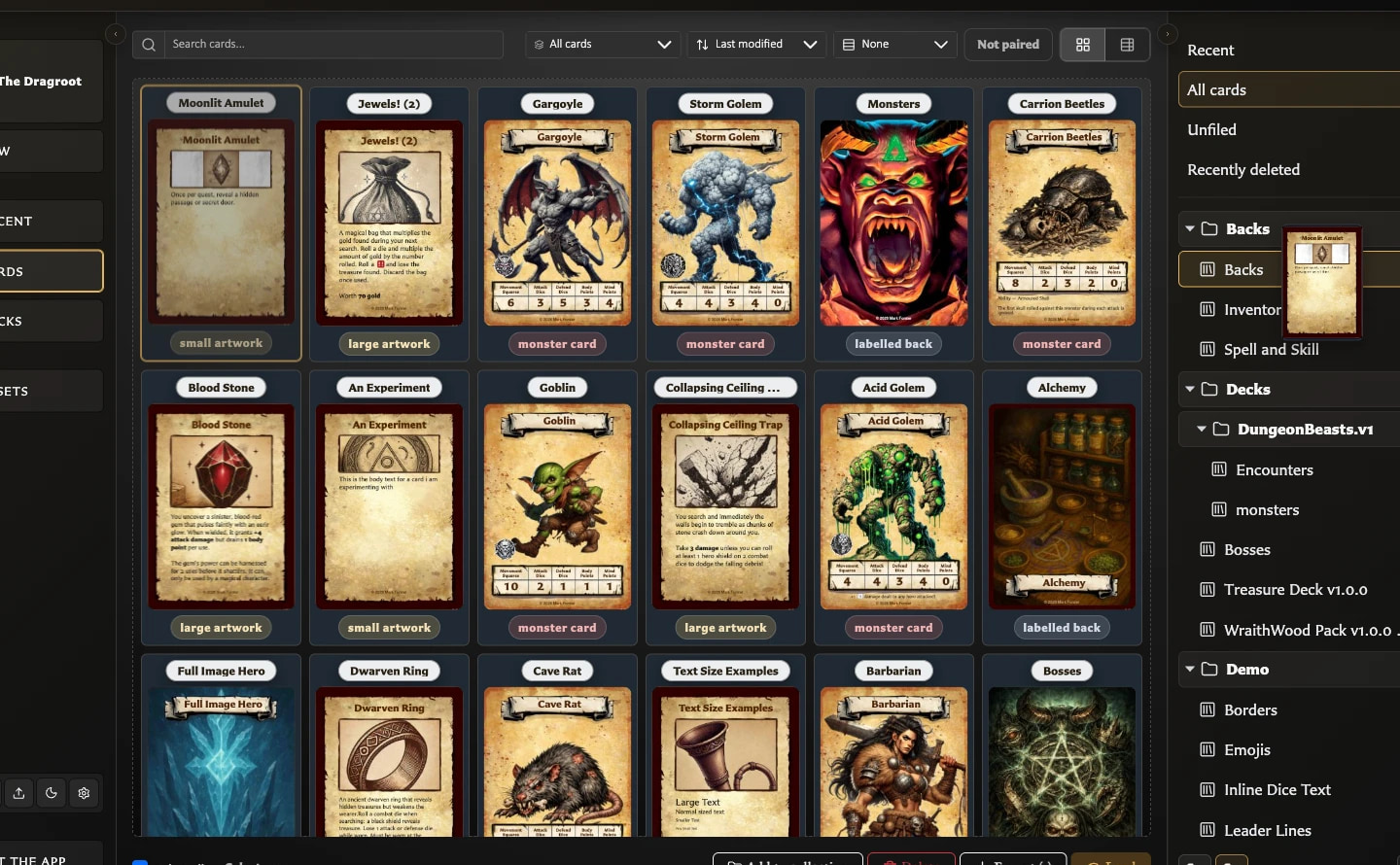
- Select one or more cards in Cards.
- Drag any selected card tile onto a named collection in the Collections panel.
- Release it when the collection is highlighted as the drop target.
If the card you begin dragging is already part of a multi-selection, the whole selection is added. Dragging an unselected card first selects and adds only that card.
In tree view, drag onto the named collection leaf, not its folder heading.
Manage the card open in the editor
- Save or load the card so it is a saved library card.
- Open the inspector's Collections tab.
- Choose Add to collection.
- Add or remove one or more memberships, then choose Confirm.
Current memberships are listed in the same tab. You can also use the adjacent remove action to remove that card from one collection immediately.
Remove cards from the collection you are viewing
- Open the collection from the Collections panel.
- Select one or more cards.
- Choose Remove from collection above the results.
The cards remain in All cards. A card appears in Unfiled only when it belongs to no other named collection.