Create Your First Card
You can create and save a card without uploading artwork first. The minimum requirement is a template and its non-empty identifying field: a title, name, or back label.
Create the card
- Choose New in the left navigation. Its accessible description is Create a new card from a template.
- Choose a template. See Choose a Card Template if you are unsure which layout fits your card.
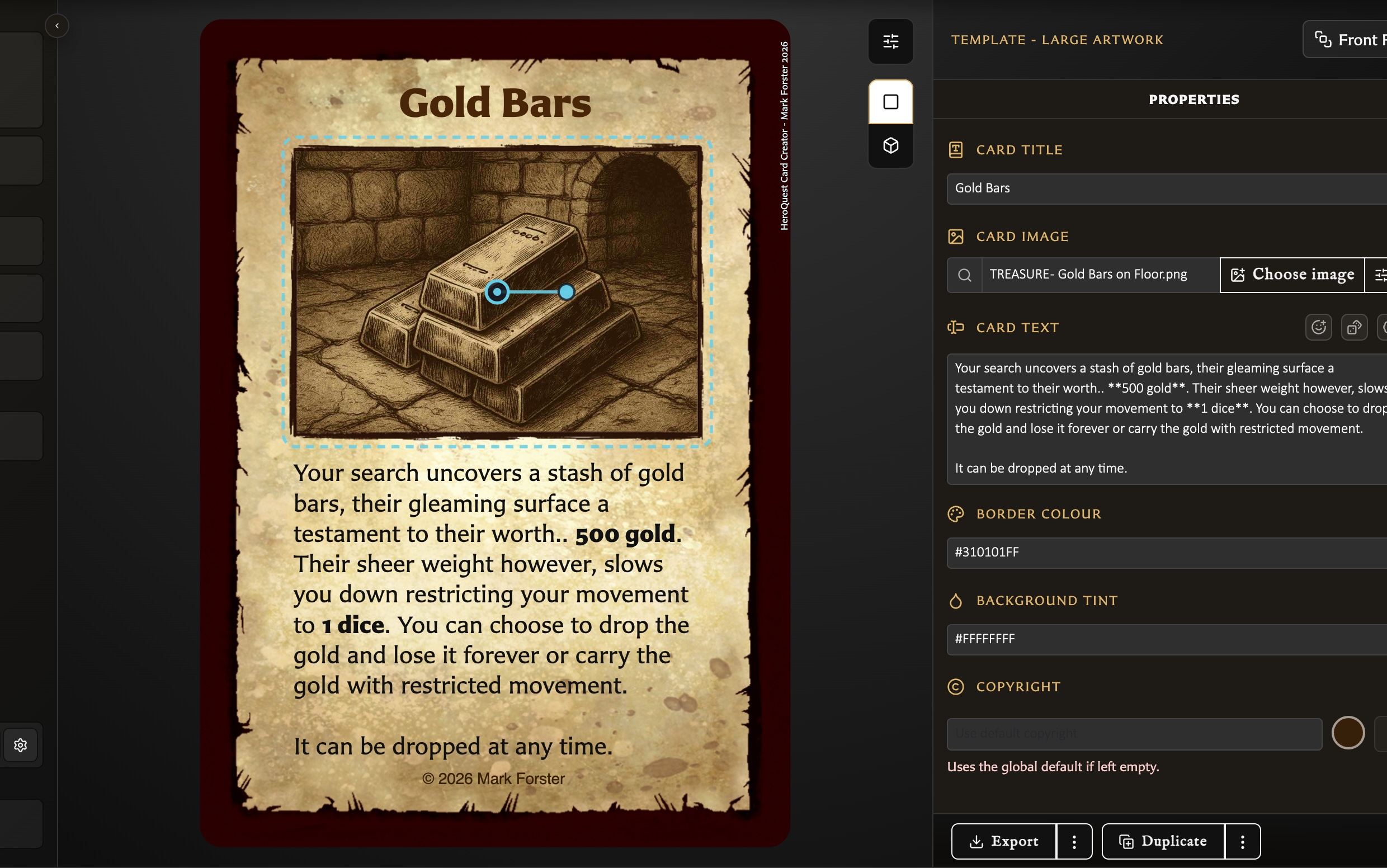
- Enter the required identifying field shown by the template: a Card title, Name, or Back label.
- Add any optional text, artwork, colours, stats, or template-specific options.
- Check the live preview as you edit. Changes appear before you save.
- Choose Save.
If Save is disabled, check that the required title, name, or back label is not empty. Artwork is optional.
Tell drafts from saved cards
The inspector status starts as draft. After the first successful save it changes to saved. Further edits change the status to Modified, and Save becomes available again.
See Understand Card States and Saving for leaving with changes, draft recovery, and actions that require a saved card.
Reopen the card
- Open Cards from the left navigation.
- Select the card with one click.
- Choose Load.
You can also double-click the card tile to open it directly. A single click only selects the card so that actions such as Load, Delete, Add to collection, and bulk Export can operate on it.
Starting with examples
A new installation intentionally has no saved cards. The empty Cards view links to a free sample library and explains how to import its .hqcc file. Import replaces the data currently stored in that browser profile, so see Back Up and Restore Your Library before importing over existing work.