Fix Asset Upload Problems
The uploader accepts PNG, JPEG, and WebP images. It checks a batch for duplicates, saves accepted files, and may pause at Upload review when it needs to explain skipped or renamed files.
What do the upload stages mean?
- Scanning for duplicates compares the selected images with the library and with one another.
- Processing images reads and adds each accepted image.
- Review uploads lists exact duplicates that will be skipped and filename collisions that have been renamed.
- Refreshing library updates the Assets grid.
The progress window can show the current filename, completed files, skipped files, renamed files, and errors while the batch is active.
What should I do at Upload review?
Read each listed result before choosing Continue:
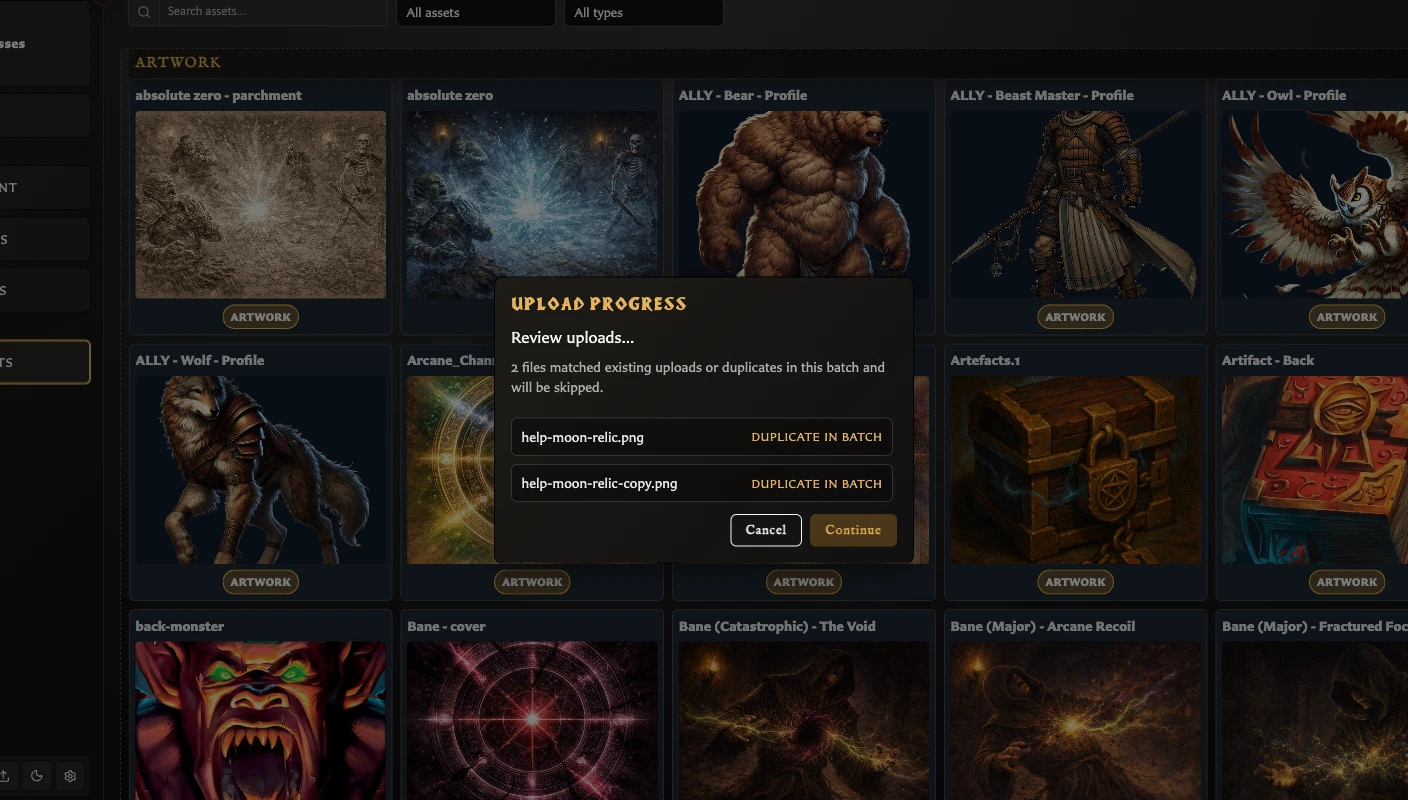
- Already in library means an image with the same content is already stored, even if its filename differs.
- Duplicate in batch means the same image content was selected more than once in this upload.
- A displayed old and new filename means a different image used a filename that was already taken, so the new image was renamed automatically.
Choose Continue to finish refreshing the grid and make the accepted files the current Recently uploaded group.
Every copy says Duplicate in batch
In v0.8.0, selecting two or more identical new files together can mark every matching copy as Duplicate in batch and skip all of them. No representative copy is retained from that batch.
Choose Continue to close the review, then upload one copy by itself. This is a current product limitation, not proof that the image already exists in the library.
Why was a file renamed?
The filename was already used by a different image in the library or the same batch. The app keeps both images by adding a number such as (2) to the new filename.
Search for the renamed value shown in Upload review. Renaming does not alter the picture.
A file was skipped or reported as an error
First check the format. Assets supports PNG, JPEG, and WebP; other file types are skipped.
A problem with one file does not undo other files that were accepted earlier in the batch. After the window closes, compare Recently uploaded and the normal asset groups with the files you selected. Retry only the missing image, preferably by itself.
If it still fails, open the image in another program to confirm that it is readable, then save a fresh PNG, JPEG, or WebP copy and upload that copy.
What happens if I choose Cancel in Upload review?
In v0.8.0, Cancel does not roll back accepted files. Upload review appears after accepted files have already been added. The action also leaves the Upload Progress window open without Continue, Cancel, or Close controls.
Use this recovery:
- Leave Assets and reopen it, or reload the app, to clear the stranded progress window.
- Search for each accepted filename from the cancelled batch.
- Keep the files you intended to add.
- Select and delete any retained files you did not intend to keep, after checking whether a card already uses them.
Avoid using Upload Review's Cancel as an undo action in v0.8.0. Choose Continue, review the resulting assets, and remove unwanted files deliberately instead.
Recently uploaded does not show the batch I expected
Recently uploaded is temporary and holds only the latest successfully completed batch. A later upload replaces that group, and reopening Assets clears it. Earlier assets remain in Artwork, Icons, or Unclassified.
Clear search, kind, and file-type filters, then search by filename. A cancelled review may retain accepted files without making them the current Recently uploaded group.
The upload closed without a completion report
The v0.8.0 progress window closes as the batch finishes, so its totals are not available as a persistent report. Confirm completion from Recently uploaded and the normal asset groups instead.
Duplicates and failed files are not included in Recently uploaded. Renamed accepted files appear under their new names after Continue.
An asset says Classifying
The upload itself has completed, but the app is still deciding whether to organize the image as Artwork or Icon. Wait for Classifying to change to Artwork, Icon, or Unknown before trying to override it.
If the final result is unsuitable, select the asset and use Override classification. In Safari, automatic classification is unavailable; manual classification remains available.
Safest way to retry a partial batch
- Clear filters and search for the filenames from the original batch.
- Check Recently uploaded, Artwork, Icons, and Unclassified.
- Remove files you do not want only after checking card usage.
- Build a new batch containing only the missing files.
- When investigating one problem file, upload it by itself.
- At Upload review, note skipped and renamed names and choose Continue.
See Upload and Organize Assets for the normal workflow. Return to the Troubleshooting Index for another symptom.