Card, Template, and Text Questions
These concise answers use the same wording captured during product exploration. Follow the linked guide when you need fuller context or step-by-step instructions.
How do I create my first card?
Choose New, select a template, enter a title, and Save.
Which card templates can I start from?
New offers Hero, Monster, Small/Large Artwork, Rules, Hero Back, Logo Back, and Labelled Back templates.
What does the card editor contain?
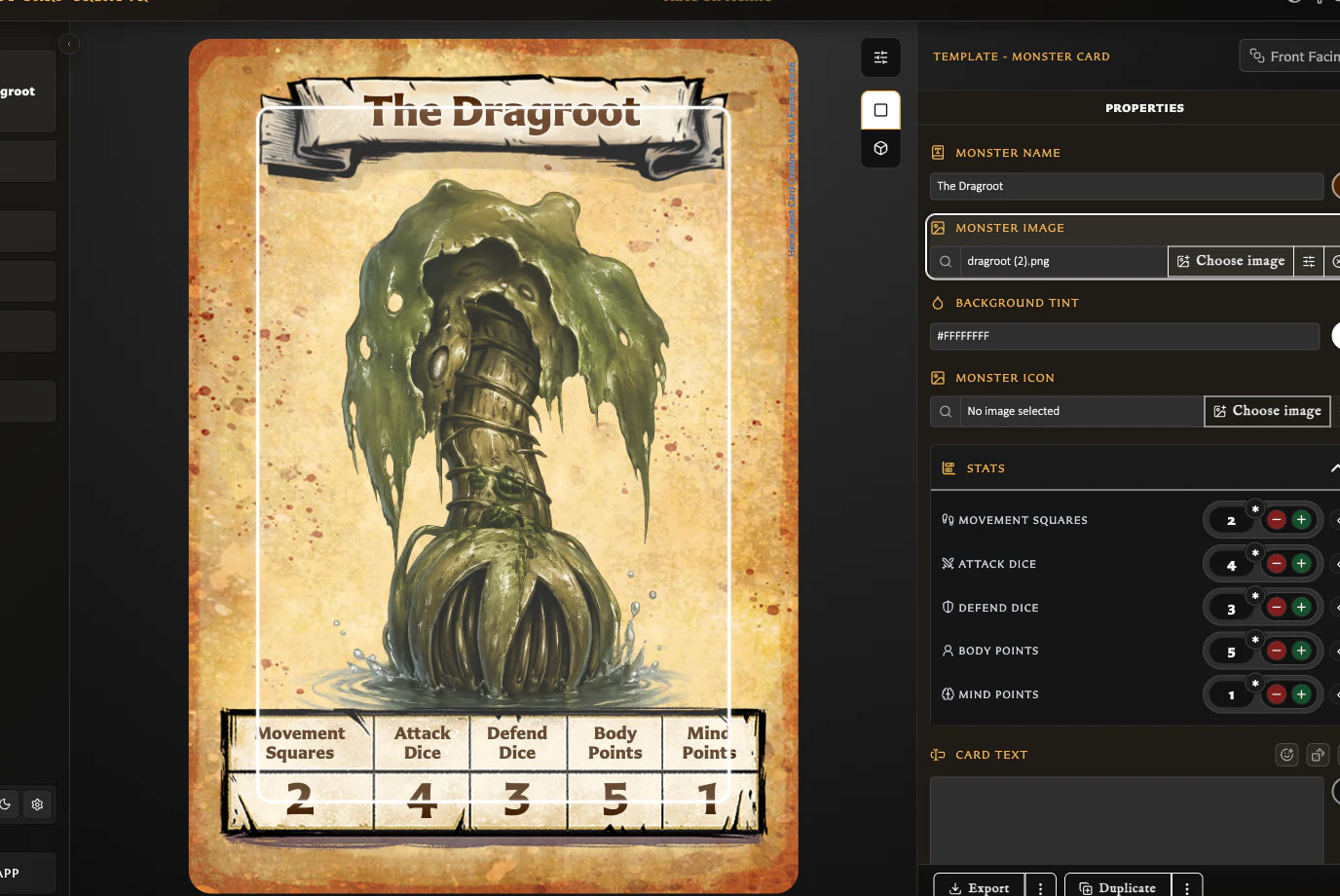
The editor combines a live preview, preview toolbar, and template-specific inspector.
Do I need artwork before saving?
Artwork is optional; a title is enough to enable Save.
Why is Save disabled?
Save is disabled when the current draft lacks its required non-empty title/label or has no unsaved change.
Can I preview changes before saving?
Editor changes update the card preview before saving.
How do I tell a draft from a saved card?
The inspector status distinguishes draft, saved, and Modified state.
What actions become available after saving?
Saved cards gain Duplicate and pairing/collection/deck context in addition to Export and Save changes.
How do I put an uploaded image on a card?
In the editor use the image field's toolbar button, select an asset, confirm, then save.
How do I reposition, resize, or rotate card artwork?
Image adjustments provide axis movement, nudging, centring, scale, auto-fit, rotation, and lower clipping on supported Hero and Monster artwork.
How do I reset or restore image framing?
Use centre/auto-scale/reset rotation or the adjacent restore/clear control, depending on current state.
How do I make precise image adjustments?
Hold Option/Alt while adjusting for precision steps.
How do I make card text bold or italic?
Use Markdown asterisks or <b>/<i> rich-text tags.
How do I insert dice symbols in card text?
Insert combat or D6 tokens using the syntax listed in Formatting help.
How do I create dotted leader lines?
Use [Label[.]Value]; wrap related rows in leader-group syntax.
How do I align part of the card text?
Wrap text with :::al, :::ac, or :::ar alignment directives.
How do I colour, underline, or resize individual text?
Rich-text tags support colour, underline, scale, title, and subtitle treatments.
How do I keep long titles and stat headings readable?
Global Text fitting controls minimum title/stat size and ellipsis preference.
Can body text automatically scale to fit?
The Card text toolbar has a per-card body scale-to-fit toggle.
How do I create a back-facing card?
Choose a back template such as Labelled Back, enter its label, and save.
What keyboard shortcuts can I use in the Card Editor?
In the Card Editor, V switches Standard and Interactive previews; M switches Pan and Rotate only while Interactive preview is active.
What am I seeing in the Card Editor?
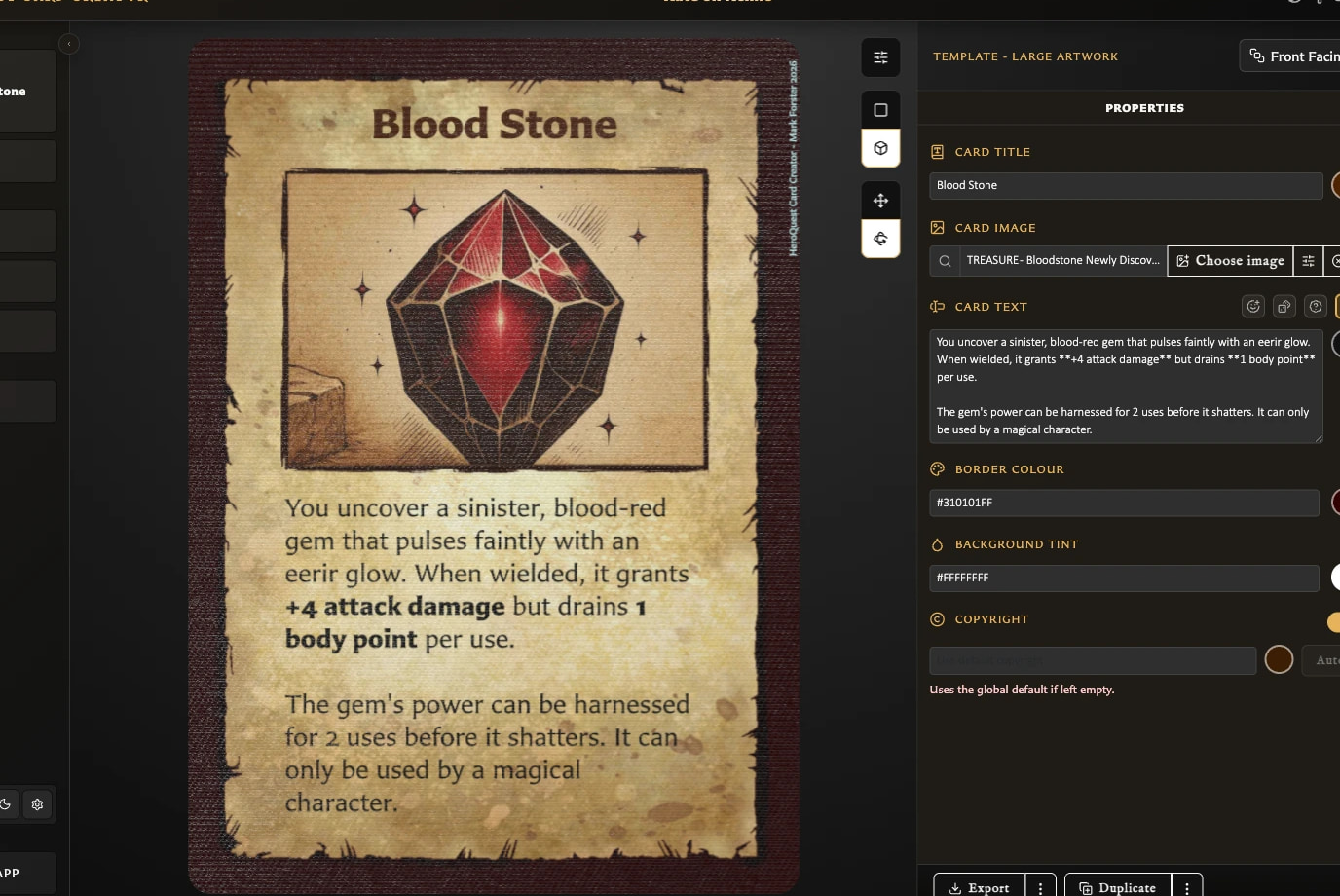
The editor shows the current card in a live preview beside a template-specific Properties panel.
How does the Standard preview help me edit a card?
Standard is the main editing preview; field changes appear on the card immediately, before Save.
Can I select an editing field by clicking the card?
Click an editable part of the Standard preview to focus its matching field; selecting artwork also exposes direct move, scale, and rotate controls.
What is the Interactive preview for?
Interactive previews the card as a physical object so it can be tilted, turned, and viewed from the reverse.
What is the difference between Pan and Rotate?
Pan gives a limited tilt that recentres when released; Rotate permits a complete turn and retains the chosen angle.
Which fields can appear in Properties?
Properties can include title, image, stats, text, tint, border, icon, back logo, and copyright fields, depending on the template.
What body-text tools are available?
Body-text tools can include emoji, configurable inline dice, Formatting help, colours, backdrop layout, visibility, and scale to fit.
Why do body-text options vary between templates?
Templates show only relevant text controls; fixed text areas can offer scale to fit, while some backs add optional text and backdrop controls.
What does Text fitting settings change?
Text fitting settings changes app-wide minimum sizes and ellipsis behavior for titles and stat headings, not per-card body-text fitting.
How do I access the available card templates?
Choose New in the left navigation, or press N when shortcuts are available, to open Choose a template.
Which card templates are available?
The picker offers Hero Card, Monster Card, Small Artwork, Large Artwork, Rules, Hero Back, Logo Back, and Labelled Back.
When should I use Hero Card or Monster Card?
Use Hero Card for Hero-style characters and stats; use Monster Card for Monster-style stats and a dedicated monster icon.
When should I use Small Artwork or Large Artwork?
Small Artwork leaves more room for rules text; Large Artwork gives more space to the illustration.
When should I use the Rules template?
Rules is a front-facing, text-led reference layout with a large formatted text area and no main artwork field.
Which back-facing template should I use?
Choose Hero Back for a character-deck treatment, Logo Back for a vertical logo-led reverse, or Labelled Back for a named illustrated back.
How do I create a card from a template?
Choose New, select a template preview, complete its required name, title, or label, add optional content, and Save the draft. Title-bearing cards can also show a separate library name when needed.
Can I create my own card template?
The eight layouts are built in; cards can customize supported content and appearance, but users cannot design new template structures in the app.
What does Save do for a draft and for a modified saved card?
Save creates a library card from a draft or updates the same card when its status is Modified; success returns the status to saved.
Why is Save unavailable?
Save requires the template's non-empty title, name, or back label and, for an existing card, an unsaved change.
What happens if I leave a card with unsaved changes?
Leaving a modified card opens Discard changes?: Cancel stays, Save persists then continues, and Discard continues without the edits.
Are draft changes kept automatically, and what can still be lost?
The current new-card draft resumes after an ordinary reload, but it is not a library card and can be lost by discarding, replacing the draft, or clearing local app data.
What happens if Save cannot complete before navigation?
Save-before-navigation continues only after a successful save; missing required wording or a save failure keeps the user in the editor.
How do I duplicate a saved card?
Open a saved card, choose Duplicate, edit the resulting draft, then Save it to create the independent copy.
When does a duplicate become a separate saved card?
Duplicate creates a draft first; the copy becomes an independent saved card only on its first successful Save.
How does the app name duplicated cards?
The suggested name adds or increments a numeric suffix, such as Card to Card (2) and Card (2) to Card (3).
Does a duplicate inherit the source card's collections?
On first save, a duplicate is appended to every collection that currently contains its source card; this applies to both duplicate choices.
Does a duplicate inherit the source card's deck membership?
Deck membership is not copied; add the new saved card to the required deck separately.
Why is Duplicate missing or unavailable?
Duplicate appears only for a saved card; save the draft first. Drafts also cannot manage collections or pairings.
What is the difference between Duplicate and Duplicate with pairing?
Duplicate should omit pairing and Duplicate with pairing should retain it, but v0.8.0 currently ignores the pairing choice and saved the verified copy unpaired.
Why do the Properties controls change between templates?
Properties shows only the fields that the current template can display, so changing templates changes the available controls.
Which controls are available on each card template?
The eight templates combine different title, image, stats, text, colour, icon, logo, and copyright controls according to their visible layouts.
How do I change Hero and Monster statistics?
Use direct entry or the minus and plus controls under Stats; Hero has Attack, Defend, Body, and Mind, while Monster also has Movement.
How do I show a wildcard stat?
Enter * to display a wildcard; its separate asterisk marker is unavailable because the wildcard already uses that symbol.
How do I show two values for one stat?
Choose Add second value, set it independently, and remove it again when the stat should return to one value.
How do I change the format between two stat values?
A split stat can display as x / y, x ( y ), or ( x ) y.
How do I add an asterisk to one stat value?
Use the asterisk button beside each numeric value; the two values in a split stat carry independent markers.
How do I choose and adjust a Monster icon?
Select an image in Monster icon, then adjust its horizontal and vertical position, scale, or rotation.
How do I change a card title's colour?
Choose the title field's colour swatch, select or enter a colour, and save the card. Use the title toolbar when you need a separate library name or bold italic title style.
How do I show or hide a Labelled Back label?
Labelled Back provides a visibility switch for its Back label.
How do I move a Labelled Back label to the top or bottom?
Labelled Back can place its label at the top or bottom; other templates use their fixed title position.
What is the difference between Ribbon and Plain label styles?
Ribbon uses the template's ribbon treatment, while Plain displays the label without that ribbon treatment.
Which templates let me change the border colour?
Border colour is available on Small Artwork, Large Artwork, and Labelled Back.
Which templates let me change the background tint?
Background tint is available on Hero, Monster, Small Artwork, Large Artwork, Rules, Hero Back, Logo Back, and Labelled Back. The tint window also lets you try blend modes, with Multiply as the default.
How do I change body-text colour?
Use the colour swatch beside the card, rules, or back-text field to change that card's main text colour.
What are Smart colour suggestions?
Smart suggestions are colours derived from the current card to provide useful starting choices; choosing one saves an ordinary colour value.
What is the difference between Default and Revert for a colour?
Default applies the template's standard colour; Revert restores the value from the start of the current edit.
How does a card use or override the global copyright text?
Empty per-card copyright text uses the global Settings default; entered text overrides it only for that card.
How do I show or hide copyright on one card?
Use the Copyright visibility control to show or hide the line on the current card.
What do Auto, fixed, and transparent copyright colours do?
Auto chooses a readable copyright colour, a fixed colour forces that choice, and transparent makes the line invisible without changing its text.
How do I choose a default or custom back logo?
Hero Back and Logo Back share a chooser containing the built-in Default logo and saved custom logos.
How do I add and manage custom back logos?
Use Add Another to upload one custom logo and Manage Logos to inspect or remove saved choices.
What happens if I delete a custom logo used by cards?
Deleting a used custom logo requires switching affected cards to Default or replacing it with another saved logo.
What is the difference between Hero Back, Logo Back, and Labelled Back controls?
Hero Back combines a logo and text, Logo Back uses the shared logo without back text, and Labelled Back uses an Assets image, configurable label, and optional text.
Which back templates support back text?
Hero Back always has Back text, Labelled Back can enable optional Back text, and Logo Back has no Back text field.
How do I customize the backdrop behind back text?
Supported back text can show or hide its backdrop, change edge inset and corner treatment, fill or fit the area, and set text and backdrop colours.
What body-text tools are available in the Card Editor?
Body-text fields provide emoji, inline-dice, and formatting helpers, plus colour and Scale to fit where the template supports them.
How do I insert an emoji into body text?
Place the cursor in body text, open Insert emoji, and choose a symbol; the picker inserts it and closes.
How do I insert an inline die without typing its token?
Open Insert inline dice, choose a family, face, and colours, preview it, then select Insert.
What do D6, Icon dice, and Detail dice mean?
D6 provides values 1-6, Icon dice provides skull and shield faces, and Detail dice provides CD, AD, DD, and MD symbols.
How do I change and preview an inline die's colours?
Choose separate background and symbol or pip colours, then check Preview and Token before inserting.
What are Defaults and Recent in the inline-dice picker?
Defaults provides ready-made dice; Recent recalls configured choices you have inserted or copied.
What is the difference between Insert and Copy for an inline die?
Insert places the die at the cursor and closes the picker; Copy copies its token and keeps the picker open.
Where is an emoji or die inserted in my text?
An emoji or die is inserted at the cursor, or replaces the currently selected text.
Which templates provide Scale to fit for body text?
Small Artwork, Large Artwork, Rules, Hero Back, and enabled Labelled Back text provide per-card Scale to fit.
What does Scale to fit do to body text?
Scale to fit shrinks and reflows overflowing body text down to a minimum size and saves that choice with the card.
What is the difference between fixed and flexible body-text areas?
Fixed body-text areas have a set boundary and may need fitting; flexible Hero and Monster areas adjust with their content.
How do blank lines and paragraph spacing affect fitting?
Blank lines and paragraph gaps consume height and shrink proportionally when fitting is active.
How much body text can I enter?
Body-text fields accept up to 2,000 characters; this input limit is separate from whether the wording visually fits.
Why does M not change the card preview?
M changes Pan and Rotate only while Interactive preview is active; press V first when Standard preview is selected.