Understand the Cards Workspace
The Cards workspace is your saved-card library. Use it to find and reopen cards, review them as a group, organize them into collections, select cards for bulk actions, export images, and recover recently deleted cards.
It does not edit the content printed on a card. Open a card in the Card Editor when you want to change its title, artwork, text, statistics, or appearance.
Open Cards
Choose Cards in the left navigation. You can also press C when keyboard shortcuts are available.
The workspace remembers some local view choices, such as Grid or Table view, but the cards themselves remain saved independently of how the library is currently displayed.
What you see on the screen
The Cards workspace has four main areas.
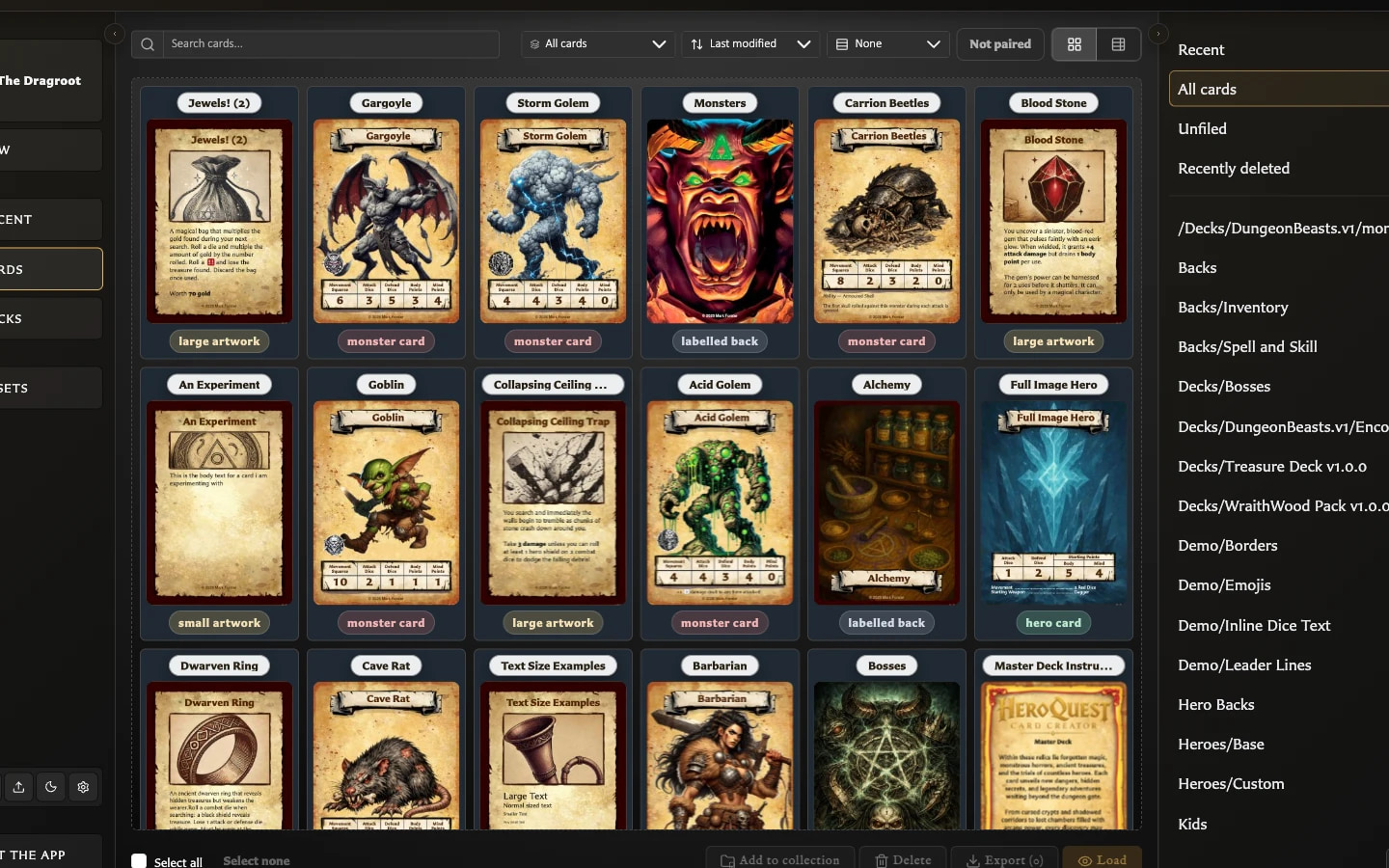
Find and arrange controls
The controls above the cards change which saved cards you see and how they are arranged:
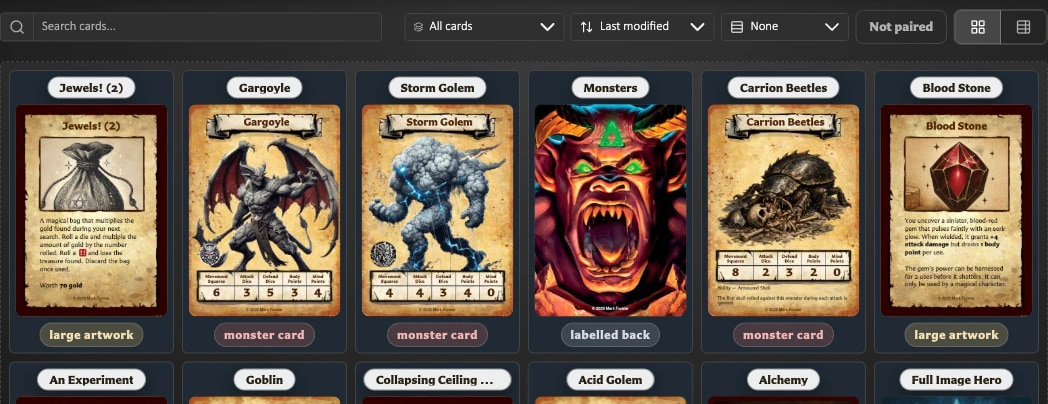
- Search saved cards narrows the results using the saved library name and, where different, the printed card title.
- Filter cards by template type can show all cards, only front-facing or back-facing cards, or one specific card template.
- Sort cards orders results by Last modified, Card name, or Card type.
- Group cards can leave one continuous list or divide results by Card type or Card face.
- Pairing status can show All cards, only cards that are Not paired, or only cards that are Paired.
- Grid and Table change how much information is visible for each result.
These controls do not change or move the cards. They only change the current view.
Card results
Grid is the visual browsing view. It emphasizes each card's thumbnail, saved name, and card type.
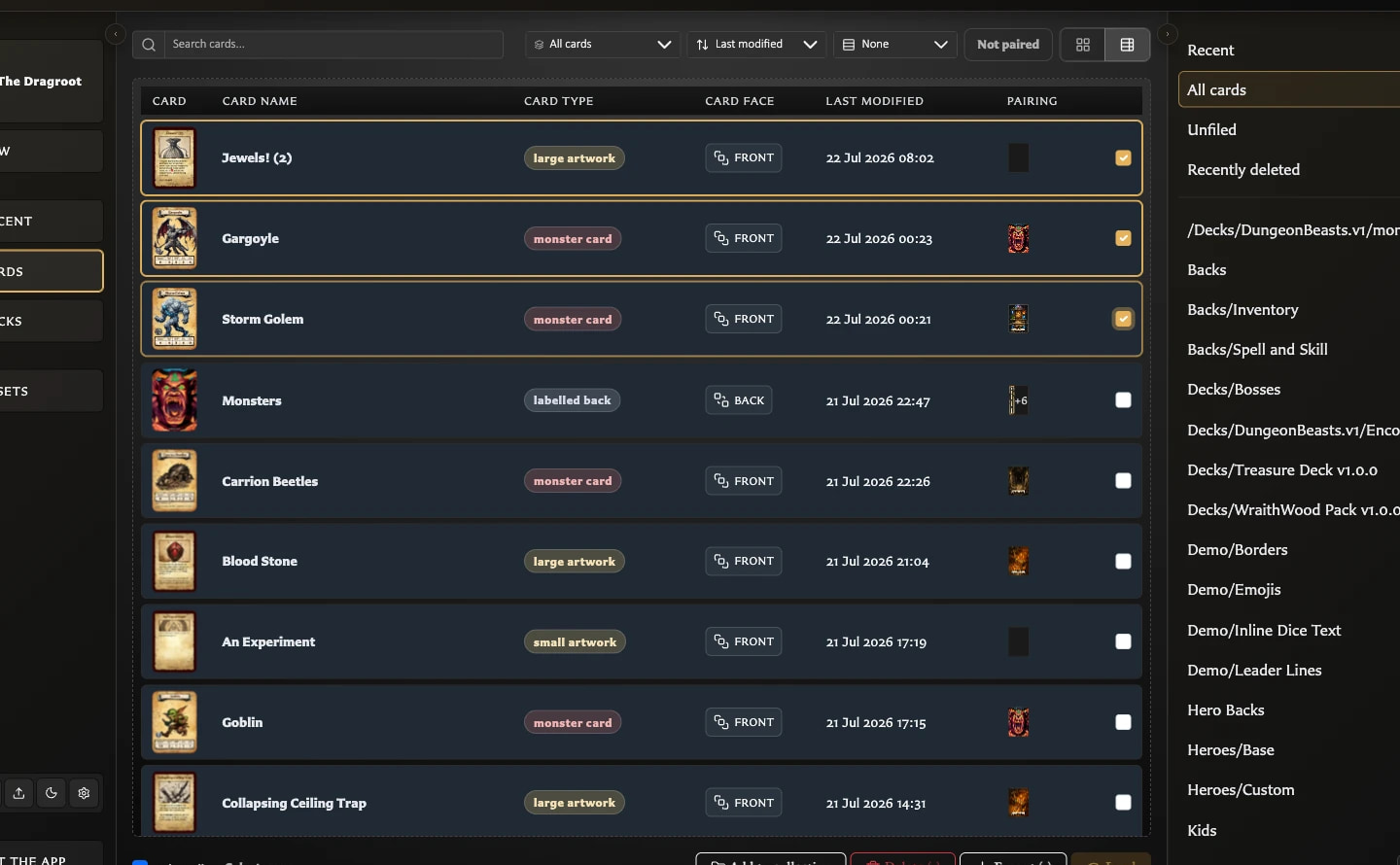
Table is the detail-oriented view. It presents columns for the card, name, type, face, last modification, and pairing information. Use it when you want to compare several cards without opening each one.
Grouping adds headings to either view. Search, collection scope, face or template filtering, and pairing status work together, so a narrow result can be caused by more than one active control.
Selection and action bar
Click a card once to select it. The actions beneath the results respond to the current selection:
- Add to collection adds the selected cards to another named collection.
- Delete opens the deletion choices for the selected cards.
- Export creates PNG images for the selected scope.
- Load opens one selected card in the Card Editor.
Use Ctrl-click on Windows or Cmd-click on macOS to build a selection. Select all selects all cards in the current filtered results, while Select none clears the selection.
Double-click a card to open it directly without using Load.
Collections panel
The Collections panel controls the library scope before the controls above it narrow the results further:
- Recent shows recently viewed cards inside the full Cards workspace.
- All cards shows every normally saved card.
- Unfiled shows cards that do not belong to a named collection.
- Recently deleted appears when recoverable deleted cards exist.
- Named collections show only their members.
Counts beside these choices can respond to broad filters such as the active search and pairing status. Sorting, grouping, and switching between Grid and Table do not change the counts. On a narrow screen, use the collections-panel control to open this area as a drawer.
How the filters work together
Think of the workspace as narrowing the library in stages:
- Choose the broad scope, such as All cards, Unfiled, Recent, Recently deleted, or a named collection.
- Search by saved name or printed title if needed.
- Limit the results by face or template.
- Set Pairing status to Not paired if you only want cards without a pairing, or Paired if you only want cards that already have a pairing.
- Sort, group, or switch view without changing which cards qualify.
If a card seems to be missing, clear the search, return the face/template filter to All cards, set pairing status to All, and check the selected collection scope.
What pairing status means
All shows cards regardless of whether they are linked to another face.
Not paired shows cards that are not currently linked to another card face. It is useful for finding fronts that still need a back or backs that have not yet been connected to fronts.
Paired shows cards that already have at least one linked face. It is useful when you want to review pairing work you have already completed.
The control is an additional filter. Changing it does not create, remove, or edit a pairing.
Why an action may be unavailable
Actions only become available when they have a valid target:
| Action | When it is available |
|---|---|
| Add to collection | One or more visible cards are selected, the current view is not Recently deleted, and another destination collection exists |
| Delete | At least one card is selected |
| Export | Cards are selected in All cards or Unfiled, or a populated named collection provides a collection export scope |
| Load | Exactly one card is selected |
| Remove from collection | Selected cards are being viewed inside a named collection |
| Restore | Selected cards are being viewed inside Recently deleted |
If several cards are selected, Load is disabled because the Card Editor can open only one card at a time. Clear the selection and choose one card.
Selection is not editing
Selecting, searching, sorting, grouping, filtering, or switching views does not modify the saved card. Collection membership changes organization, but it does not duplicate or edit the card itself.
Deleting is different. Move to recently deleted is recoverable; Delete permanently cannot be undone and can affect collection, pairing, and deck references. Read Organize and Recover Cards before permanently removing cards.