Fix Template Control Problems
A field or option is missing
Check the template name above the card and compare it with Understand Template-Specific Card Controls. Properties are tied to the layout: for example, only Monster Card has Monster icon, only Hero and Monster cards have stats, and only Labelled Back can move or restyle its label.
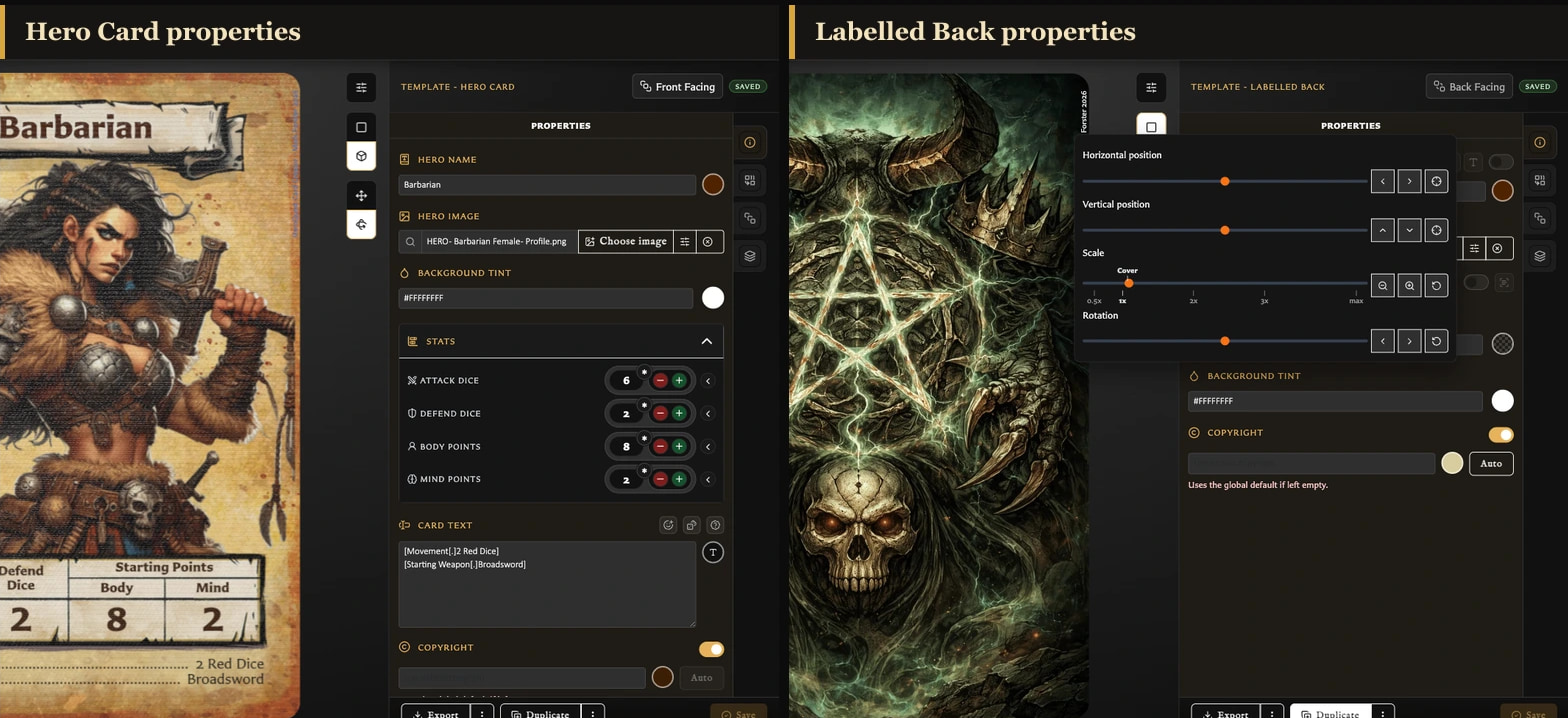
If you need a fundamentally different set of fields, start a new card with the appropriate template. Starting another card does not convert the saved card or transfer its pairings.
If the missing option is Scale to fit, see Fix Clipped or Overflowing Card Text for the templates that support it and the Labelled Back prerequisite.
I cannot add an asterisk to a wildcard stat
This is expected. The wildcard is already shown as *, so its separate asterisk marker is unavailable. Use a number if you need a value with an additional marker.
The Monster icon I expected is low in the results
Classify the reusable image as Icon in Assets. Icon assets are ranked before Artwork and unclassified images in the quick Monster icon search, although all types can still be selected. You can also search by filename or open the full chooser.
Default and Revert give different results
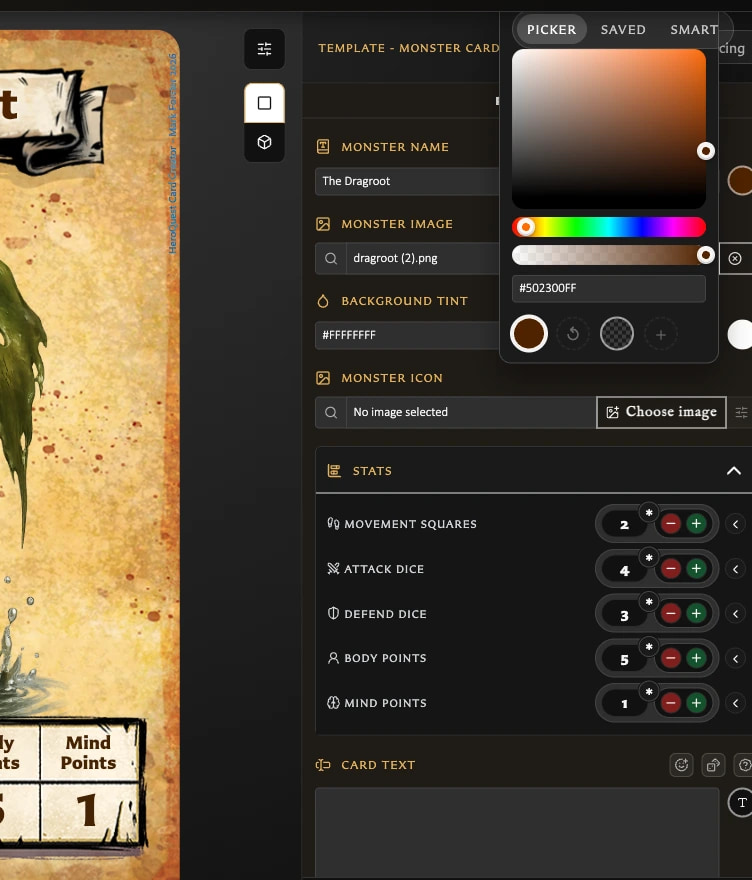
Default applies the template's standard value. Revert returns to the value present when the current edit began. If the card had already saved a custom colour, its reverted value will not match Default.
A deleted custom logo is still needed by cards
Use the deletion warning to switch affected cards to Default or another saved logo. If the logo has already been replaced, open an affected card, choose the intended saved logo, and save the change.
I saved the wrong colour
Revert only helps during the current edit; it is not a history of saved colours. Open the colour control, choose the required colour again, and save. For an unsaved mistake affecting several fields, leave the editor and choose Discard only when losing all current edits is acceptable.
Return to the Troubleshooting Index to find help for another symptom.