Understand the Pairing Tab
The Pairing tab shows which saved front and back cards are connected to the card currently open in the Card Editor. Use it to review those relationships, open a related card, or change which faces belong together.
Pairing is available from the inspector beside the card preview. The exact view depends on whether the current card is Front Facing or Back Facing.
Before a card is saved
A draft shows Save this card to manage pairings. Pairings belong to saved cards, so the pairing controls remain unavailable until the card has been saved for the first time.
After saving, return to Pairing to create or change its relationships.
On a front-facing card
The tab shows:
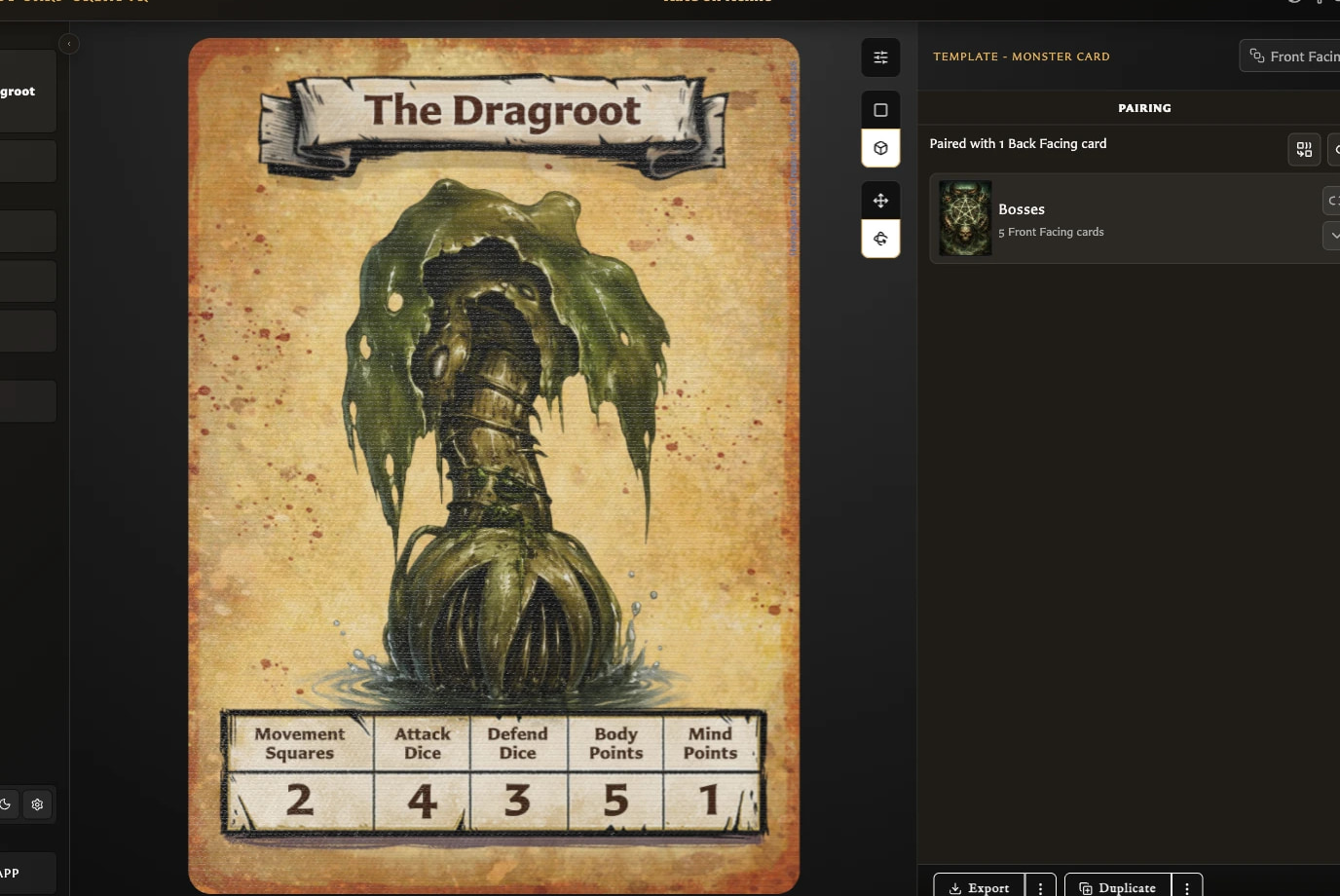
- Unpaired when the front has no back.
- Paired with 1 Back Facing card or the number of backs when it has pairings.
- Pair with a back card, which opens a selector containing saved back-facing cards.
- Unpair from all back facing cards when the front has at least one back.
- One collapsible section for each paired back, including the other fronts that share that back.
Choose a paired back's thumbnail to open that back in the Card Editor. Expanding its section shows the front cards connected to it; choosing a front opens that card.
On a back-facing card
The tab shows:
- Unpaired when no fronts use the back.
- Paired with 1 Front Facing card or the number of fronts when it has pairings.
- Manage paired fronts, which opens a selector containing saved front-facing cards.
- A thumbnail for every paired front.
Choose a front thumbnail to open that card in the Card Editor.
What the selection window does
The selection window includes search, a template filter, collection filters, and a selected-card count. Already paired cards start selected.
For a front card, confirming the selection replaces its current set of backs with the selected backs. For a back card, confirming replaces its current set of fronts with the selected fronts. Removing a selected relationship may require an additional warning if it is used by a deck.
For step-by-step instructions, see Pair and Unpair Card Faces.