Manage and Recover Deck Entries
Entries contains the front-facing cards in the selected set. The board title and thumbnail identify the set's back, so check them before changing cards in a deck with several sets.
Reorder entries and change quantities
Drag an entry to another position in Entries to change its order. Use Increase quantity and Decrease quantity to set the number of copies from 1 to 12.
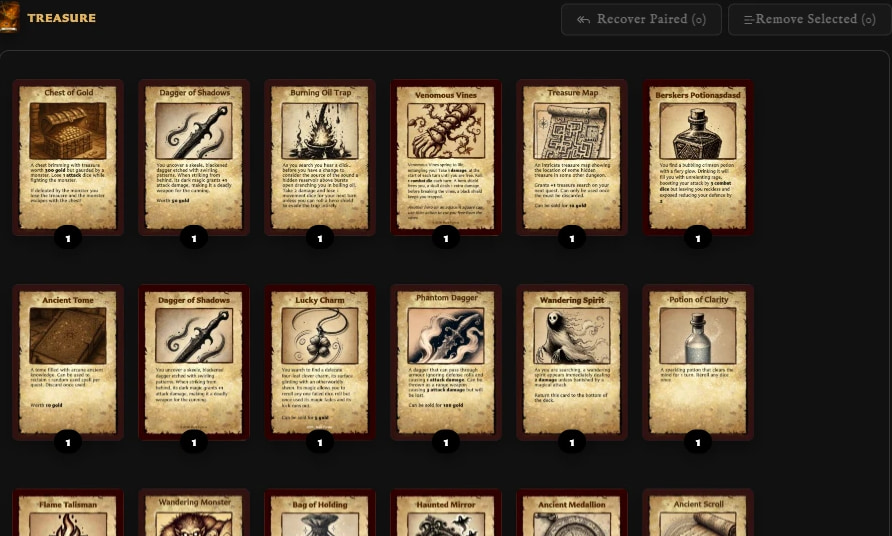
Order affects how the set is organized. Quantity affects quantity-aware PDF planning and export totals; it does not create duplicate saved cards.
Select and remove several entries
Click an entry to select it. Hold Ctrl on Windows or Command on macOS while clicking to build a selection, then choose Remove Selected.
The confirmation offers two different results:
- Remove from set removes the selected deck entries but keeps the front/back pairings.
- Remove and unpair removes the entries and the matching front/back pairings.
Both choices leave the saved front and back cards in your library.
Recover paired cards
Paired (Not In Set) counts fronts that are still paired with the selected set's back but do not currently have an entry in that set. This commonly happens after using Remove from set.
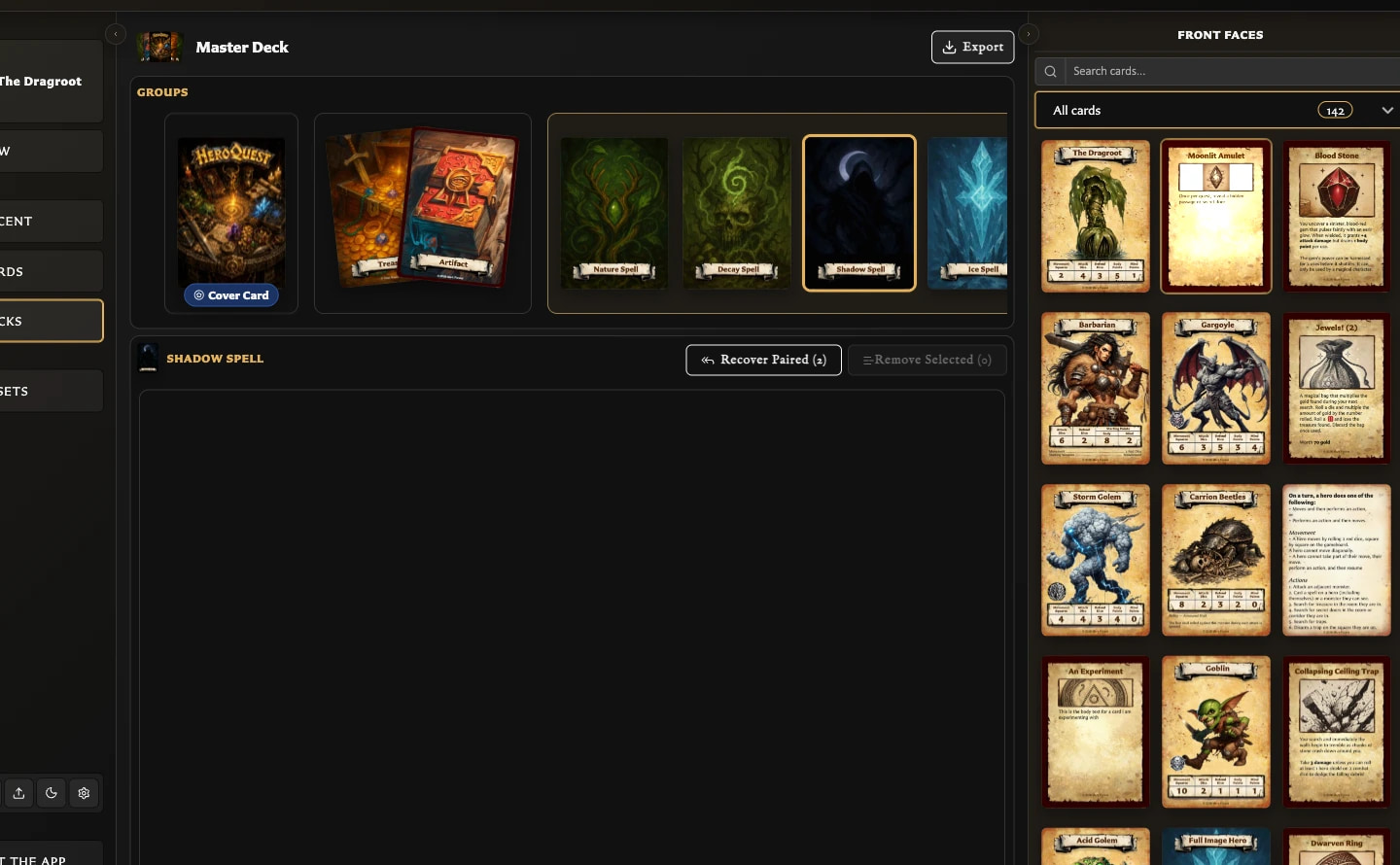
- Select the required set.
- Choose Recover Paired.
- Select one, several, or all of the listed fronts.
- Choose Recover Selected.
The recovered fronts return as entries. Their saved cards and existing pairings are reused; no duplicate cards are created.
If the count is zero, there are no paired fronts available to recover. Add a front from Front faces or manage the relationship in the card's Pairing tab.
Edit or remove one entry
Point to an entry to reveal Edit card and Delete entry. Editing opens the saved front in the Card Editor. Deleting opens the same remove-or-unpair decision used for a larger selection.