Save or Discard Card Changes
Choose Save whenever you want the current editor contents to become the library version of the card.
Save a new draft
- Enter the card title, name, or back label required by the template.
- Make the other changes you want.
- Choose Save in the Card Editor toolbar.
- Confirm that the status changes from draft to saved.
The card is now available in Cards. Collection, pairing, deck, and duplication actions can now refer to it as a saved card.
Save changes to an existing card
- Edit the saved card.
- Confirm that its status changes to Modified.
- Choose Save.
- Confirm that the status returns to saved.
This updates the same library card. It does not create a second card or alter other cards that were previously duplicated from it.
Leave while changes are unsaved
When you try to open another card, start a new card, or move to another app area while the current card is modified, the app opens Discard changes? with three choices:
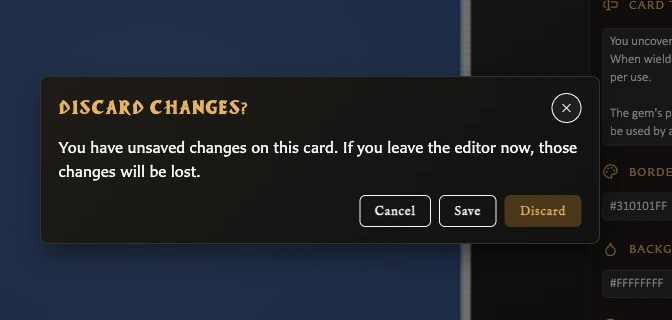
- Cancel keeps you on the current card with the edits still in place.
- Save saves the current card, then continues to the destination only if saving succeeds.
- Discard continues without saving the current edits.
Choose Cancel if you are unsure. Choosing Discard cannot be undone through the Card Editor.
If saving is blocked because the required title, name, or label is empty, the app remains on the current card instead of continuing.
Reloading or closing the browser
The browser may show its own unsaved-changes warning when you reload or close a tab containing a modified card. The wording and available choices belong to the browser rather than HeroQuest Card Creator.