Understand Body Text Tools
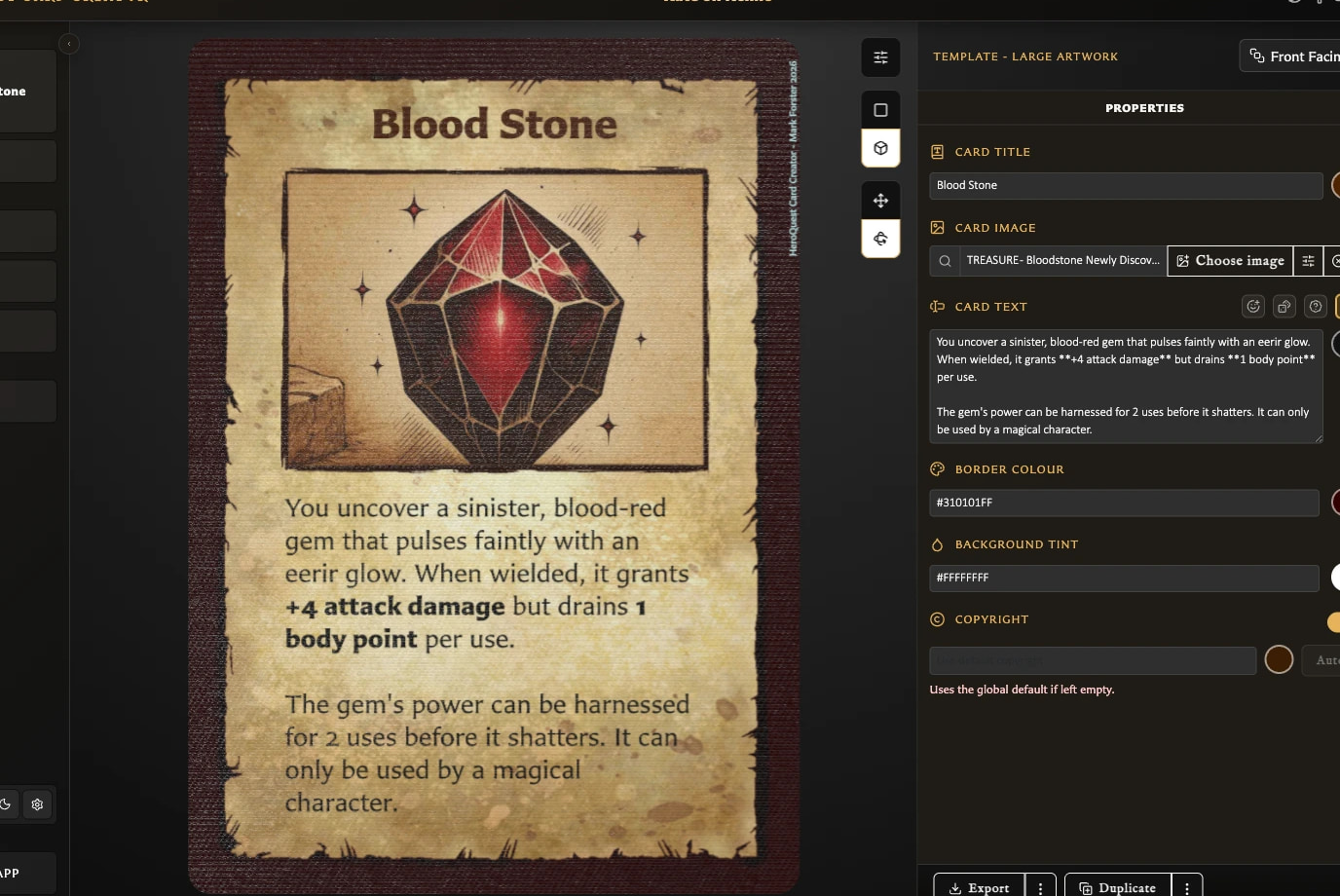
Body text is the main descriptive or rules wording on a card. Its field may be called Card text, Rules text, or Back text, depending on the template.
As you type, the card preview updates to show the result. The tools beside the field can help you add symbols, format the wording, choose a text colour, and make longer text fit.
What tools can I use?
Most body-text fields provide:
- Insert emoji to choose and insert a symbol.
- Insert inline dice to build a die symbol without typing its formatting code.
- Formatting help for emphasis, colour, size, headings, alignment, leader lines, and dice examples.
- A text-colour control when that template supports body-text colour changes.
- Scale to fit when the template has a fixed-size text area.
The chosen item is inserted at the cursor. If some text is selected, inserting an emoji or die replaces that selection.
For the complete formatting reference, see Format Card Text. For picker steps, see Insert Emoji and Dice.
Why do the available tools vary?
Each template has its own layout. Small Artwork, Large Artwork, Rules, Hero Back, and Labelled Back have fixed-size body-text areas, so they can offer Scale to fit and can show a Text clipped warning.
The Hero Card and Monster Card use a flexible text area that adjusts as the content changes. They do not offer the same body-text fitting switch or clipping warning. Logo Back has no body-text field.
On Labelled Back, its body-text tools are available only when back text is enabled.
Which fitting control should I use?
There are two separate kinds of text fitting:
- Scale to fit beside the body-text field applies to that card's fixed body-text area and is saved with the card.
- Text fitting in Settings or the preview toolbar controls app-wide minimum sizes and ellipsis preferences for titles and stat headings.
Use Fit Body Text on a Card when the card's descriptive or rules wording is crowded. Use the app-wide setting when titles or stat headings are the problem.
How much text can I enter?
A body-text field accepts up to 2,000 characters. If the text is longer, shorten it before saving. The character limit and whether the wording visually fits are separate: text below the limit can still be too large for a fixed area.