Insert Emoji and Dice
The body-text helpers let you add symbols at the cursor without memorizing formatting codes.
Insert an emoji
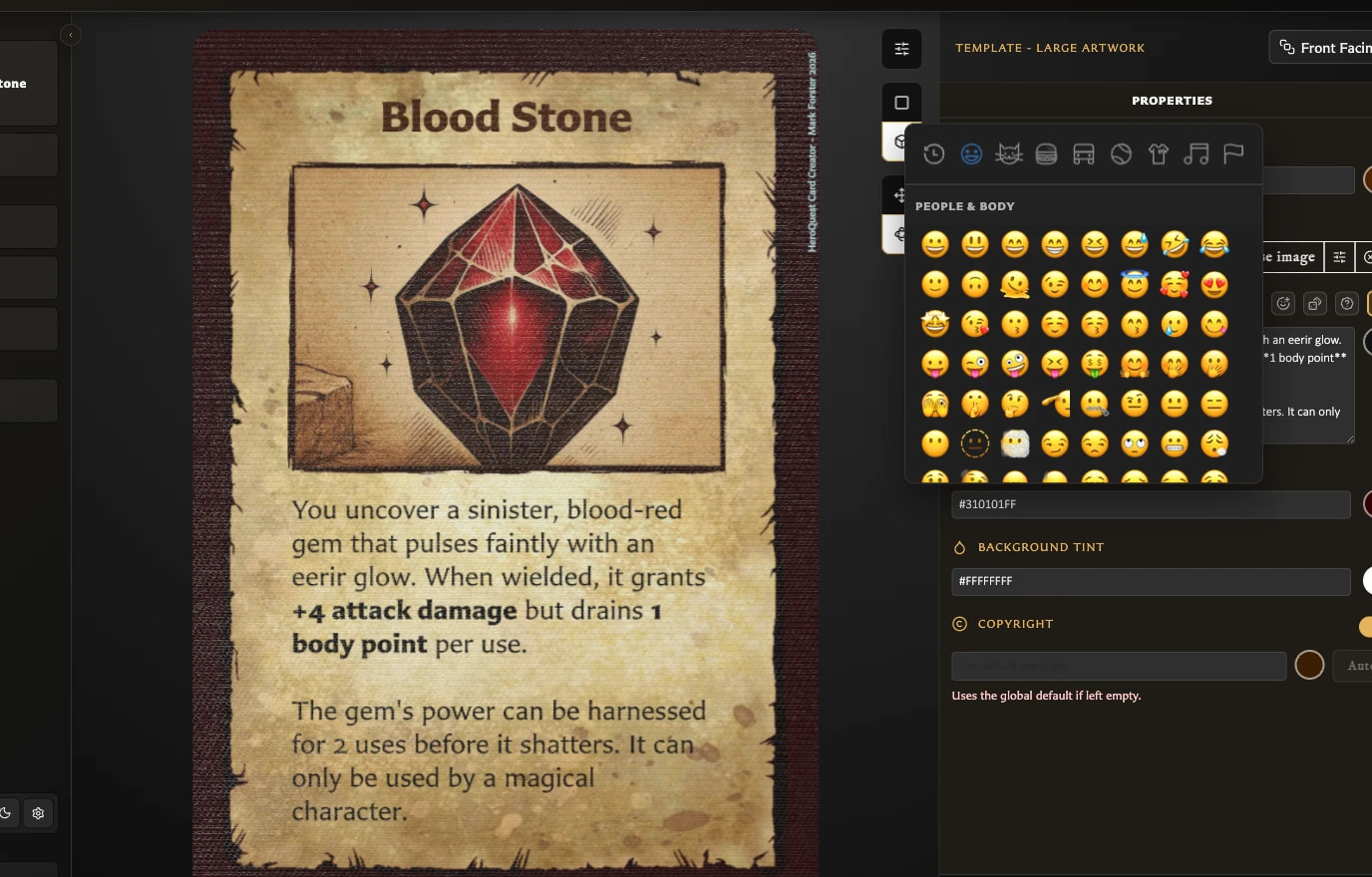
- Click in the body-text field where the symbol should appear.
- Select Insert emoji.
- Browse a category and choose an emoji.
The picker closes and inserts the emoji at the cursor. If text was selected, the emoji replaces it.
Insert a die
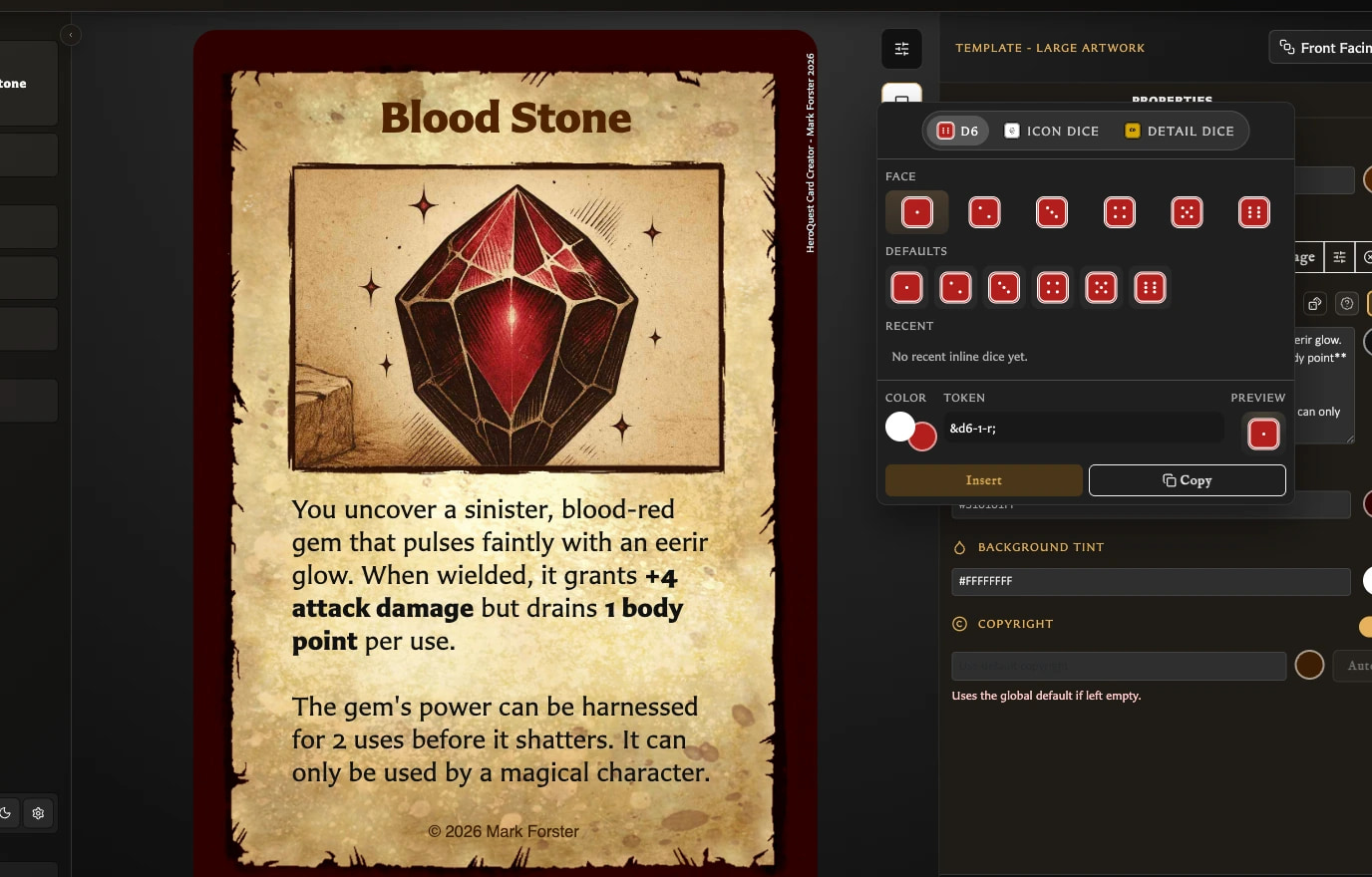
- Click in the body-text field where the die should appear.
- Select Insert inline dice.
- Choose a die family:
- D6 provides the numbered faces 1-6.
- Icon dice provides skull, Hero shield, and Monster shield faces.
- Detail dice provides compact CD, AD, DD, and MD symbols for combat, attack, defence, and movement dice.
- Choose the face, background colour, and symbol or pip colour.
- Check Preview and Token to confirm the result.
- Select Insert.
The configured die is inserted at the cursor and the window closes.
What are Defaults and Recent?
Defaults offers ready-made choices. Recent remembers configured dice that you have copied or inserted, making repeated styles quicker to reuse.
The picker starts with its standard D6 choice when opened again. Use Recent when you want a previously configured colour and face combination.
What is the difference between Insert and Copy?
Insert places the die in the current text field and closes the picker. Copy copies the die's token so you can paste it elsewhere and leaves the picker open.
The token is the short text code that the card turns into a die symbol. You usually do not need to edit it manually. If you do want the syntax and examples, open Formatting help or see Format Card Text.