Settings Reference
This page explains every visible Settings category in v0.8.1. For where the categories appear and how Save or Discard works, see Understand the Settings Window.
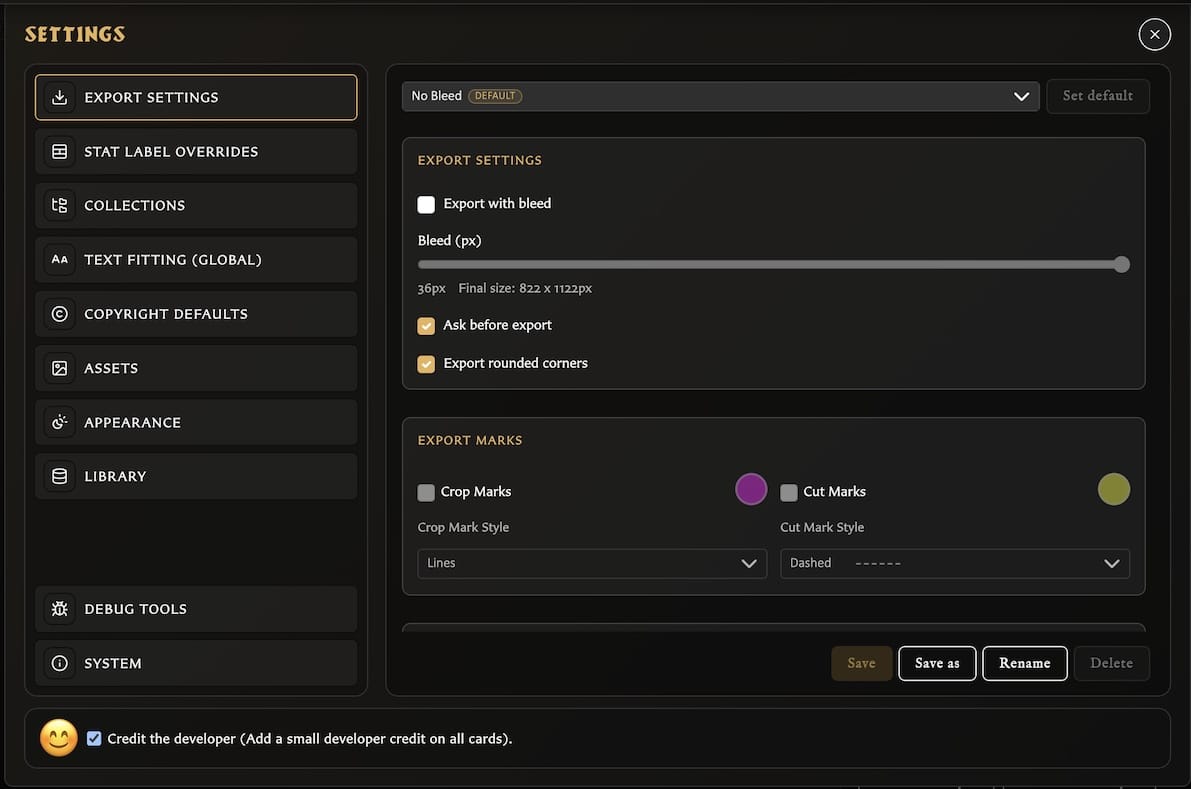
Export Settings
Export profiles store reusable image and PDF defaults.
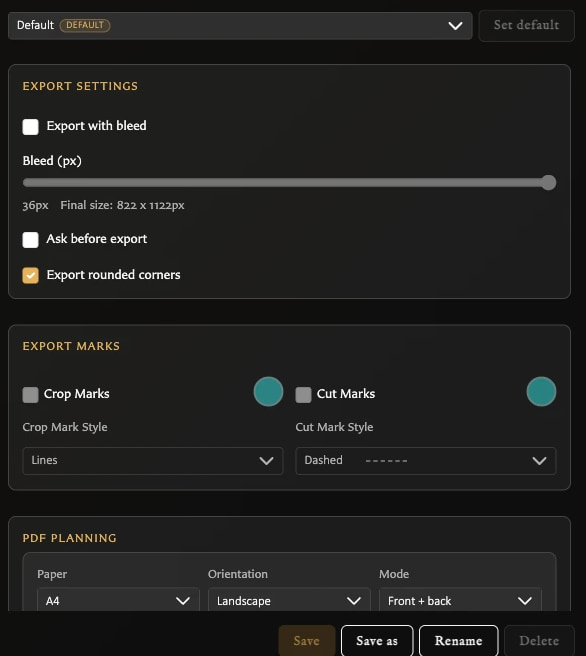
Image export options
- Export with bleed adds the chosen bleed amount around each card and shows the resulting pixel dimensions.
- Ask before export controls whether the app asks about export options before producing files.
- Export rounded corners includes rounded corners when bleed is off.
- Crop Marks and Cut Marks can add configurable marks, colours, and line styles when bleed is enabled.
Enabling bleed disables rounded corners and makes the Crop Marks and Cut Marks toggles available. Each mark's colour and style remain unavailable until that mark is enabled.
PDF planning options
- Paper chooses the target paper size.
- Orientation chooses portrait or landscape.
- Mode chooses front-only or front-and-back output.
- Duplex preset controls how reverse sheets are transformed for double-sided printing.
- PDF bleed source tells the app whether the card image already includes bleed or whether PDF layout should add it.
- Bleed per edge (mm) sets the print bleed measurement.
See Configure Export Defaults and Profiles for the purpose of every option, practical starting configurations, and profile management. Also see Export Cards as PNG Images and Export a Deck as PDF.
Stat Label Overrides
Stat Label Overrides changes the printed wording used for card statistics. The fields are grouped by where they apply:
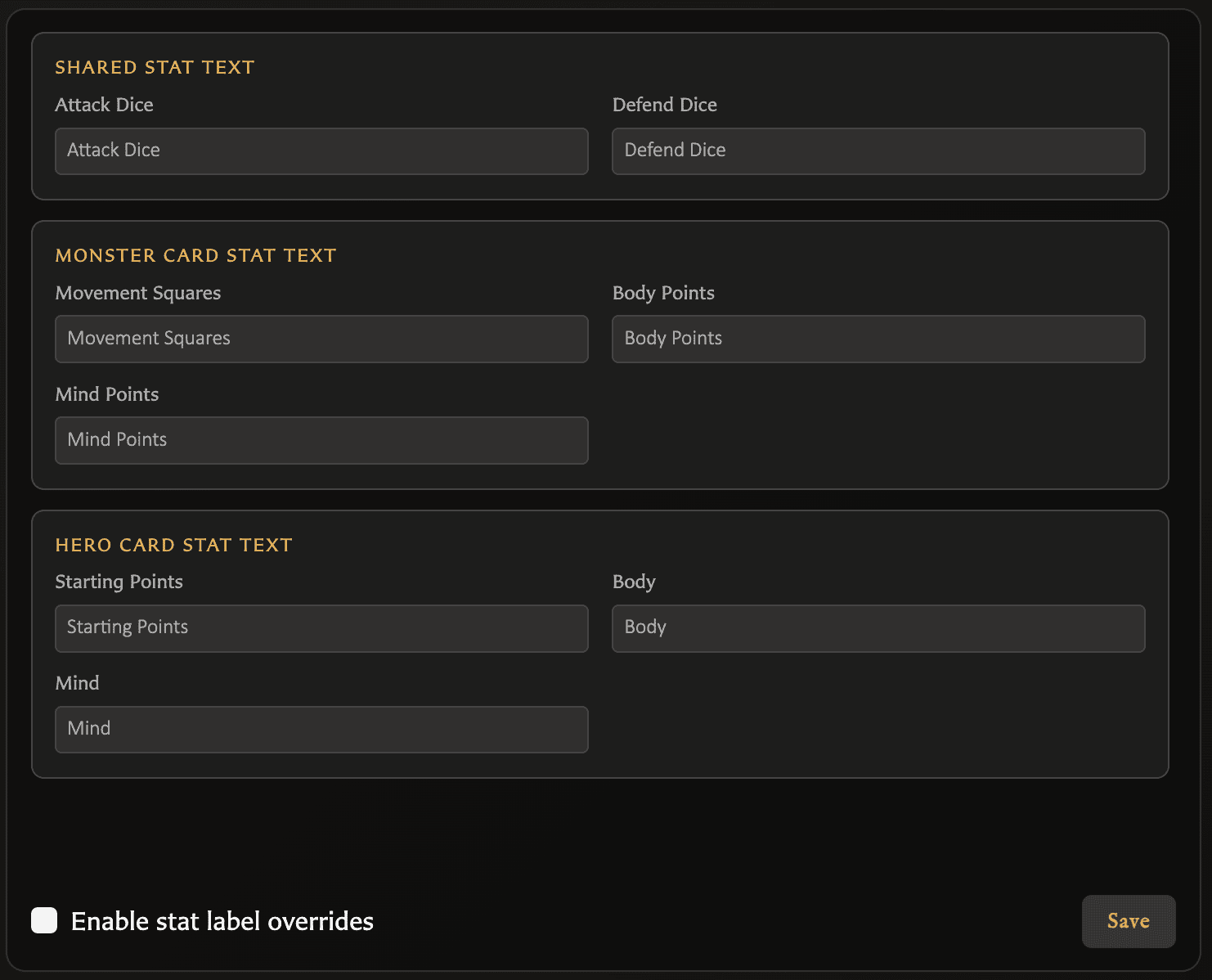
- Shared: Attack Dice and Defend Dice.
- Monster Card: Movement Squares, Body Points, and Mind Points.
- Hero Card: Starting Points, Body, and Mind.
Enter replacement wording, enable Enable stat label overrides, and choose Save. Clear an individual field to return that label to its normal localized wording. These are global label preferences rather than values stored separately on one card.
Collections
Group collections by folders interprets slashes in collection names as folder paths. For example, spells/fire and spells/air appear beneath a spells group.
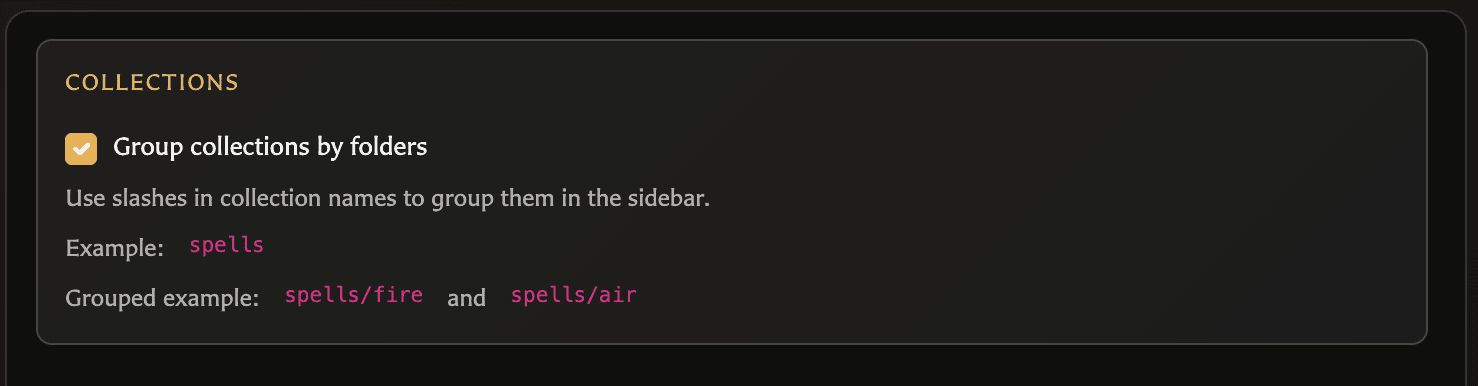
This changes how collections are presented. It does not move, duplicate, or delete their cards. See Create and Organize Collections.
Text Fitting (Global)
The global text-fitting controls are separate for Title and Stat headings:
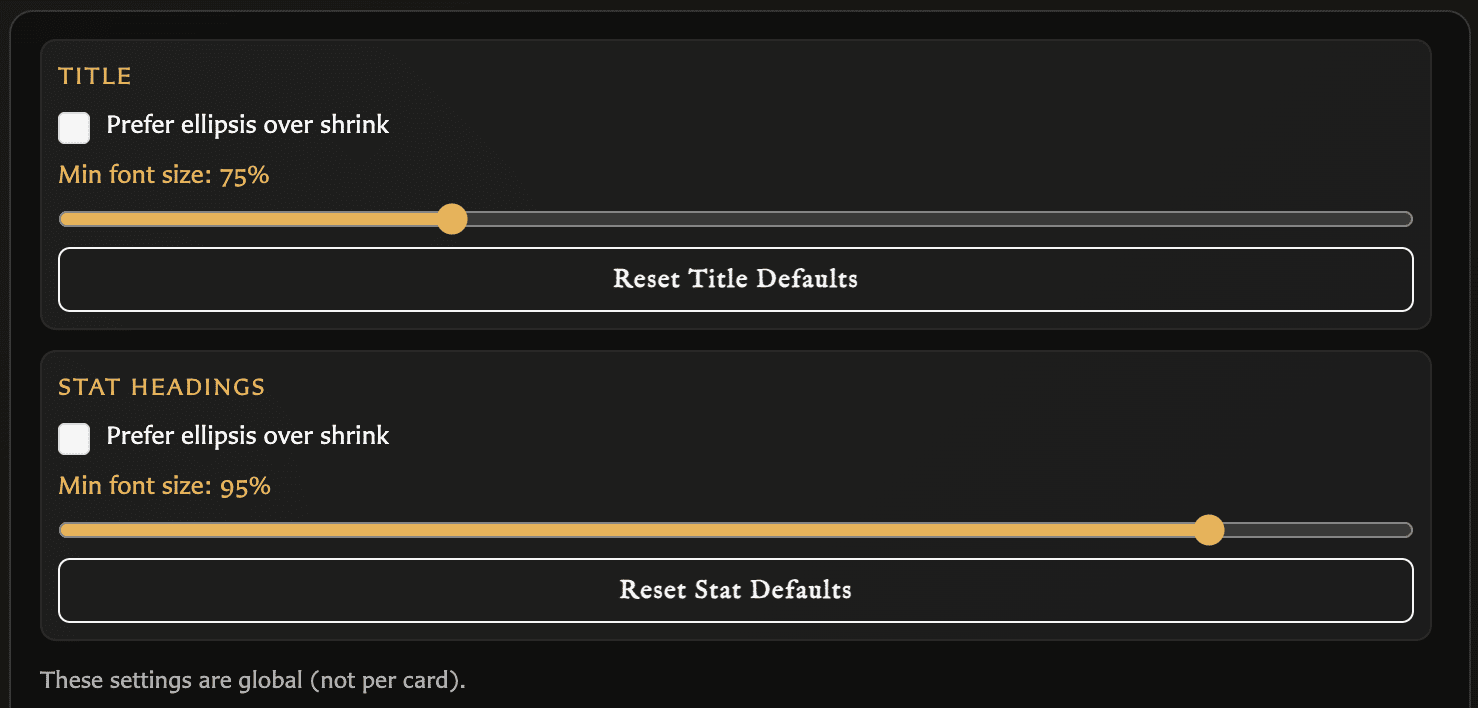
- Prefer ellipsis over shrink chooses truncation rather than shrinking below the preferred point.
- Min font size sets how far text may shrink.
- Reset Title Defaults and Reset Stat Defaults restore their respective defaults.
These settings do not control the per-card body-text Scale to fit option. See Format Card Text.
Copyright Defaults
- Default copyright supplies the text used by newly created cards unless the card overrides it.
- Copyright Visibility sets the initial visibility separately for each template.
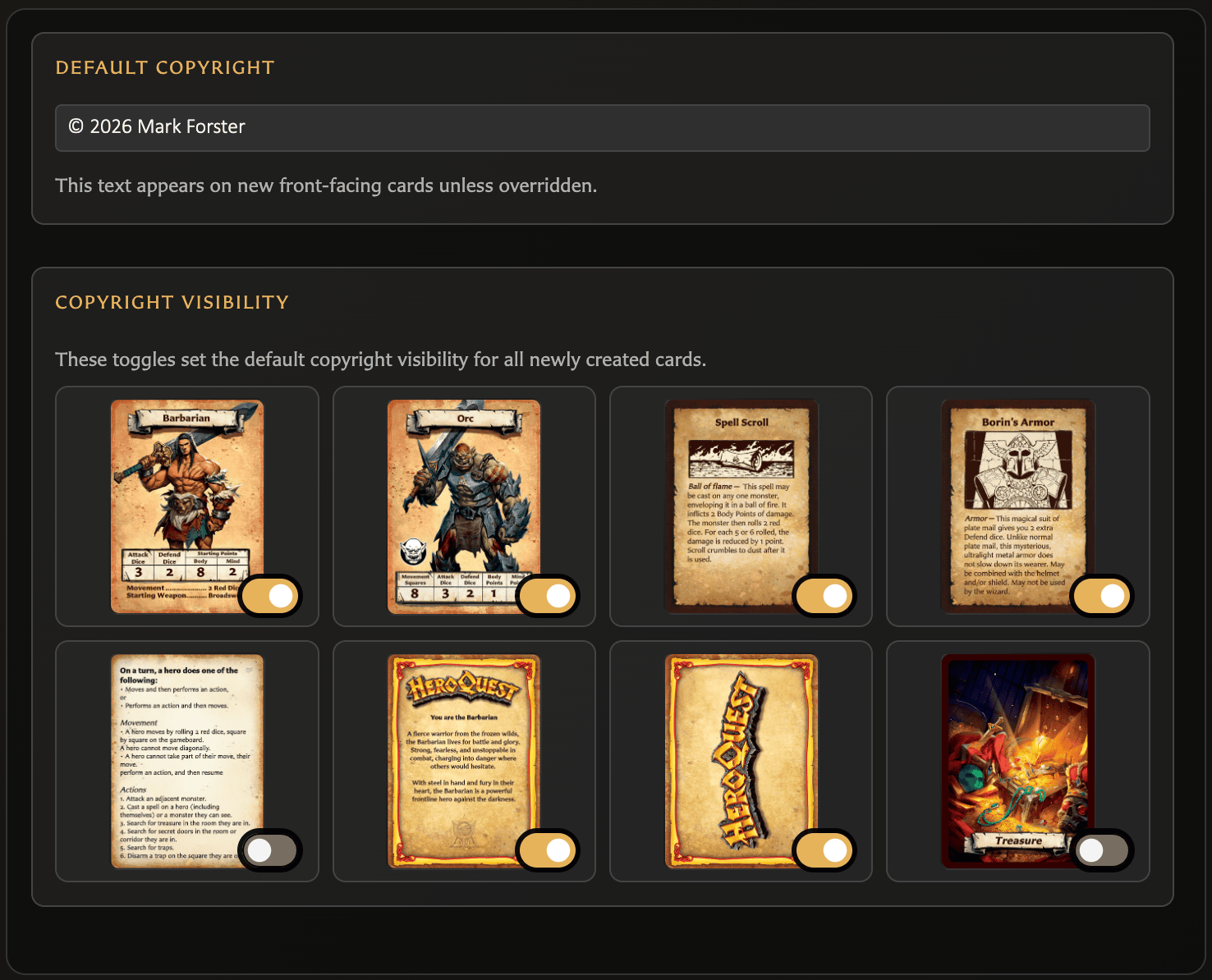
The template toggles affect new-card defaults. Existing cards retain their saved text and visibility until edited.
Assets
Enable auto-classification lets the app categorize uploaded images as Artwork or Icon. Turning it off stops automatic classification; you can still override an individual asset's kind in Assets.

Automatic classification is unavailable in Safari and the setting is disabled there. See Understand the Assets Workspace.
Appearance
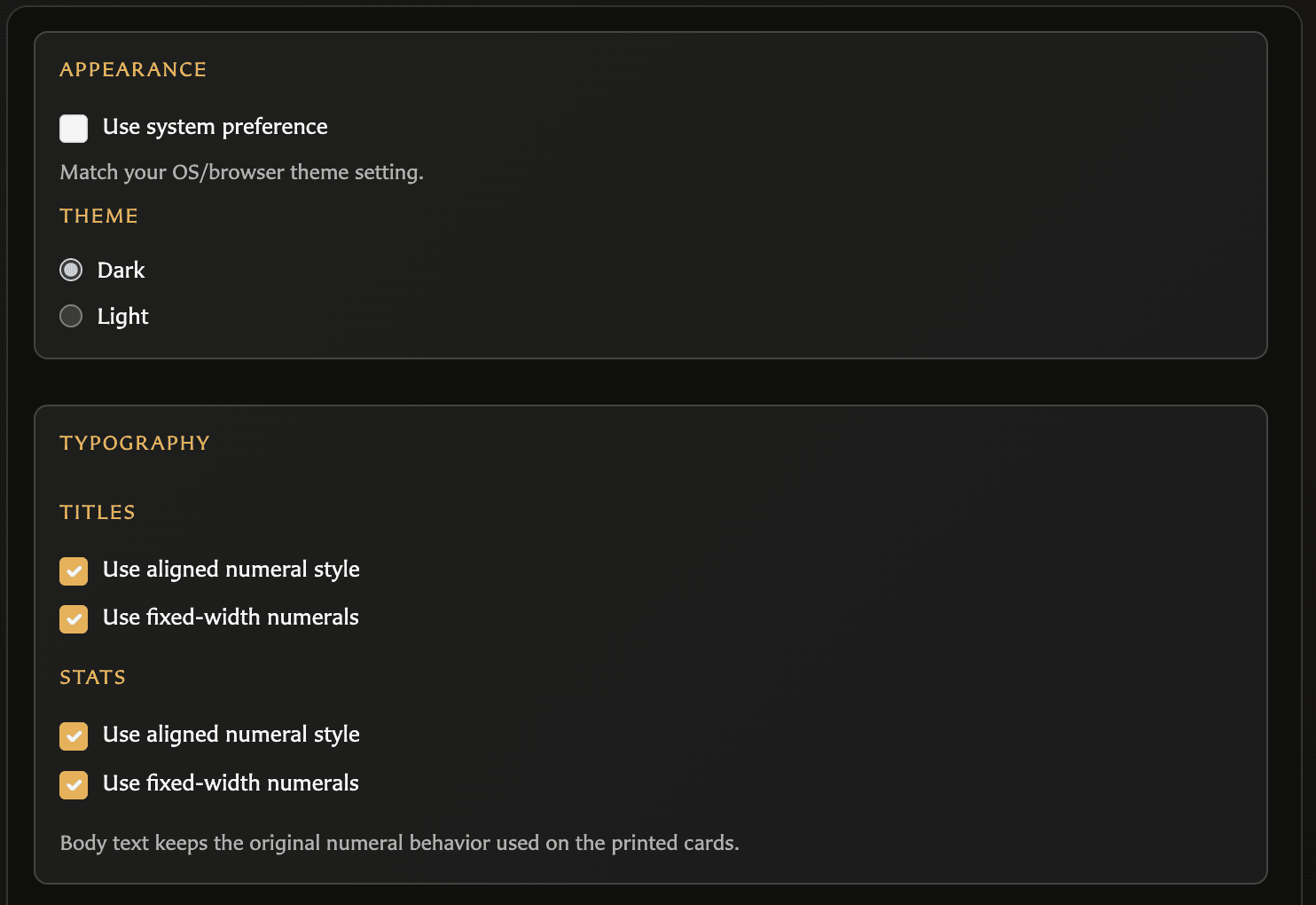
Theme
- Use system preference follows the operating-system or browser theme.
- Dark and Light select an explicit app theme when system preference is off.
Typography
Titles and stats each provide:
- Use aligned numeral style to make numerals align consistently.
- Use fixed-width numerals to give each numeral the same width.
Body text keeps the numeral behavior used by the original printed-card style.
Library
Library shows a compact summary of the current local library:
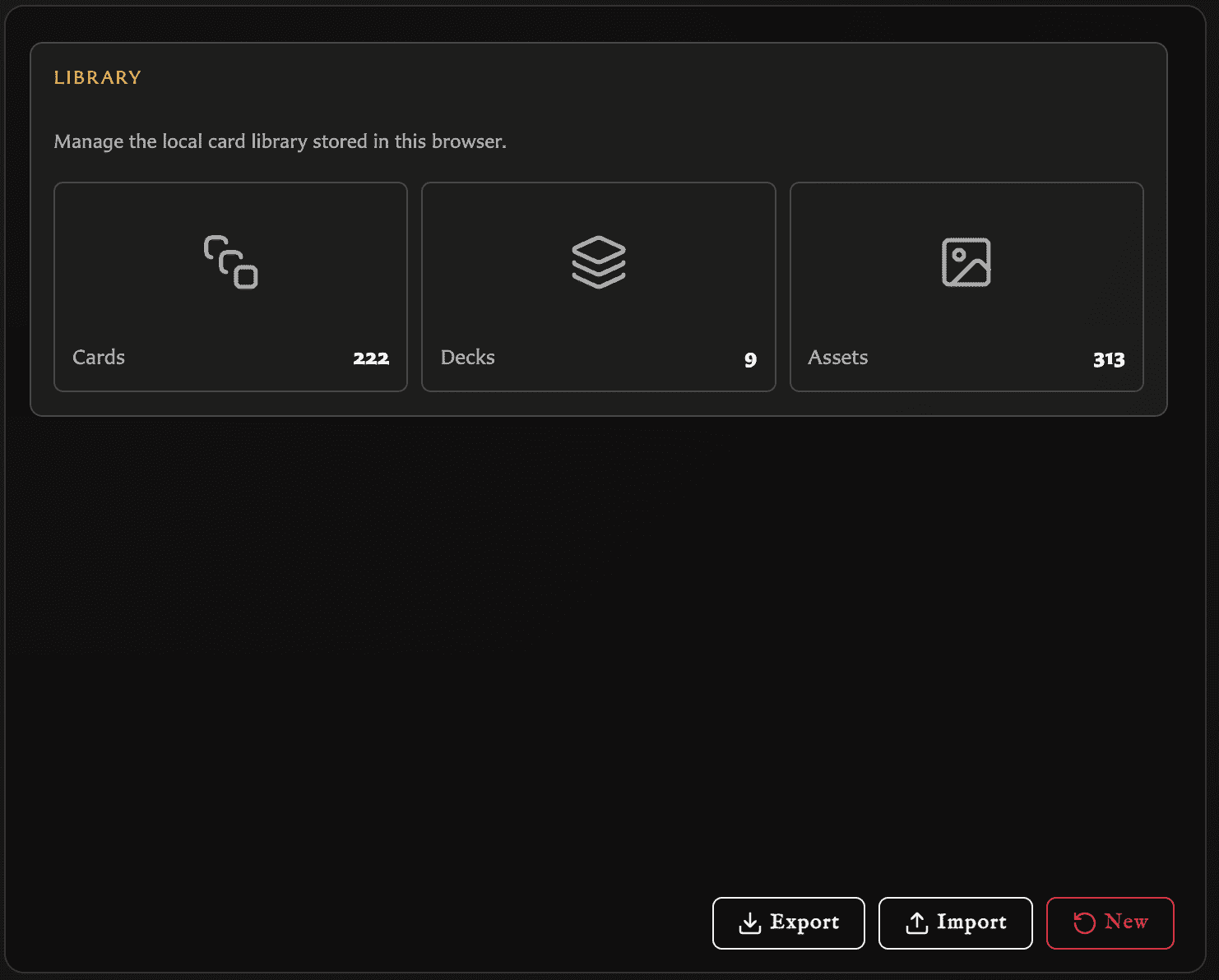
- Cards
- Decks
- Assets
It also provides three actions:
- Export creates a
.hqccbackup. - Import restores a
.hqccbackup and replaces the current library. - New starts a new empty library after a destructive confirmation.
Library also includes browser storage guidance. The app asks the browser for extra local data protection where supported, but regular .hqcc exports remain the backup you control.
Choose New only when you want to remove the current local library. The confirmation window offers another export opportunity, requires an acknowledgement checkbox, and then shows a completion message when the reset has finished.
For the full safety flow, see Start a New Library. For backup and restore steps, see Back Up and Restore Your Library. For browser storage guidance, see Protect Your Library and Keep It Small.
Credit the developer
Credit the developer appears at the bottom of every Settings category. When enabled, cards include the app's small developer credit. This is independent from your own copyright text.
System
System is an information and storage panel rather than a customization panel. It shows:
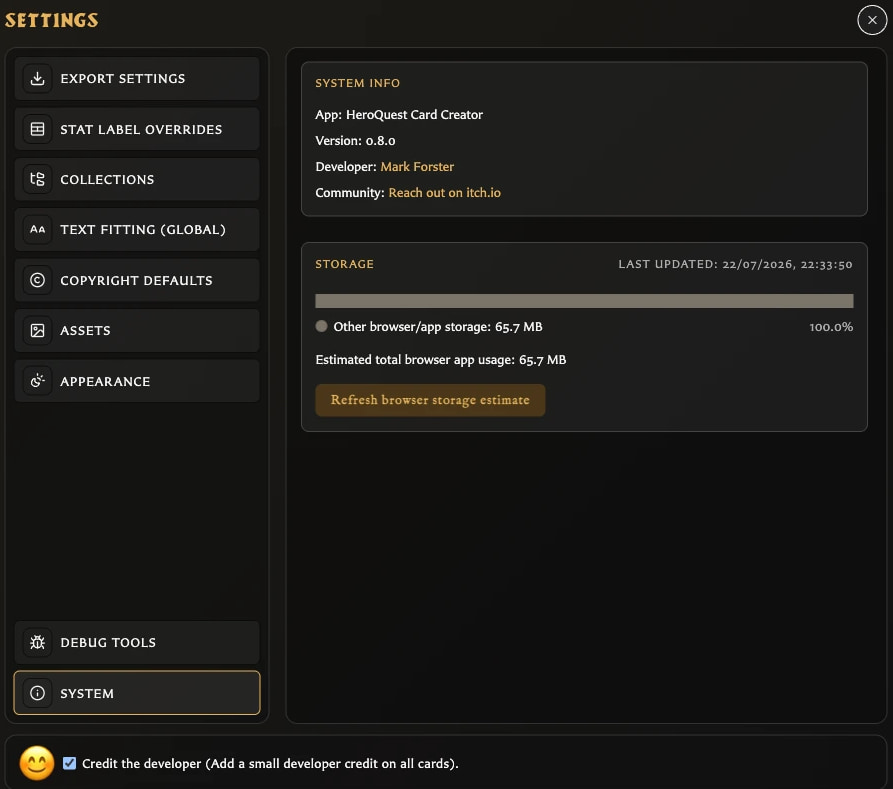
- App name and version.
- Developer and community links.
- Estimated total browser/app storage use.
- Asset, card, and other-library storage proportions and record counts.
- A detailed breakdown of other stored app data when available.
- Refresh browser storage estimate to recalculate the figures.
Storage figures are estimates for the current browser profile. They are not a backup and do not indicate how much space remains inside a .hqcc file.
Debug Tools
Debug Tools appears only when diagnostic tools are enabled. In v0.8.1 it can show:
- Show text bounds for visual diagnostics.
- Thumbnail JPEG migration status.
- Remote-asset diagnostic controls in remote mode.
- Clear asset classification, which permanently removes automatic and manual asset-kind classifications.
Do not use Clear asset classification as a normal organization tool. The app warns that it is destructive.
The visible message saying Debug will be removed after version 0.5.x is stale in v0.8.1. Treat the entire category as diagnostic and subject to change.
Backup relationship
Library backup includes settings tied to the portable library, including export profiles, stat labels, copyright defaults, and saved border colours. It does not include every personal preference: language, theme, collection display, automatic asset classification, general text fitting, numeral styling, and developer credit remain specific to the current app location. The System storage display itself is only an estimate and does not replace Back Up and Restore Your Library.