Organize Deck Groups and Sets
The Groups board organizes the back-facing cards used by a deck. Each back anchors one set, and the fronts that use it appear as that set's entries.
Understand the card fans
A group with one set stays open. When a group contains several sets, its cards overlap to save space:
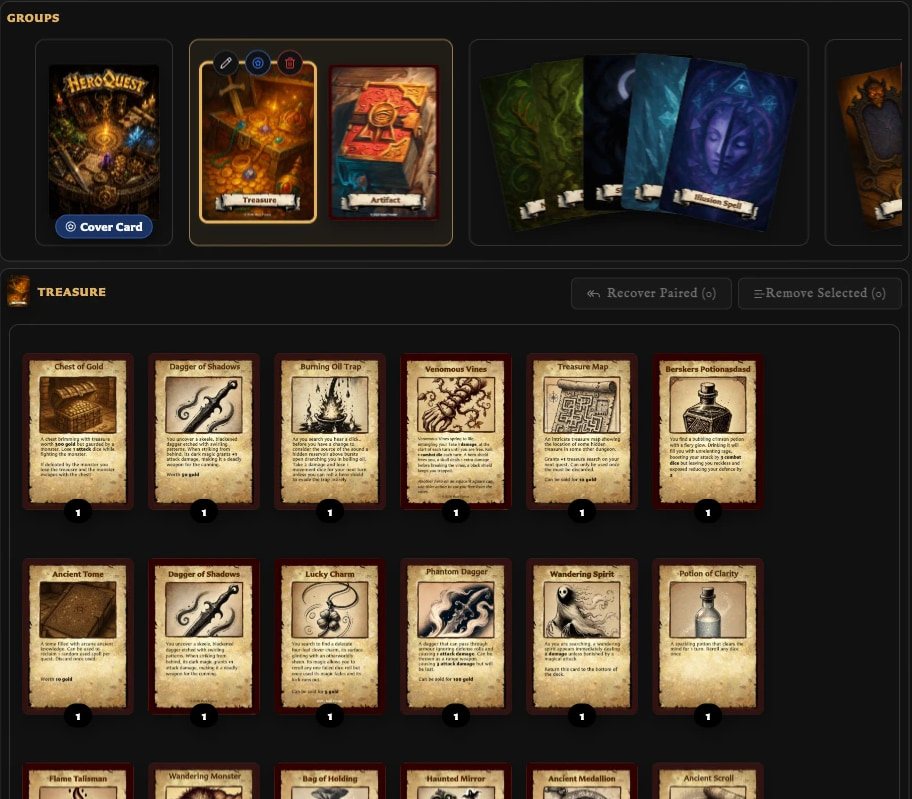
- Point to the group to spread the cards far enough to inspect them.
- Select a set to fully expand its group.
- Select a different group or set to change which part of the deck is active.
The selected set also determines what appears in Entries.
Groups and sets do not have separate user-entered names. A set is identified by its back card, and groups are visual sections created by the way sets are arranged. Groups themselves are not reordered.
Add a set or group
Drag a card from Back faces to Groups.
- Drop it in an existing group's insertion position to add a set there.
- Drop it at the new-group position on the right to create another group.
The same back card cannot anchor two sets in one deck. If the back is already used, choose a different back or use the existing set.
Reorder or move a set
Drag a set's back card to another position in its current group, or into another group. You can also move it to the new-group position to create a group around it.
If you move the only set out of a group, the empty group is removed automatically. This keeps the deck free of unused sections.
Dropping a set outside a valid position does not delete it. Return to the deck and drag it to a visible insertion position.
Choose the cover card
Point to an expanded set and choose Set cover card. The set receives a Cover Card marker and becomes the prominent first set in deck previews.
Only one set can be the cover card at a time. Choosing another replaces the previous choice; it does not change any pairings or entries.
Edit or delete a set
Point to an expanded set to reveal its actions:
- Edit card opens the set's back-facing card in the Card Editor.
- Delete set removes the set and all of its deck entries after confirmation.
Deleting a set does not delete its saved back or front cards, and it does not remove their pairings. If the deleted set was the cover card, the deck no longer uses it as the cover.
If you delete the final set from the only group, the empty group remains ready for another back. If other groups exist, a group emptied by deletion is removed.
Can I change a set's back?
Version 0.8.0 does not offer a Change back action in the deck workspace. To use another back, delete the set and create a new set with the required back, then add or recover its entries.