Fix Deck Editing Problems
A back or front will not drop
Check the type of card and the target:
- Back-facing cards go to a visible slot or insertion position in Groups.
- Front-facing cards go to Entries, and a set must be selected first.
- Search and Collections filters can hide cards from the source list.
- A back already used by a set in the deck cannot create a second set.
Dropping on blank space or outside a valid position makes no change. Try again on the visible card-shaped slot or insertion marker.
Entries disappeared when I selected another card
Entries always belongs to the currently selected set. Select the required back card in Groups and check the back thumbnail beside the Entries title.
I removed a front but want it back
If you chose Remove from set, select the set and use Recover Paired. The front should be listed under Paired (Not In Set).
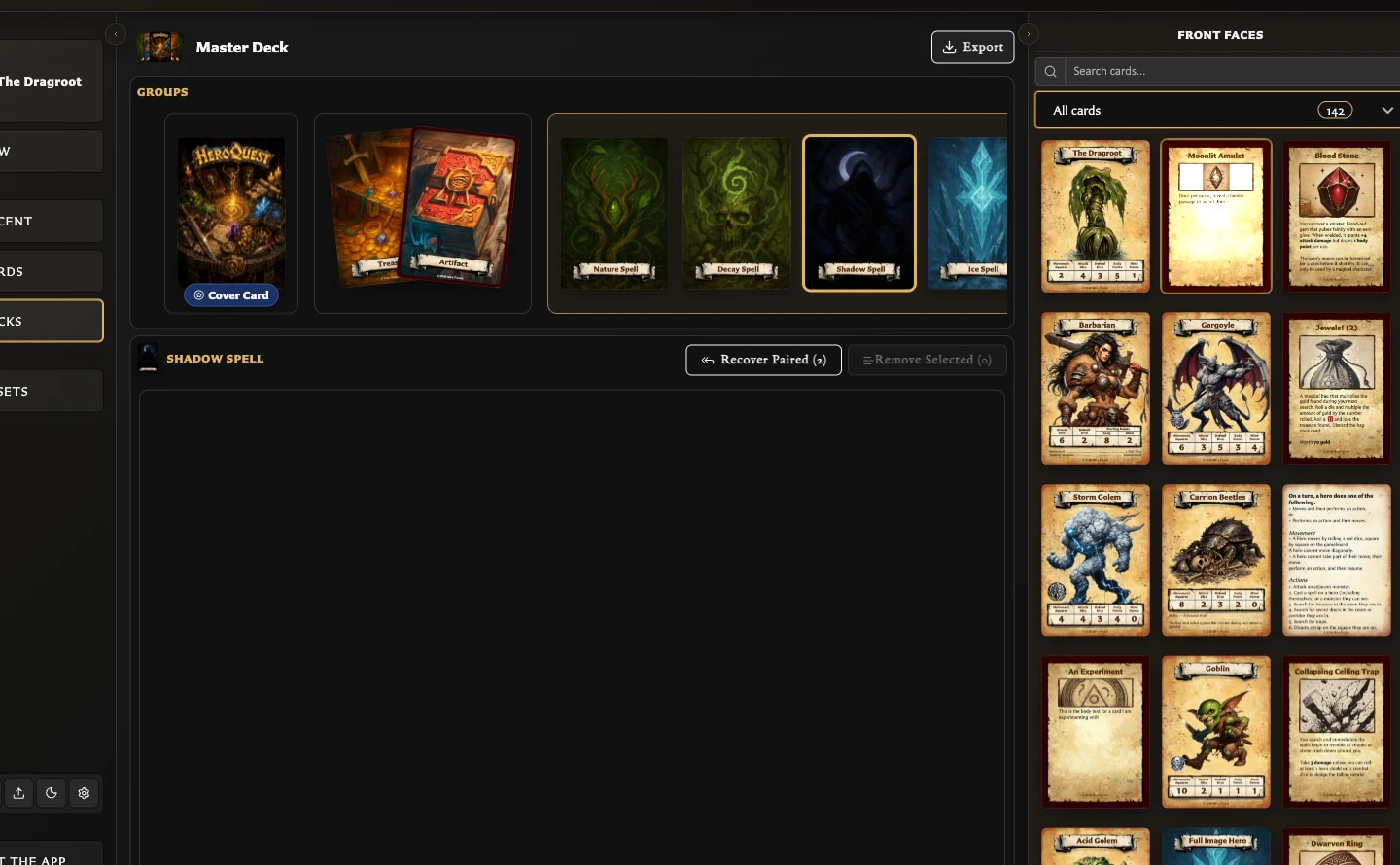
If you chose Remove and unpair, recreate the pairing from the card's Pairing tab or drag the front from Front faces into the set again.
A group vanished after I moved or deleted a set
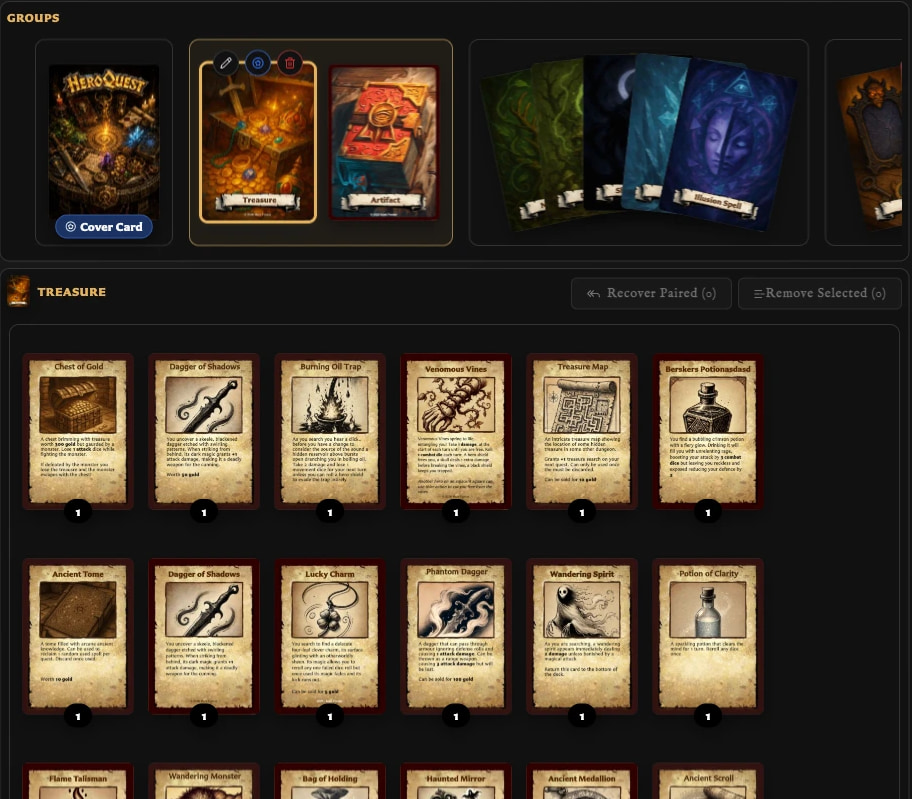
Empty groups are cleaned up automatically when other groups remain. Moving the only set out of a group or deleting its final set can therefore remove that group. The final empty group in an otherwise empty deck remains as a starting slot.
I cannot name or reorder groups
This is expected. Groups are unnamed visual sections and are not reordered. Move and reorder the sets inside them instead. Sets are identified by their back-facing cards rather than separate names.
I cannot duplicate a deck or change a set's back
These actions are not available in the version 0.8.0 deck interface. Create a new deck manually to reproduce a deck, or delete and recreate a set when it needs a different back.
Deletion removed more than expected
The confirmation describes the scope:
- Deleting a deck removes its deck organization, not its saved cards or pairings.
- Deleting a set removes that set and its entries, not its saved cards or pairings.
- Remove from set keeps the pairing and allows recovery.
- Remove and unpair removes the matching pairing as well as the entry.
If a pairing was removed, recreate it through the Card Editor's Pairing tab.