Back Up and Restore Your Library
HeroQuest Card Creator stores cards, assets, collections, decks, pairings, and related library settings locally in the current browser profile or installed app copy. A .hqcc export is the portable safety copy.
The backup includes library-related settings such as export profiles, custom stat labels, copyright defaults, and saved border colours. It does not carry every personal preference, such as language or theme. Import restores the backup as one complete library; it is not a settings-only import.
Create a backup
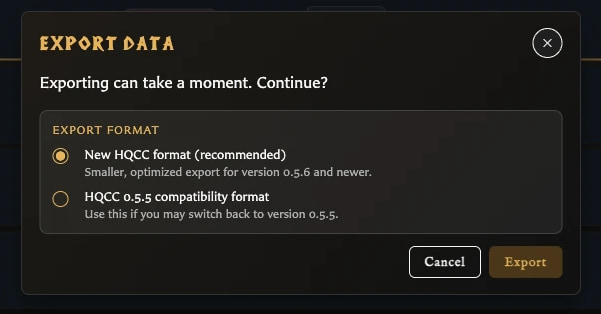
- Choose Export library in the left navigation, or open Settings > Library and choose Export.
- Leave New HQCC format (recommended) selected for current versions.
- Choose Export.
- Wait for Preparing, Exporting data, and Finalizing to finish.
- Keep the downloaded
.hqccfile somewhere safe and outside the app.
Use HQCC 0.5.5 compatibility format only when you may need to return to app version 0.5.5. The current compact format is intended for 0.5.6 and newer and produces a smaller optimized backup.
Restore or import a library
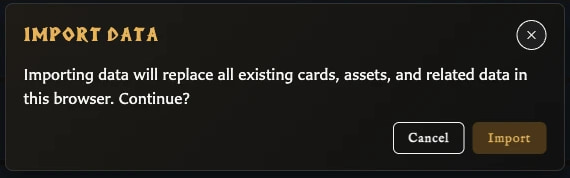
- Export the current library first if anything in it must be preserved.
- Choose Import library, or open Settings > Library and choose Import.
- Read the replacement warning and choose Import.
- Select one
.hqccbackup file. - Wait for validation and restoration to finish before closing the app.
- When the import result window appears, review the reported card, asset, collection, and deck totals.
- Open the main workspaces and confirm that the expected library is present.
The same process can move a library to another browser profile, computer, or installed app copy: export in the source location, transfer the .hqcc file, and import it in the destination.
Important warning
Import replaces all existing cards, assets, and related data in the current browser profile. It is not a merge operation. Exporting first gives you a recovery point if the imported library is incomplete or is the wrong file.
Older backup imports remain supported, but the recommended export format is the current compact .hqcc format.
If an import reports an error after processing has begun, treat the current library as incomplete and restore the safety backup you made before starting. See Fix Backup and Restore Problems.
If you want to empty the current app location rather than restore another backup, use Start a New Library after creating a backup.
When to back up
- Before importing another library.
- Before clearing browser data or changing browser profiles.
- Before a major app upgrade if the library is important.
- After a substantial card, asset, or deck-building session.
- Before testing deletion or large reorganization workflows.
- After uploading or replacing a large batch of artwork.
What a backup does not replace
A backup is not the same as a PNG, ZIP, or PDF card export. It also does not replace keeping the downloaded .hqcc file somewhere safe: a backup left only in the same browser or device is not useful if that local data is cleared or the device fails.
See Understand Backups and Local Data for the complete contents and the preferences that remain local to each app location.
See Protect Your Library and Keep It Small for guidance on browser-managed local data and preparing smaller image assets.
See Use a Downloaded Copy when moving between the hosted app, a directly opened download, and a locally served copy.