Use Advanced Hero and Monster Controls
Hero and Monster cards provide compact controls for ordinary values, unusual values, split statistics, and optional asterisk markers.
Change a stat
Under Stats, use the minus and plus buttons or enter the value directly. Hero cards provide Attack Dice, Defend Dice, Body Points and Mind Points. Monster cards also provide Movement.
Choose the asterisk button beside a number when that value needs a matching asterisk on the card. The marker belongs to that individual number, so a split stat can mark either value separately.
Use a wildcard value
Enter * when a stat should show a wildcard rather than a number. A wildcard cannot also carry an asterisk marker because the wildcard is already displayed as an asterisk.
Show two values for one stat
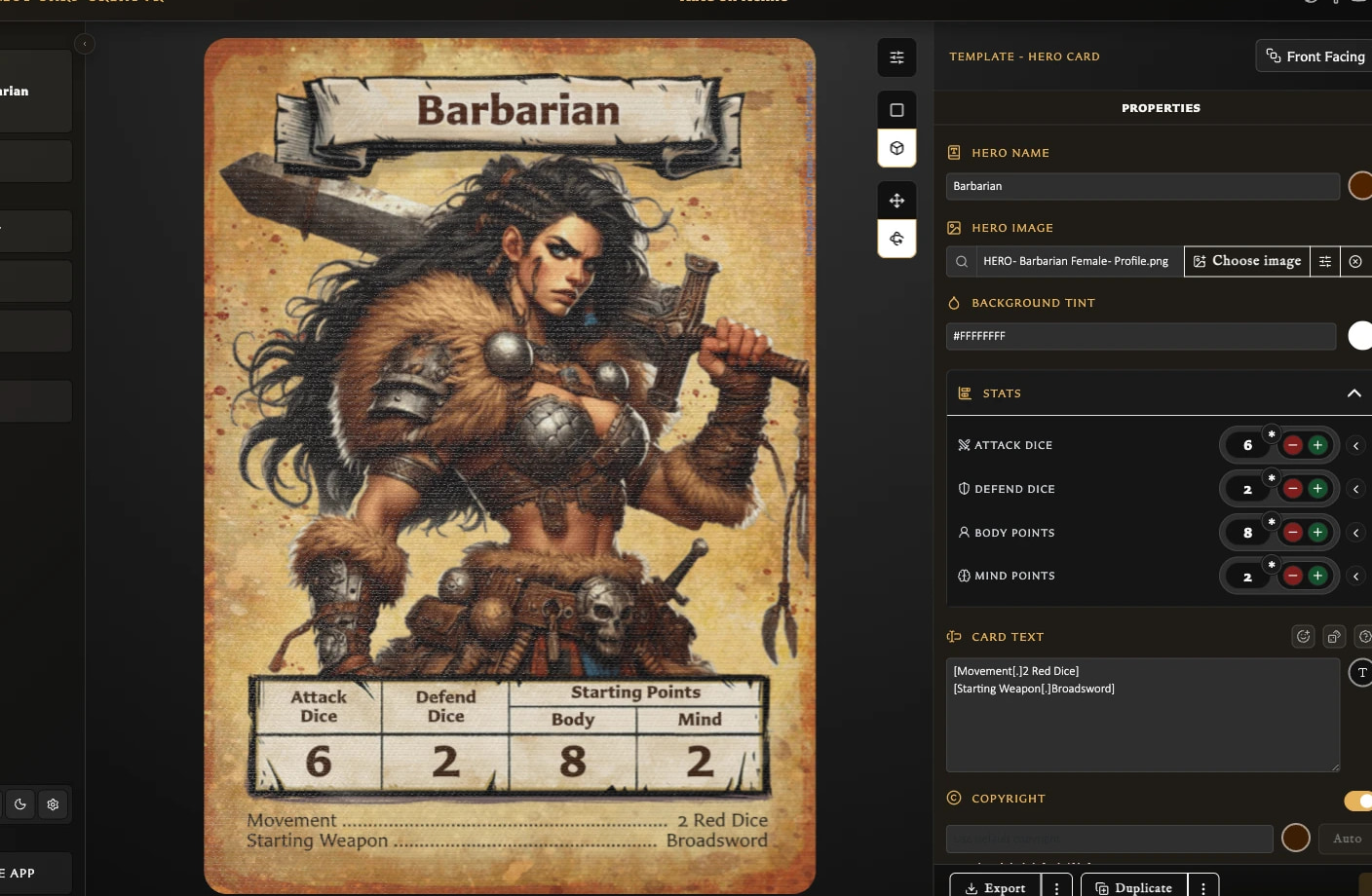
- Choose Add second value beside the stat.
- Set the second number.
- Choose the format between the values:
x / y,x ( y ), or( x ) y. - Add an asterisk to either number if required.
The card preview updates immediately. Remove the second value when the card should return to one number.
Split values are useful when a rule needs two states, such as a normal and enhanced value. The app does not assign a meaning to the two numbers; explain that meaning in the card text when readers need it.
Keep lower text readable over artwork
Hero and Monster main artwork can extend behind the lower card area. When that makes the lower text harder to read, use the image field's Artwork lower clip control to choose where the visible artwork stops.
The clip guide can be adjusted from the image field toolbar or by dragging the horizontal guide on the selected artwork. See Add and Position Artwork for the full artwork workflow.
Choose a Monster icon
Monster cards include a separate Monster icon field. Search by the image filename or open the full asset chooser, select an image, then adjust its horizontal position, vertical position, scale, or rotation as required.
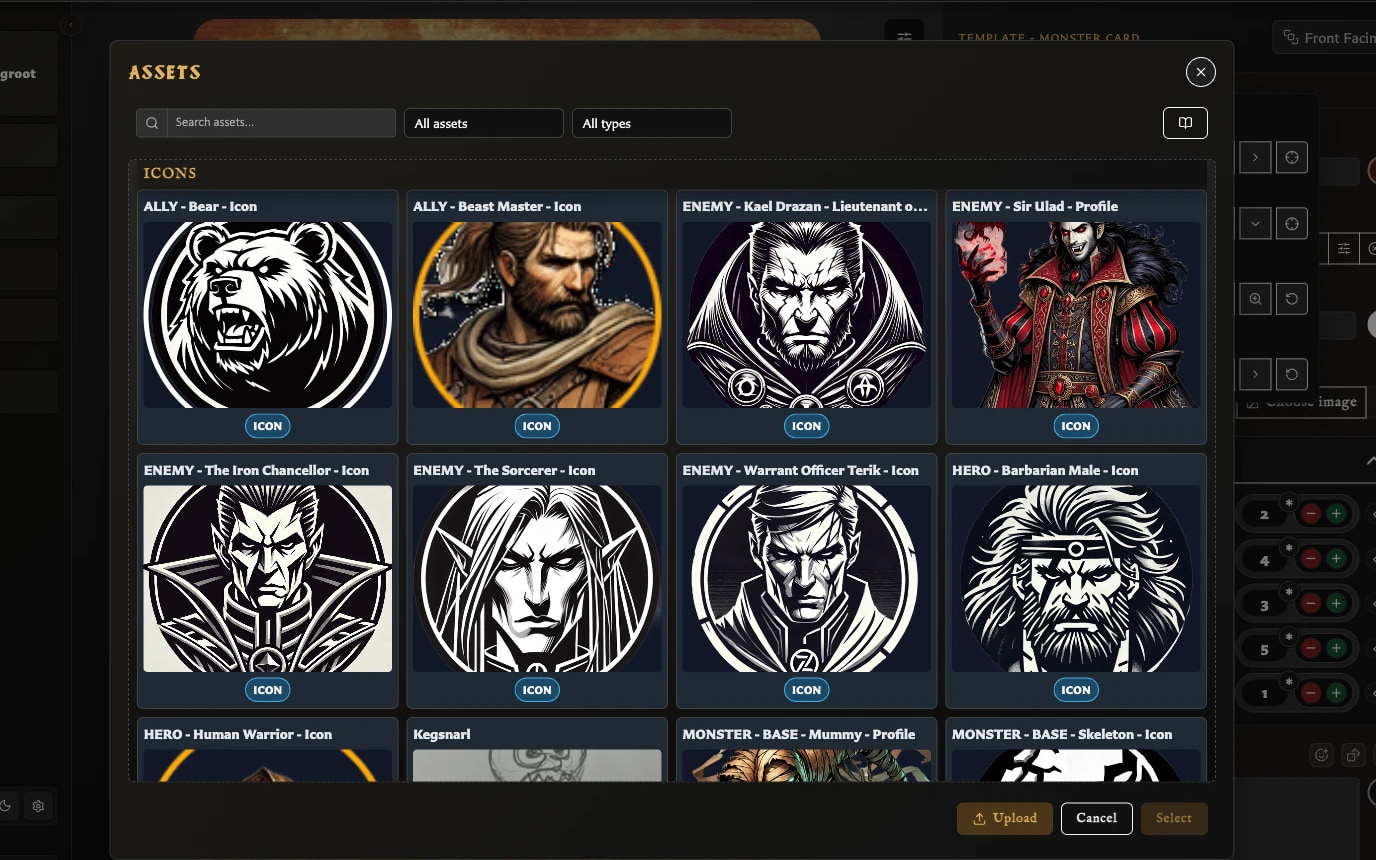
Assets classified as Icon appear before Artwork and unclassified images in the quick results. Classification improves the order; it does not prevent another image type from being selected. Clear the field to remove the icon or use its restore action to return the adjustments to their previous state.
Monster icon framing uses position, scale, and rotation. The lower artwork clip control applies to the main Hero or Monster artwork, not the Monster icon.
For full image framing controls and asset organization, see Add and Position Artwork and Upload and Organize Assets.